
-
What is a vub?
-
What are the vub quality levels available in DeepEditor, and how should I use them?
-
How long does each step in the vub creation process take?
-
How long does it take for a vub to be generated?
-
How do I rename a vub?
-
How do I stop a vub from generating?
-
Can I create an upgrade with original media that is a different aspect ratio from the proxy?
-
Can I upgrade offline draft proxies graded with a LUT with final renders that have been color graded? Or should I only do color grading AFTER upgrading?
-
What happens if I use a different set of training data files when I upgrade my vub?
-
I want to upgrade a draft vub using an older render, not the most recent. How do I do that?
-
How can I tell if my vub is stuck during the upgrade process?
-
What would happen to an in-progress vub, if I accidentally closed the internet tab?
-
My render has a glitch at the edge of the face mesh. Is there anything I can do to fix it?
-
How can I get the best results in DeepEditor?
-
Where does DeepEditor save?
What is a vub?
A "vub" refers to a visual dub or video modification created using assistive AI technology. It is the output you get when you combine Source Media and Driving Data.
Elements like dialogue, facial expressions, or even whole performances can be altered or substituted while preserving a high degree of realism.
What are the vub quality levels available in DeepEditor and how should I use them?
Please read DeepEditor Vub Quality Levels for full details of each vub quality and how to use it.
How long does each step in the vub creation process take?
-
Uploading Source, Driving Data and Training Data (optional) material: On average, it takes less than a minute. The length and size of your files may affect this time.
-
Generate a vub: Generating a vub can take between 1 and 12 hours, depending on the vub quality you selected, the length of the media, and whether you have added training data. If you haven't received a notification e-mail on completion of a vub and things have taken longer than a day, check the queue to see if the vub failed. See Common Issues and Solutions for more information.
-
Download/Review your new file: Your vub will reach your downloads folder in less than a minute for review or conform.
-
Render (in the Refinement tool): Rendering a change to your vub can vary based on the amount of changes and the length of the clip. On average, rendering will take about 1-3 minutes.
How long does it take for a vub to be generated?
This depends on a number of factors, such as the resolution and length of your media and whether you included training data. Here are the average times it currently takes to generate a vub:
|
Quality Level |
Average Time to Generate |
|
Draft |
1-2 hour |
|
Draft with Training |
4-11 hours |
|
Final |
2-4 hours |
|
Final with Training |
4-11 hours |
If you are concerned about how long it is taking for your vub to be generated, please contact us at support@flawless.app.
How do I rename a vub?
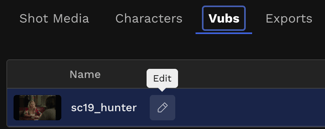
To rename a vub, click on the pencil icon next to the vub name, then type the new name.
How do I stop a vub from generating?
Currently, there is no way to stop the process once you've clicked “Generate Vub”.
Can I create an upgrade with original media that is a different aspect ratio from the proxy?
Yes, this is fully supported and a common workflow. DeepEditor is aspect ratio agnostic, so the aspect ratio of your proxy and your original source media do not need to match.
The upgrade only modifies the pixels within the face region. The surrounding pixels are unaffected, which means the aspect ratio of your original source media is preserved correctly in the final output regardless of the proxy's aspect ratio.
Example: If your proxy was 1920×1080 (16:9) but your original source media is 4096×1716 (2.39:1), the upgrade will work as expected.
Can I upgrade offline draft proxies graded with a LUT with final renders that have been color graded? Or should I only do color grading AFTER upgrading?
Yes, it is possible to upgrade offline draft vubs that have been graded with a LUT, using master media that has been color graded; image fidelity will not be lost.
There are two things that are paramount when working with DeepEditor and color:
-
Correct color space mapping: when source media is uploaded to the product, you must ensure the color space is mapped correctly.
-
Bespoke model generation: whenever a vub is generated for the first time or upgraded, a new bespoke model is created against the source media and selected training data. Image fidelity will be preserved as closely as possible through this process.
With this in mind, it is not a requirement to wait until after upgrading to apply color, both workflows are supported.
What happens if I use a different set of training data files when I upgrade my vub?
If the training data used for the upgrade differs from the training data used for the draft, you can expect changes in image quality (typically an improvement) and possibly slight shifts in lip sync. For this reason, it’s important to review the upgraded vub once it’s complete. All overrides and their keyframes will be preserved.
I want to upgrade a draft vub using an older render, not the most recent. How do I do that?
When you use the “Create Upgraded Version” button in DeepEditor, it will always upgrade from the most recent render. If you want to upgrade an older render, follow these steps:
1. Load the desired older render in the Refinement tool using the 'Load' button.
2. Make an arbitrary change in the Refinement tool (e.g. adding a new keyframe with a value of 0).
3. Hit 'Render changes.'
4. This will bump your 'older render' to the top of the list making it the latest.
5. Create your upgraded version.
How can I tell if my vub is stuck during the upgrade process?
If a vub cannot generate or upgrade properly it will time out and you will receive an email alert that your vub has failed. If a vub is 'In Progress' it is still being created.
The quality level, shot duration, and amount of training data added to a vub can all affect generation times. Here are the average times it currently takes to generate a vub based on the quality setting you select and whether you have uploaded training data.
What would happen to an in-progress vub, if I accidentally closed the internet tab?
Once a vub is in the generation process you can close the internet tab at any time. DeepEditor works in the cloud, so keeping the webpage or Avid Media Composer extension open after starting a vub generation is not necessary. Once your vub has completed you will receive an email alert with a link to your newly created vub (visual dub).
My render has a glitch at the edge of the face mesh. Is there anything I can do to fix it?
In rare cases, you may notice minor visual artifacts in a vub export, such as subtle edge issues around the face mesh. There are two recommended approaches for addressing this, depending on the severity and nature of the artifact.
Option 1: Adjust within the Refinement Session
For very minor artifacts, it can be worth revisiting the refinement session in DeepEditor.
Introducing a small amount of interpolation can allow a hint of the original plate to blend back into the result, which may help smooth fine edge detail or resolve subtle transitions.
This approach is best suited to light, localized artifacts and can often be addressed directly within the product.
Option 2: Use the VFX Turnover Package
If the artifact persists, or if finer pixel-level control is required, we recommend using the VFX turnover package included with final vub outputs.
This package is designed for 2D compositing workflows, most commonly in Nuke, and allows a visual effects artist to perform targeted beauty work, edge cleanup, or pixel-level refinements. This mirrors standard post-production practices and gives teams full control over final image polish.
While DeepEditor delivers high-quality results, no AI-based solution can be considered absolutely pixel-perfect in every scenario. For this reason, we intentionally provide both in-product refinement tools and a professional VFX handoff, ensuring you always have a path to achieve final-frame quality.
If you believe the artifact is unexpected or persistent, please contact support@flawless.app and our team will be happy to investigate further.
How can I get the best results in DeepEditor?
Ensure your footage meets the following conditions:
- Head rotation: We can see both eyes of the speaking character at all times.
- Head tilt: We can see the entire face. No extreme angles.
- Jaw in shot: We can see the entire face. No extreme closeups.
- Facial hair: Clean face to short facial hair. No full beards.
- Occlusions: No objects come in front of the lower half of the face.
- Lighting: All facial features are light enough to be distinguishable.
- Distortion: No unusual appearances (e.g. heavy make-up or non-human).
See Supported Media Formats and How to Prepare Your Media for a Vub for details.
Where does DeepEditor save?
DeepEditor is a cloud-based application hosted on AWS.
For any other issues, please contact us at support@flawless.app.