
Remember to try the Flawless Help chatbot when you have any questions!
Create Shots & Vubs
Media Library
Media statuses and actions
|
Status |
Action |
|
Awaiting Media Shuttle |
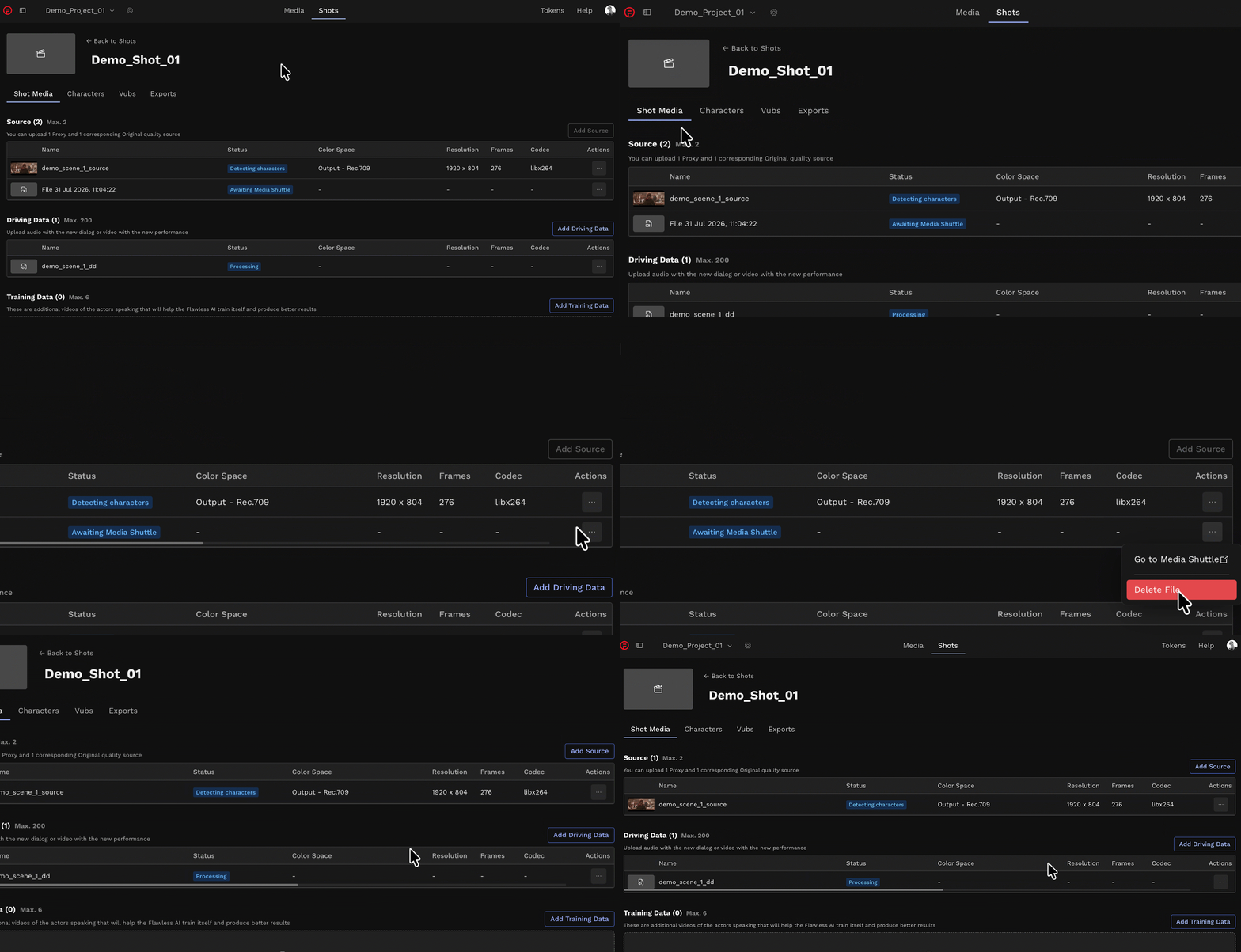
DeepEditor is waiting for files to finish uploading via Media Shuttle. You can proceed with next steps once the upload has completed. If a file within your Shot Media page is stuck in status Awaiting Media Shuttle (which can happen if the upload is interrupted) and you'd like to remove it, follow these steps:
|
|
Needs Action |
This file requires additional settings to be specified before it can be used to create vubs (typically color space and possibly frame rate). |
|
Corrupted File |
This file appears to be corrupted or is an unsupported format. Try uploading the file again, or exporting in a supported format - see the Supported Media Formats. |
|
Corrupted frames |
One or more frames in the image sequence are corrupt and could not be read (note that this may encompass non-continuous frame numbering or invalid characters). Ensure that all frames are valid and try uploading again. |
|
Detecting Characters Failed |
No faces were detected in the video, preventing processing. Ensure a visible face is present, and try again. |
|
Empty frames |
One or more frames in the image sequence are empty (0 bytes). Ensure that all frames are populated and try uploading again. |
|
Invalid filename |
The EXR image sequence filename format is incorrect. Please ensure the files follow the required naming convention:
|
|
Invalid frame numbering |
Frame numbering of your EXRs is missing or inconsistent. Upload a file with the correct frame numbering:
|
|
Mismatched Frame Rate |
The frame rate of the file doesn’t match the frame rate of the Source media. Remove the file from the shot and use a file with the correct frame rate. Make sure the Source media, Driving Data file and Training Data media for a shot all have the same frame rate. |
|
Mismatched metadata |
The image sequence contains inconsistent metadata. Ensure all frames have matching metadata and try uploading it again. |
|
Missing file extension |
The uploaded file (via MediaShuttle) has no file extension, so the media type cannot be determined. Remove and re-upload with a supported file extension (e.g. .mov, .wav, .exr). |
|
No Content Detected |
The media file is missing its primary content (e.g. video file has no video). You may need to recreate your media. Make sure it still meets the Supported Media Formats criteria. |
|
No files found |
No files were found in the selected folder (when uploading via MediaShuttle). Please ensure the folder contains valid media files. |
|
No Performance Detected |
Video does not have any faces in it. Check your media and make sure a face exists. |
|
Not enough frames |
When uploading via MediaShuttle, the image sequence must contain at least 2 frames. Re-upload a sequence with more frames. More information about uploading EXRs is available here. |
|
Processing |
DeepEditor is processing media. Wait until processing has completed to proceed with the next step. |
|
Processing Failed |
An internal error occurred during processing. Remove and try uploading the file again. |
|
Select color space / Select frame rate |
Enter the color space / frame rate for the uploaded media. |
|
Too many files |
When uploading via MediaShuttle, the upload contained multiple top-level items. Please upload a single file or a single folder containing your media files. More information about uploading EXRs is available here. |
|
Unknown error |
An unknown error occurred. Try re-uploading. |
|
Unsupported Color Space |
Review the Supported Color Spaces and make sure your media adheres to the specifications. |
|
Unsupported file type |
If the uploaded file is a video: The extension of this file is not supported. Please upload a Supported Media Format. If the uploaded file is an image sequence: One or more files in the image sequence have unsupported extensions. Please ensure all files use a Supported Media Format. |
|
Unsupported folder structure |
When uploading via MediaShuttle, the uploaded folder should not contain nested subdirectories. All files must be at the top level of the folder. More information about uploading EXRs is available here. |
|
Unsupported Frame Rate |
The frame rate of the file(s) is not supported. Upload media with a supported frame rate. Check the Supported Media Formats to ensure your media adheres to them. |
|
Unsupported Sample Rate |
The sample rate of the file is not supported. Upload a video with a supported sample rate as per the Supported Media Formats. |
|
Upload failed |
Failed to upload media (possible connection issues). Please refresh your browser and try again. |
|
Video Too Long |
The file exceeds the supported length for processing as per the guidance here. Trim your video and upload again. |
I am unable to successfully upload my media
-
Check that your media meets the file format and codec requirements for DeepEditor.
Shot Creation
Shot media statuses and actions
-
If you're adding media directly into your shot, rather than through the Media Library first, refer to the media statuses and actions for the Media Library section above.
Managing Characters
How do I deal with a character that has a reflection?
-
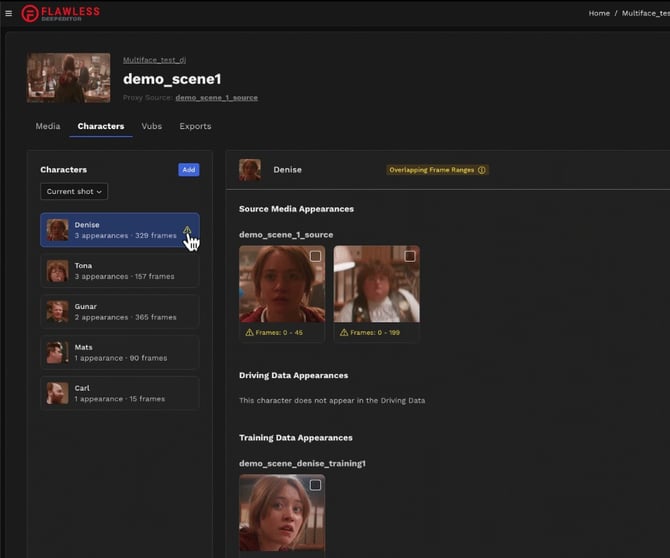
If your character's face appears in multiple places in your shot e.g. if they are reflected in a mirror, then each instance of the face must be vubbed separately. To allow these faces to be vubbed separately, they will need to be identified as a different character to avoid overlapping frame ranges of the character. When DeepEditor detects overlapping frame ranges, you will see an error message prompting you to reassign the appearances causing the error. Select the appearance you want to reassign and move it to a different character or the Unassigned bin.
The character I want to vub has not been detected for all the frames I want to vub
-
If your vub character has not been detected for all the frames you want to vub, firstly check the appearances for all other characters to make sure your character is not incorrectly identified. Also check the Unassigned Appearances.
- If you've determined that the face simply has not been detected, you might be able to counter the lack of a detected face with some basic image manipulation:
- If the shot is too dark, brighten the image to make the face more visible to the tracker. Note that you will need to reverse this brightening on your final vub result to bring it back to normal levels.
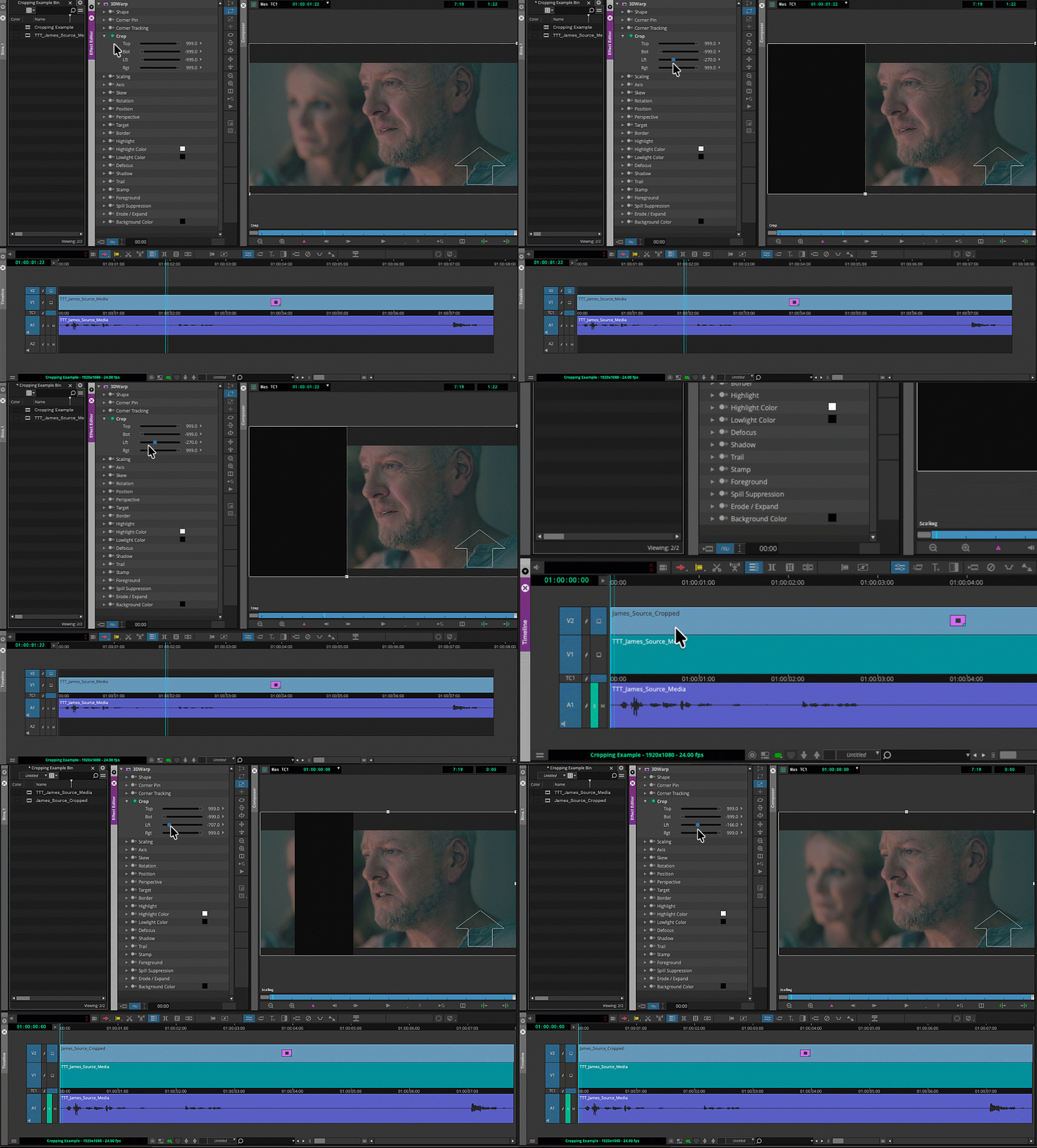
- If there are distracting background elements that might be interfering with the face tracking, crop your Source media around the face (not too tight) while keeping the frame size the same. Once your vub is exported, bring it back into your NLE or compositing tool (e.g. Avid, Premiere Pro, Resolve, or Nuke) place it over the original shot and reapply the cropping.
What do I do if my vub's track is bad?
If the face track looks unstable or the grey face in the Refinement tool moves off the character's face on some frames, try these fixes:
- If there are distracting background elements that might be interfering with the face tracking, crop your Source media around the face (not too tight) while keeping the frame size the same. Once your vub is exported, bring it back into your NLE or compositing tool (e.g. Avid, Premiere Pro, Resolve, or Nuke) place it over the original shot and reapply the cropping.
- If the shot is too dark, brighten the image to make the face more visible to the tracker. Note that you will need to reverse this brightening on your final vub result to bring it back to normal levels.
- If you don't need to vub those specific frames, reduce interpolation to zero for the affected frames. On export, these frames will use the original plate.
Is the mask missing entirely on some frames, rather than shaky or unstable? See The mask isn't showing up on the character for that issue.
The mask isn't showing up on the character - what do I do?
If the grey face mask isn't appearing on some frames, it means the face hasn't been detected on those frames. Here are the most common causes of this issue and what you may be able to do about it:
- The face is too small in the frame to be detected - keeping the frame size the same, increase the size of the face in the frame. Keep track of the % increase you are applying and any changes to position values, so you can reverse them when you bring the completed vub back into your NLE. Once your vub is exported, bring it back into your NLE or compositing tool (e.g. Avid, Premiere Pro, Resolve, or Nuke) place it over the original shot and reverse the changes you applied before running the vub.
To reverse a scale-up after exporting and reimporting, divide 10,000 by the percentage you scaled up to: e.g. if you scaled up the image from 100% to 150%, your calculation will be 10,000/150=66.66, so you will need to scale the reimported image down to 66.7% (round this up to the level your NLE allows).
- The image is too dark - brighten the image to improve face visibility. Note that you will need to reverse this brightening on your final vub result afterwards, so note down the values you are changing.
- The face is too obscured - there is no action you can take before creating the vub to address this, so you are unlikely to get a good result.
- The face is turned too far away from the camera - there is no action you can take before creating the vub to address this, so you are unlikely to get a good result.
Is the grey face mask appearing, but looking unstable or shaky instead of missing? See What do I do if my vub's track is bad? for that issue.
Still stuck? Contact us at support@flawless.app.
Creating a Vub
I just created a vub, but I can't see it in the Vubs tab
- If you just created a vub, but can't see it in the Vubs tab, refresh your browser and you will be able to see it and its current status.
- If you can't see the vub and no token was deducted, then the vub creation has not been triggered and you should try creating it again.
I receive a 'No Token' error even though I have a token left
- If there are multiple users in your workspace and another user triggered a vub just before you, the token you believe you have may have been consumed. Refresh your browser and check your token balance.
My vub failed, what do I do?
- If your vub failed, the most likely cause is a system issue that should have already been alerted to the Flawless team. Your failed vub will not have cost you any tokens, so please try again. In the event of a second failure, please contact support.
I have artifacts / glitches in my rendered face
- Image artifacts may be the result of a number of things such as tracking errors, insufficient data for the system to learn from, or refinement overrides that created unnatural/unseen expressions. Lowering the interpolation value in the affected area typically improves or resolves the issue because it brings the facial expression closer to the original expression.
- If there is very little range of facial expression in the Source media, consider adding Training Data to increase the robustness of the renderer
- Be aware that any unresolved artifacts / glitches can be cleaned up at the Final Quality finishing stage by using the VFX Turnover Package.
I have a black 'bleed' from the letterbox in my rendered face
- If you have vubbed a face using Source media that is letterboxed, and the face is breaking frame vertically, the render can occasionally experience a 'bleed' of the black of the letterbox into the render. The best solution to this is to crop your Source media to remove the letterbox, and re-vub with that cropped media.
I am unhappy with the lip sync of my vub
-
If you're unhappy with the lip sync of your vub, please firstly check that your Source media and Driving Data met the requirements for 'good' data.
- If you would like to refine the lip sync of your vub, use the Refinement tool to do so.
My vub has unwanted mouth movements in it
-
If you have unwanted mouth movements in your vub, please firstly check that your Source media and Driving Data met the requirements for 'good' data.
- Removal of unwanted mouth movements can typically use one of two methods:
- reducing interpolation to use more of the original plate
- reducing scale to neutralise the movement.
My vub appears to jump to another face that crosses my character
-
If two faces cross each other in the shot (known as the 'kissing' problem) and the vub jumps to the other face, the best solution is to crop the other face out in the Source media prior to uploading.
The audio doesn't line up in my vub where I expected it to
-
If the audio in your vub is occurring at an unexpected place, the most likely cause is incorrect Driving Data. The first frame of the Driving Data must always line up with the first frame of picture in the Source media.
Export and Download
Exporting your Vub
How long does an export take?
-
The time it takes for an export to complete is dependent on a number of factors - primarily resolution, duration and face size. As an estimation, once a vub is rendered, the exporting stage would typically take approximately 10 minutes for a 125 frame shot. The duration is not a direct relationship (i.e. 250 frames would not take 20 minutes) - a 500 frame shot would take approximately 15 minutes.
Downloading a Vub
Where do my exports go when I download them?
-
The target location of downloaded files depends on whether they are downloaded via the web app, MediaShuttle, or via the Avid Extension. For full details see the Downloading your Vub guide.
I can't download my vub without a watermark
-
If the option to download your export without a watermark is unavailable, this is because the project settings have consent as being required for this vub quality. Speak to your Rights Clearance Manager for the project to either acquire consent or adjust the settings if incorrect. See also the guidance on Downloading your Vub for information regarding consent requests.
Contacting Support
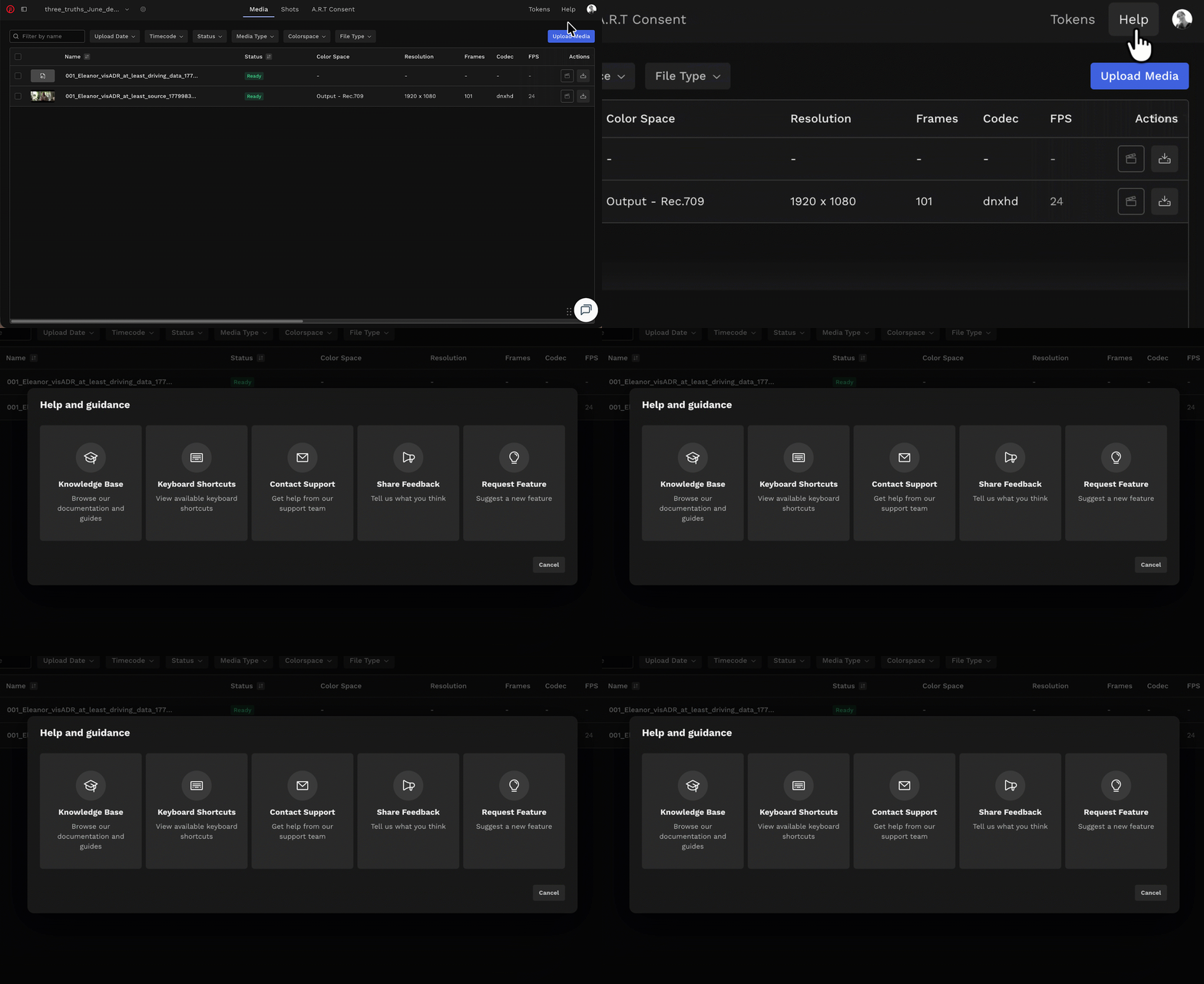
If you require assistance, the first place to try is the Flawless Help chatbot. It is available 24/7 to help you - you can find it in the bottom right of your screen inside the DeepEditor web app and in our Knowledge Base.
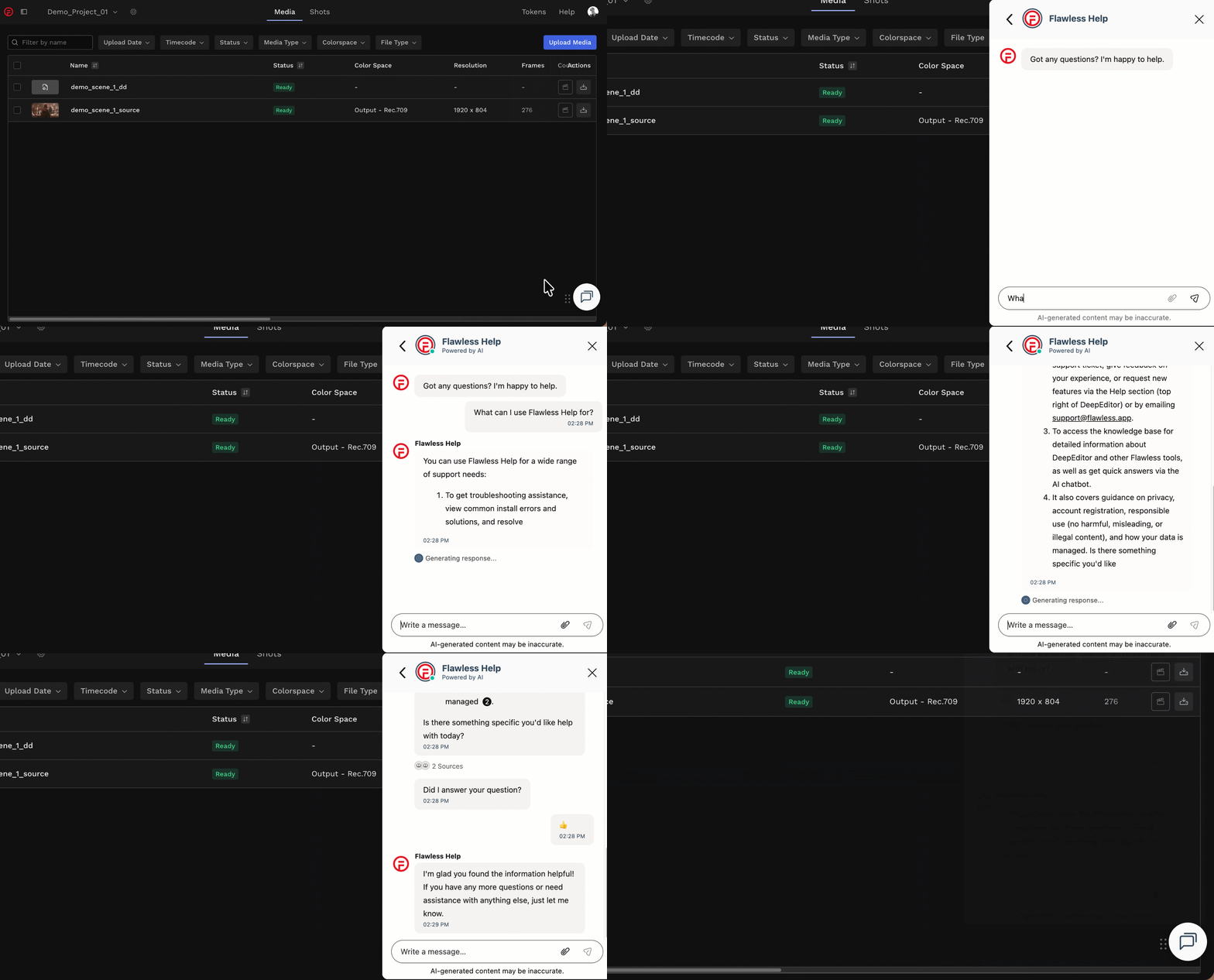
If the chatbot can't resolve your query, click Help in the top-right corner of DeepEditor to access the following options:
- Knowledge Base — search articles and try the Flawless Help chatbot again
- Keyboard Shortcuts - a full list of the keyboard shortcuts for the Refinement tool
- Contact Support — raise a Flawless Support ticket
- Share Feedback — share your experience of the product
- Request Feature — suggest ideas for new features
-
You can also email support@flawless.app directly at any time.