
-
Who is the Rights Clearance Manager (RCM)?
-
Accepting a Role Invitation
-
Inviting Additional RCMs
-
Configure Consent Requirements by Vub Quality
-
Action a Clearance Review
-
How to Complete the Consent Form
-
Requesting a Rights Holder Review
-
How to Handle Declines or Override a Consent Review
Who is the Rights Clearance Manager (RCM)?
The Rights Clearance Manager (RCM) is the person responsible for gathering all necessary consent from artists in relation to vubs. This could be a producer, a post production supervisor, or similar, depending on the production. It is their responsibility to:
-
Review Consent Requests: You will receive requests from project users seeking permission to download a vub export without a watermark.
-
Requesting Artist Consent: If the rights/consent aren't already in place, you can send a consent request to the appropriate rights holder. This could be the actor, their agent, or another stakeholder.
-
Approving or Rejecting Requests: Once consent is verified or obtained, you can approve or reject the consent request as needed. If you approve the request, the export will become available without a watermark to all users in the project.
-
Override Outcomes: You can change the clearance outcome if you so wish.
Accepting a Role Invitation
If someone has nominated you as a Rights Clearance Manager:
-
Check your email for the invite.
-
Click the link to go to Project > Settings
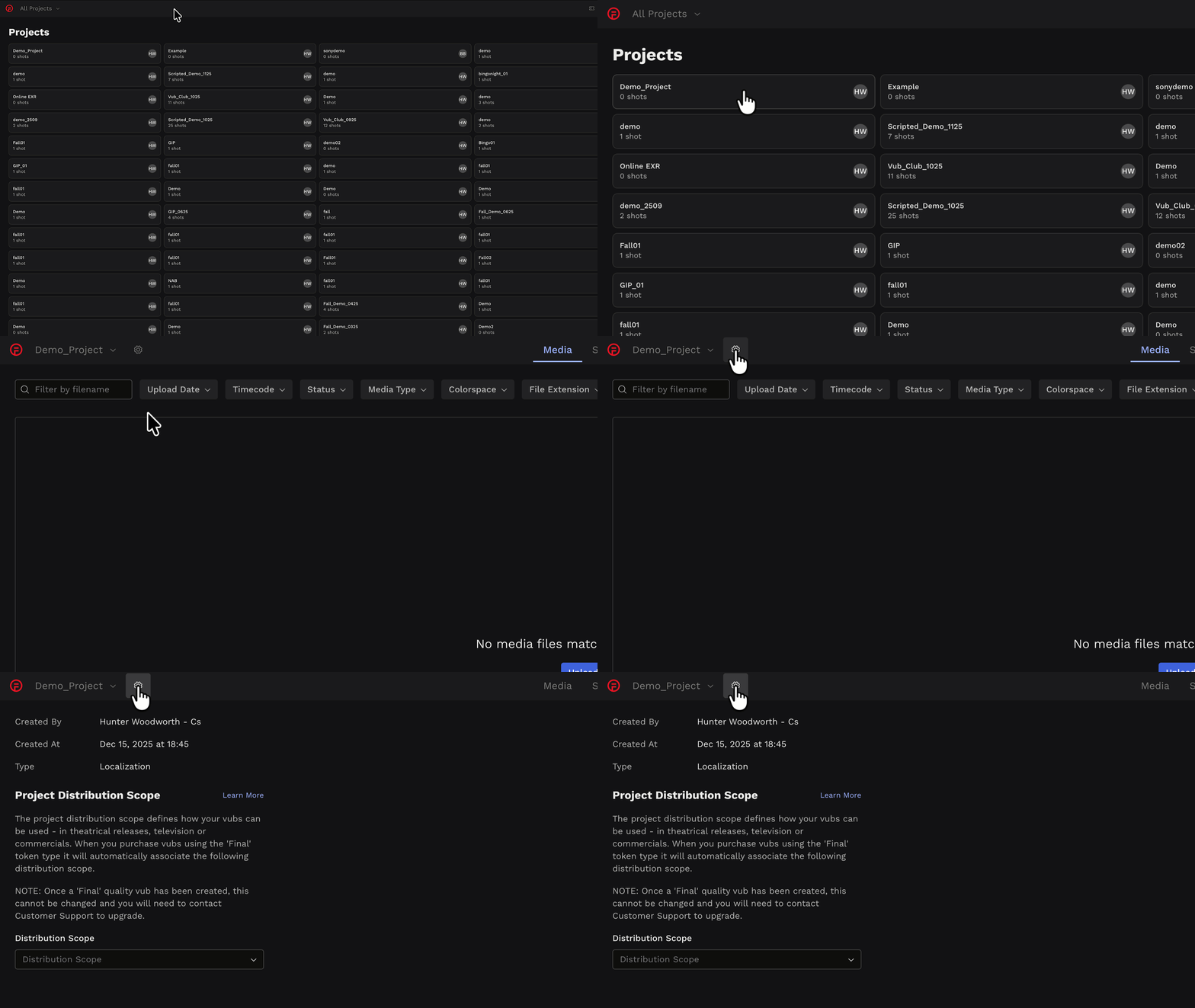
- Accept the role by clicking on Accept Role.
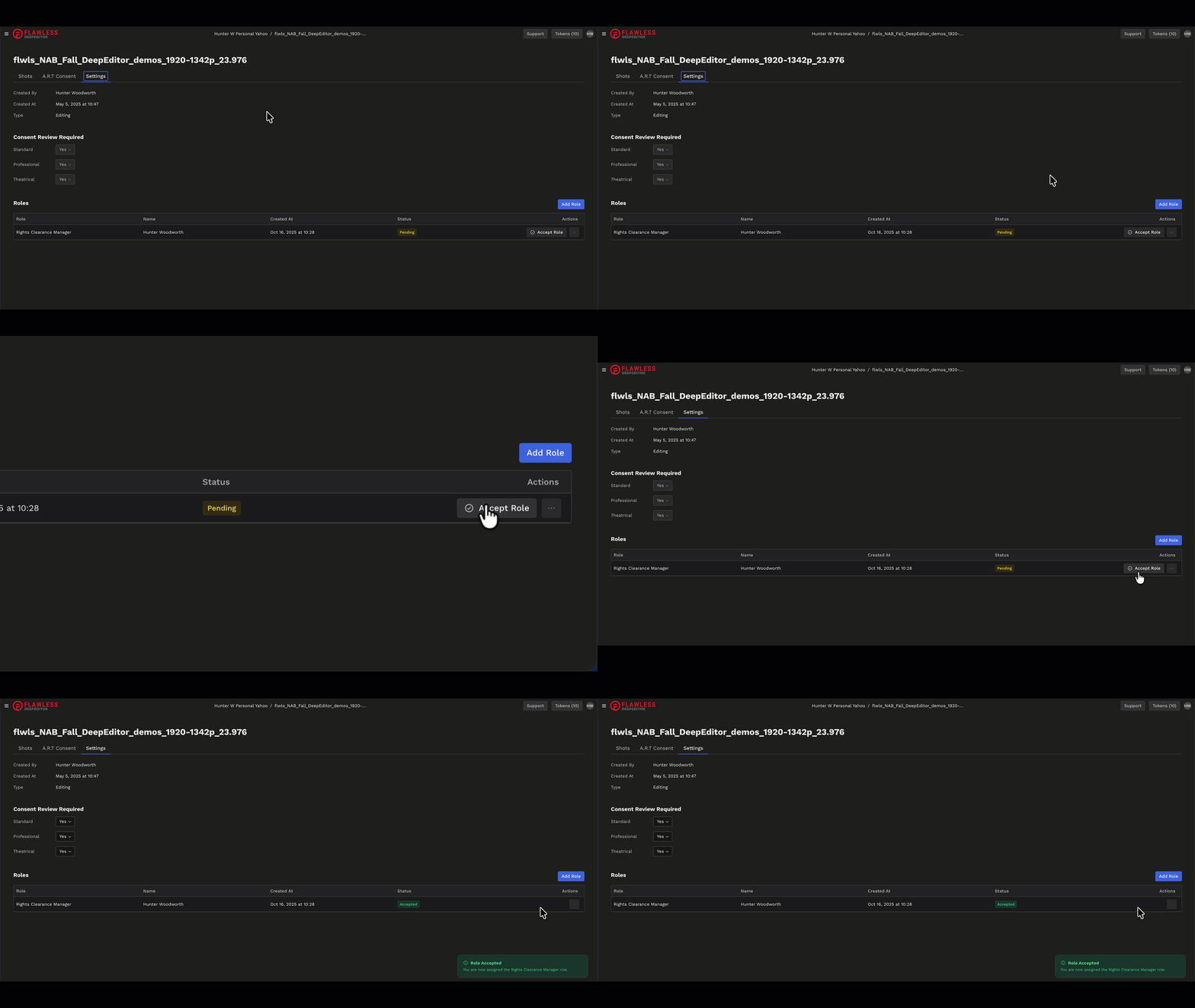
- The person who invited you will be notified that you have accepted.
Now, as a Rights Clearance Manager, you will get an email about any requests from end users to download a vub without a watermark.
Inviting Additional RCMs
You can add more Rights Clearance Managers at any time:
-
Go to the Project Settings in the top-left of the project page.
-
Scroll down to Roles and click Add Role.
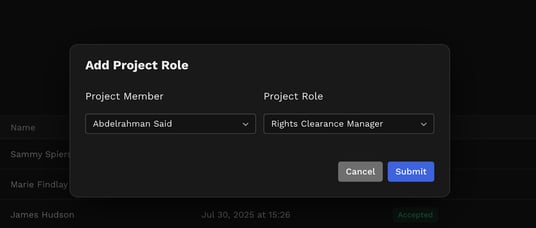
-
The invited user will receive an email invite to accept the role, which they can do from the Settings tab.

Configuring Consent Requirements by Vub Quality
Rights Clearance Managers can define which vub qualities require consent review.
-
To do this, go to the Project Settings in the top left of the project page.

-
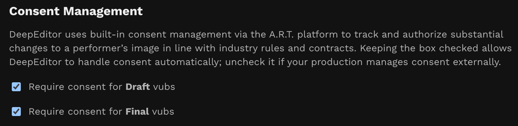
Under Consent Management you will see check boxes against the consent settings for Draft and Final vubs.
-
Keep the box checked to manage consent within DeepEditor.
-
Uncheck the box if your production manages consent externally
If the project type is Editing, consent is enabled by default for both Draft and Final vubs.
-
Changes only apply to new exports created after the update.
-
All projects created in the DeepEditor Avid Extension default to the Editing project type.
-
Consent updates are logged in the A.R.T Ledger.
Action a Clearance Review
When an end user requests to download a vub without a watermark, you’ll receive a notification email with a link to the Clearance Review.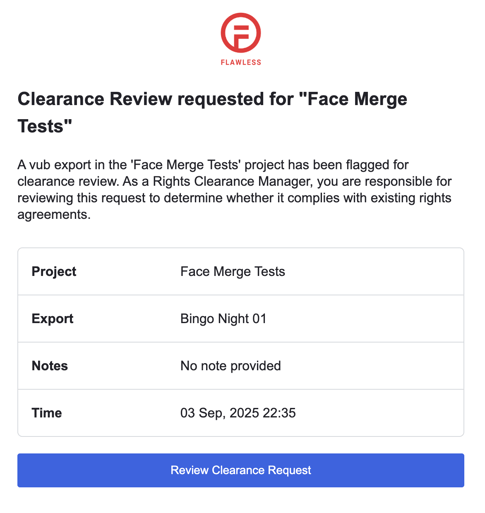
Alternatively, you can access the Clearance Review page in DeepEditor:
-
Open DeepEditor and navigate to the project that needs shot(s) reviewed.
-
Navigate to the A.R.T. Consent tab:
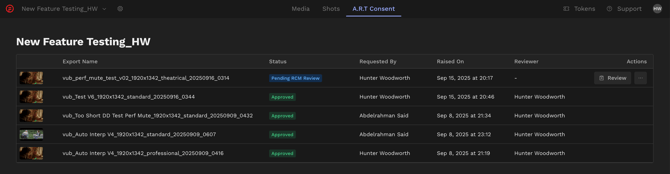
-
Click Review:
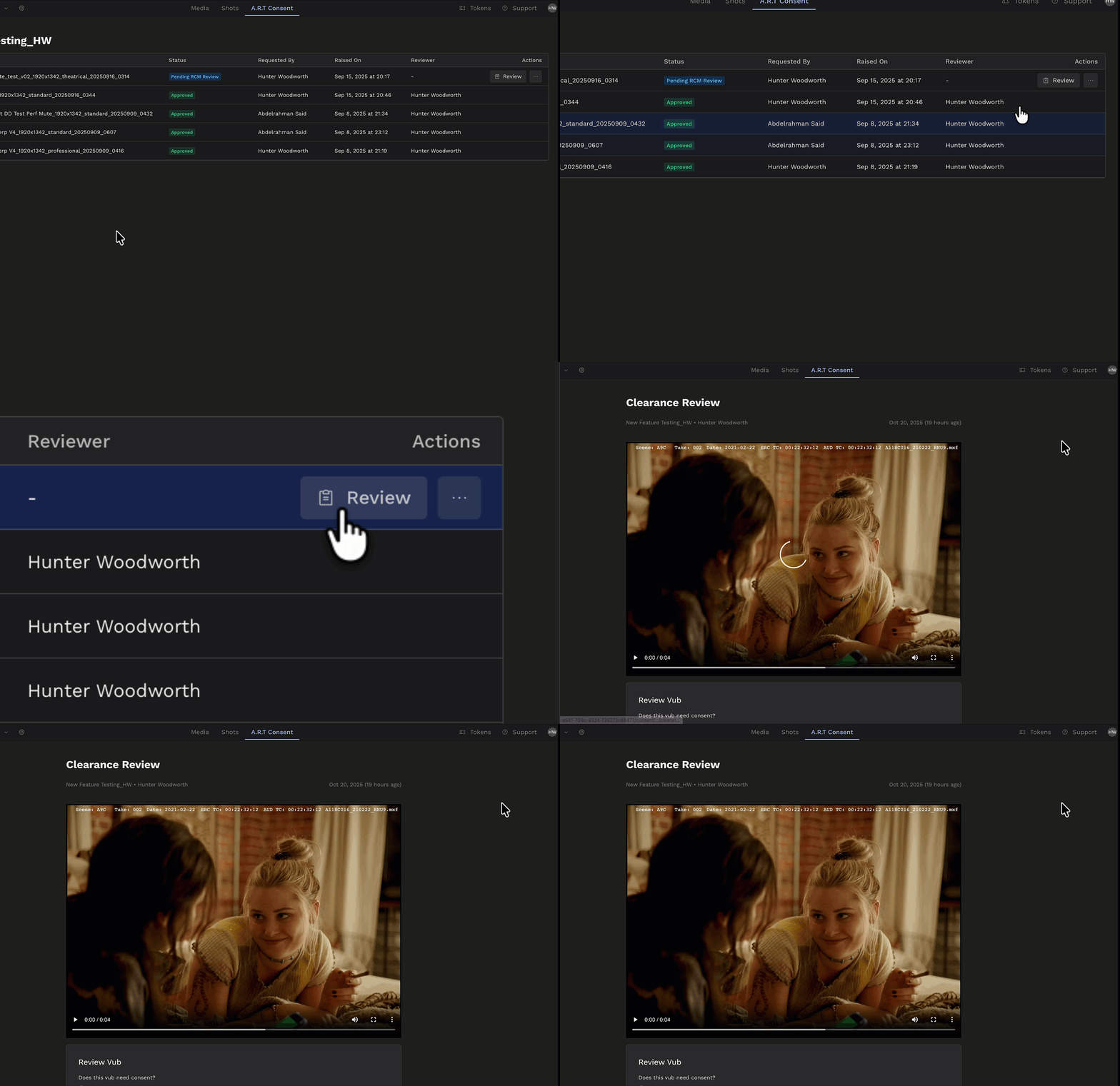
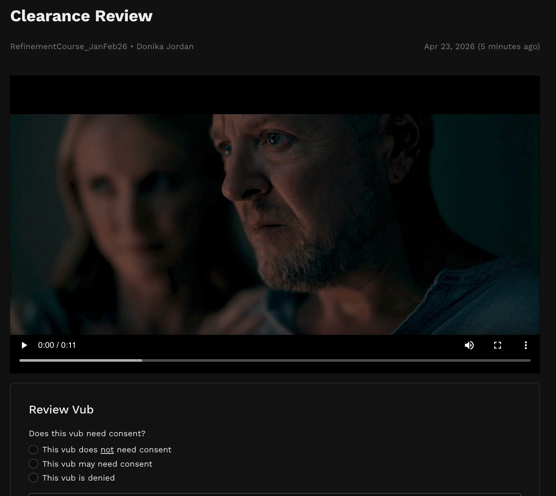
How to Complete the Consent Form
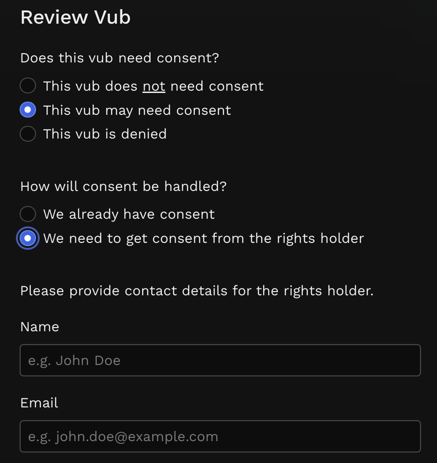
The options you will see in the consent form are:
This vub does not need consent
-
Choose this to automatically allow the requester to download the vub without a watermark, e.g. if this is a Draft quality vub that you want for a screening, but it's not the Final version you'd like to show the talent.
This vub may need consent
-
Choose this to proceed to the next question: 'How will consent be handled?'.
We already have consent
-
Choose this if you obtained consent from the Rights Holder outside of DeepEditor, e.g. through a written contract.
We need to get consent from the Rights Holder
-
Choose this to send a request for approval to the Rights Holder (i.e. the artist).
This vub is denied
-
Choose if this vub should not be downloaded without a watermark.
Requesting a Rights Holder Review
If you need final sign-off from the Rights Holder:
- Choose Request Rights Holder Review.
- Enter the Rights Holder’s email address.
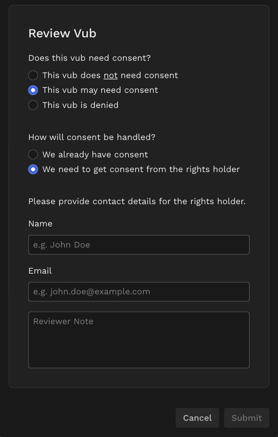
They will receive a secure email to access the consent platform, review and submit their decision.
How to Handle Declines or Override a Consent Review
If a consent request is declined:
- You will receive an email notifying you of the decline.
- The Consent column will show Rejected.
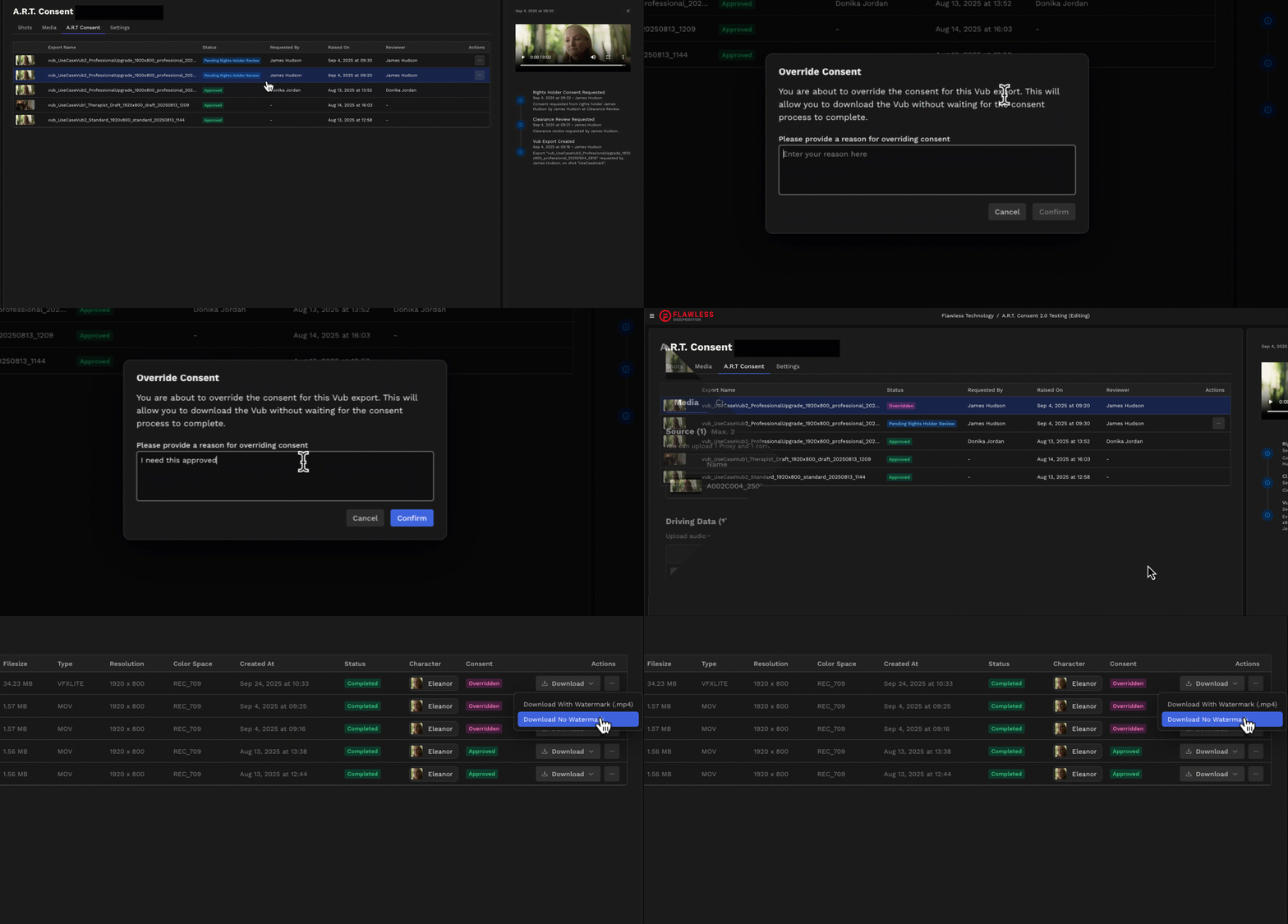
In case you need to bypass consent, you can override a consent review:
- Go to Project > A.R.T Consent.
- Click the ... menu next to the request.
- Select Override to enable immediate download without approval. You will then find your file available to download on the Exports page.
- The override will be tracked in the A.R.T ledger on the A.R.T Consent page.
Read next: A.R.T. for Rights Holders