
Remember to try the Flawless Help chatbot when you have any questions!
Create Shots & Vubs
What is a vub?
-
See here for a definition of a vub.
What are the vub quality levels available and how should I use them?
-
Please read about the DeepEditor vub quality levels here.
How do I delete media?
-
Media files cannot currently be deleted from the Media Library. However, if you have added media to a shot and no vubs have been created using that media, then they can be removed from the context of the shot.
Does DeepEditor support interlaced media?
-
No - DeepEditor does not support interlaced media directly - all media will be treated as progressive.
What media formats does DeepEditor support?
-
Full details of supported media formats and color spaces can be found below:
Should I upload my media before or after color grading / applying a LUT?
-
Media can be uploaded to DeepEditor before or after color grading or applying a LUT. The important consideration is that the color of your vub export will be baked in and so can not be undone. Uploading ungraded media retains the flexibility to apply color grades or LUTs to the vub export.
Does the audio in the Source media affect my vub?
-
No. The audio in the Source media will not affect the lip sync / performance of the vub. Only the Driving Data will influence your vub. The Source media audio is useful solely as a reference, if desired, when doing lip sync refinement.
What happens if my Driving Data is shorter or longer than my Source media?
-
If the Driving Data is longer than your Source media, DeepEditor will truncate your Driving Data so it ends at the same frame as the Source media.
-
If the Driving Data is shorter than your Source media, DeepEditor will effectively add silent audio padding up to the last frame of your Source media.
What is the difference between using Video Driving Data and Audio Driving Data?
- See here for an explanation.
Does Training Data need to be the same resolution as the Source media?
-
No, Training Data does not need to match the resolution, nor the file format (color, codec, etc) of the Source media. When upgrading your vub to Final quality, you should however be looking to use full quality Training Data rather than proxy media that may have been used in the Draft vub. See here for more information.
DeepEditor works by detecting, tracking, and analysing the face region of a performer, rather than the full frame. Because of this, the overall image resolution of the training data does not need to be identical to the source.
How much Training Data can I upload?
-
Currently, you can upload up to 6 video files of Training Data of which you can select up to 5000 frames to be used towards training. See here for full guidance.
How do I stop a vub from being generated after triggering it?
- Currently there is no way to stop a vub being generated once it is triggered.
How long will my vub take to be created?
-
Vub creation: Creating the initial vub will take approximately 1 hour for an average duration shot (approximately 5 seconds). This time may vary according to shot duration, presence of Training Data, or shot complexity. If you haven't received an email notification of completion after 6 hours, contact support.
-
Rendering (in the Refinement tool): Rendering a change to your vub can vary based on the number of changed frames requiring re-rendering. The first render after vub completion will also take a fraction longer, but typically you should expect between 20 seconds and a couple of minutes.
What would happen to an in-progress vub, if I closed my browser?
-
Once a vub has been triggered, you can close your browser at any time. DeepEditor works in the cloud, so it's not necessary to keep the web page (or the Avid Extension) open after starting a vub creation. Once your vub has completed you will receive an email alert with a link to your newly created vub.
How do I rename a vub?
-
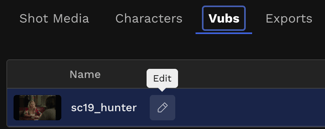
To rename a vub - or a shot - or a media library file, click on the pencil icon next to the name.
I vubbed ungraded Source media, how do I make it look like my offline media color?
-
If you have used ungraded Source media for your vub but want to cut it into your offline media timeline with a matching grade or LUT, you can either:
-
apply the matching grade or LUT to your vub media using a tool like Davinci Resolve, or:
- apply an approximate match grade in Avid / Premiere Pro using the in-tool color matching functionality.
-
How can I get the best results in DeepEditor?
-
see the guidance on what makes good Source media and Driving Data in the Prepare Your Media section of the Knowledge Base.
Can a model trained for one shot be re-used for another shot?
-
Within DeepEditor It is not currently possible to re-use a model trained for one shot on a different shot. However, new vubs created within a shot that use the same Source media and Training Data combination as an existing vub (i.e. when you are just changing the Driving Data) will re-use the model from the existing vub. This will result in a faster vub creation process.
Where does DeepEditor store media?
-
DeepEditor is a cloud-based application hosted on AWS and upholds the highest data security standards.
Does Flawless train their models using my uploaded footage?
-
No - Flawless does not use customer data to train models outside of the scope of your project. See here for more information.
Export and Download
Exporting your Vub
How can I change the codec of my vub export?
-
You cannot currently change the codec of a vub export within DeepEditor. After your vub is downloaded you can use a third-party application such as Davinci Resolve to transcode your file.
Downloading a Vub
[question]
-
[answer]
Contacting Support
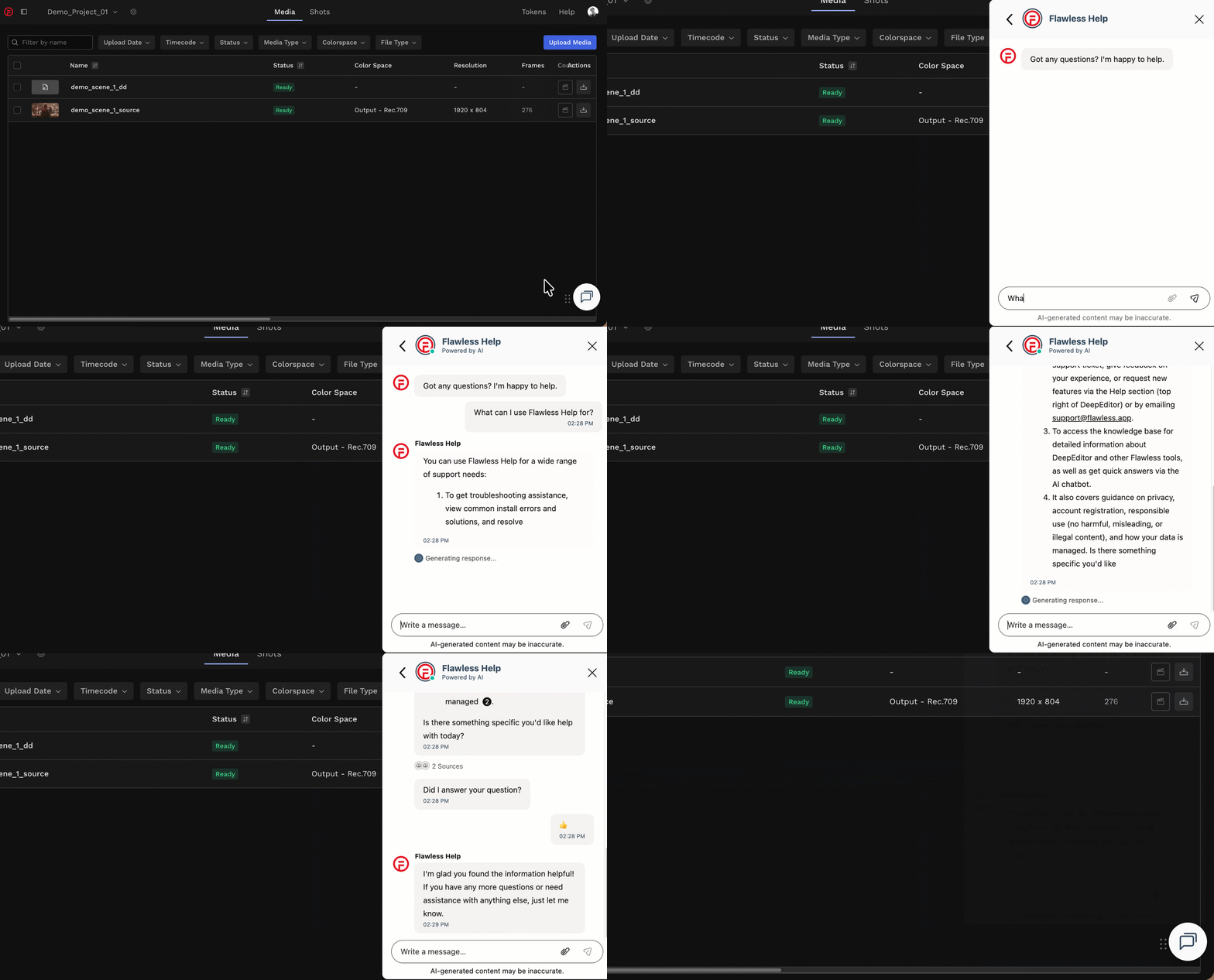
If you require assistance, the first place to try is the Flawless Help chatbot. It is available 24/7 to help you - you can find it in the bottom right of your screen inside the DeepEditor web app and in our Knowledge Base.
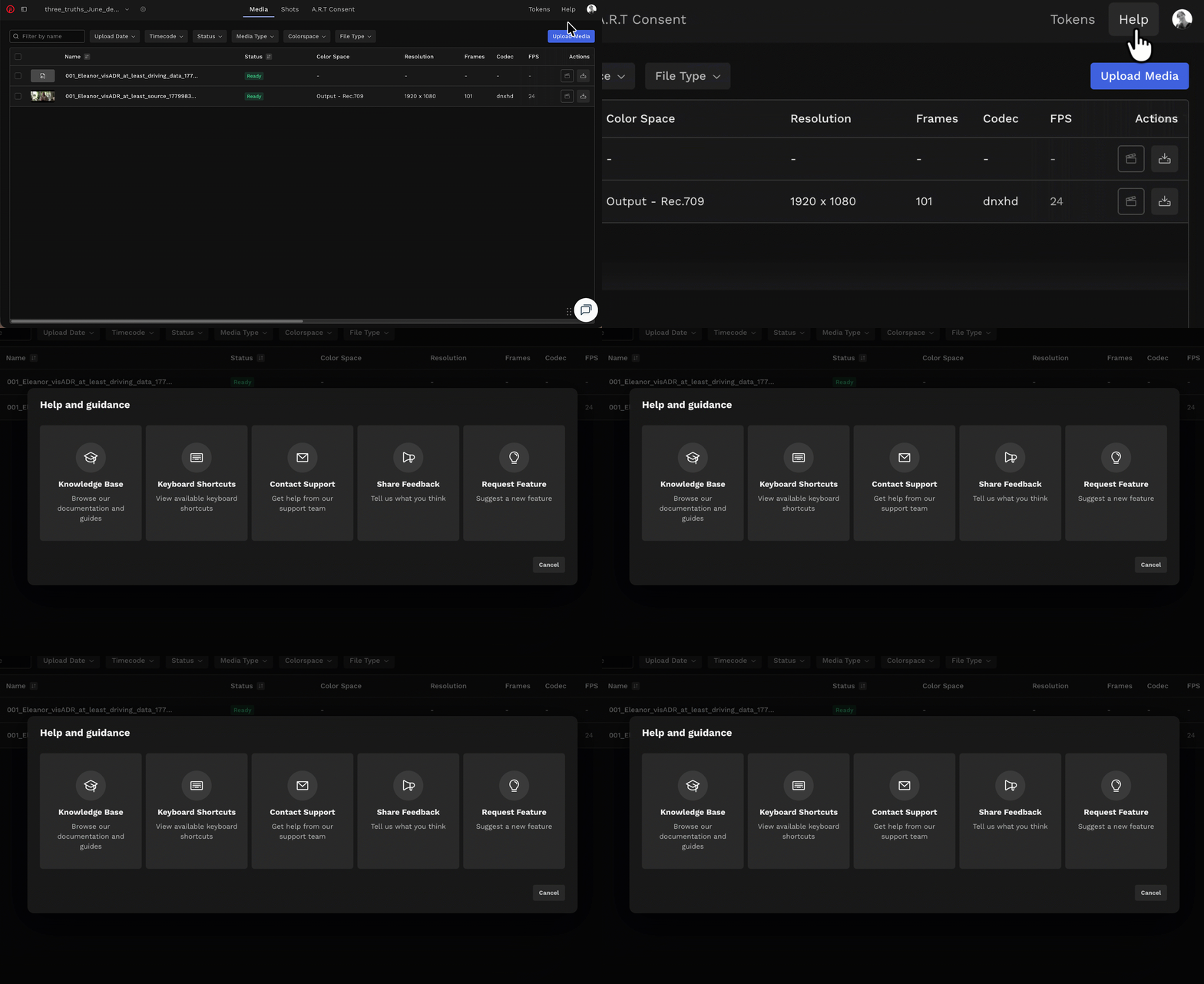
If the chatbot can't resolve your query, click Help in the top-right corner of DeepEditor to access the following options:
- Knowledge Base — search articles and try the Flawless Help chatbot again
- Keyboard Shortcuts - a full list of the keyboard shortcuts for the Refinement tool
- Contact Support — raise a Flawless Support ticket
- Share Feedback — share your experience of the product
- Request Feature — suggest ideas for new features
-
You can also email support@flawless.app directly at any time.