
Overview
Shots are created directly from the video media you uploaded to the Media Library.
A shot can be viewed as a 'container' where you pair your original performance in the Source media with a new performance in the Driving Data. You can, if needed, also add Training Data.
How to create a shot

If you're using the Flawless DeepEditor Avid Extension, create shots and vubs using the guidance here. Use the instructions below if you are vubbing through the web app.
From your Media Library, select any video clip you want to use as Source media and click Create Shot.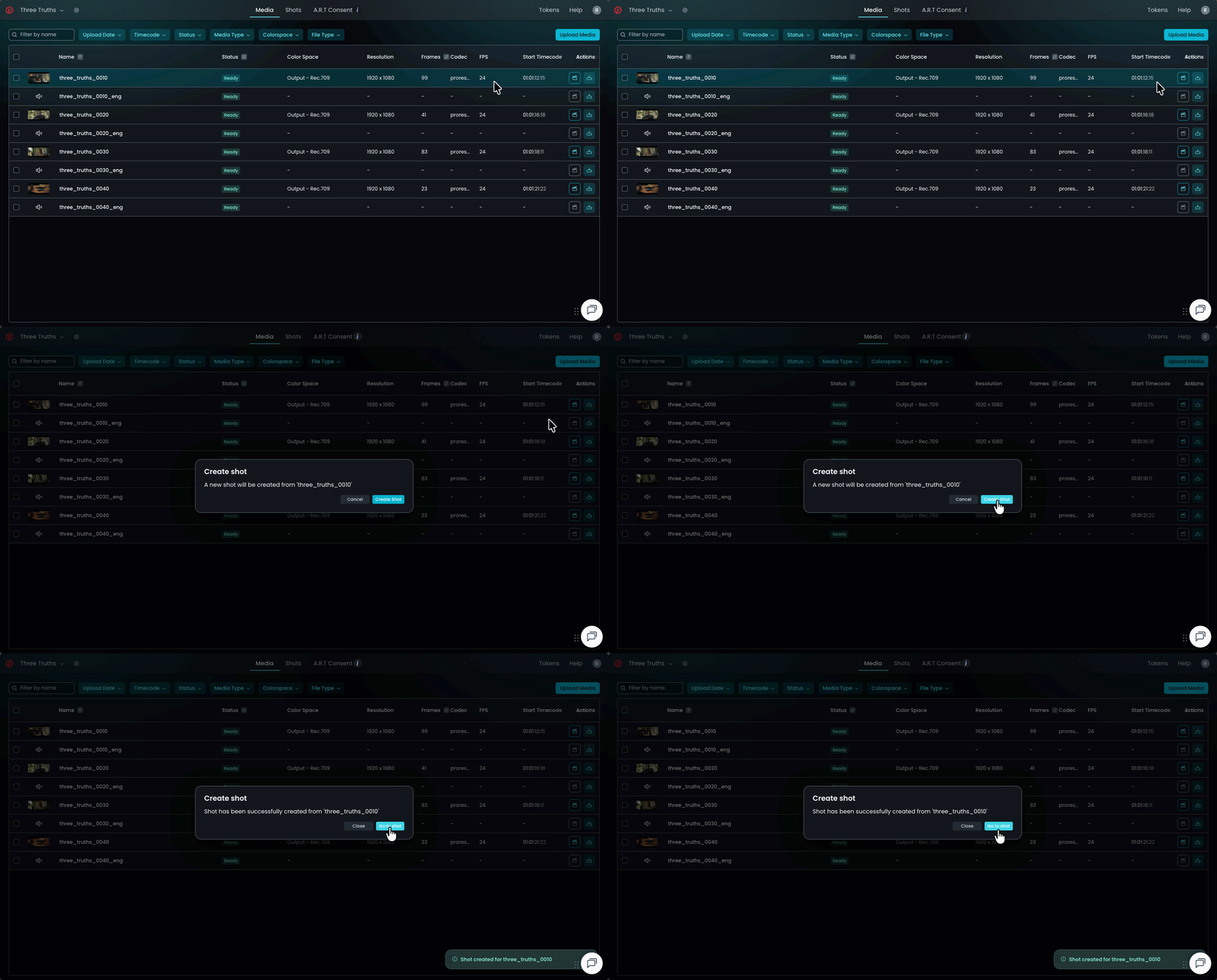
To create multiple shots at once, select several video files and click Create [n] shots. DeepEditor will then create one shot per selected file.
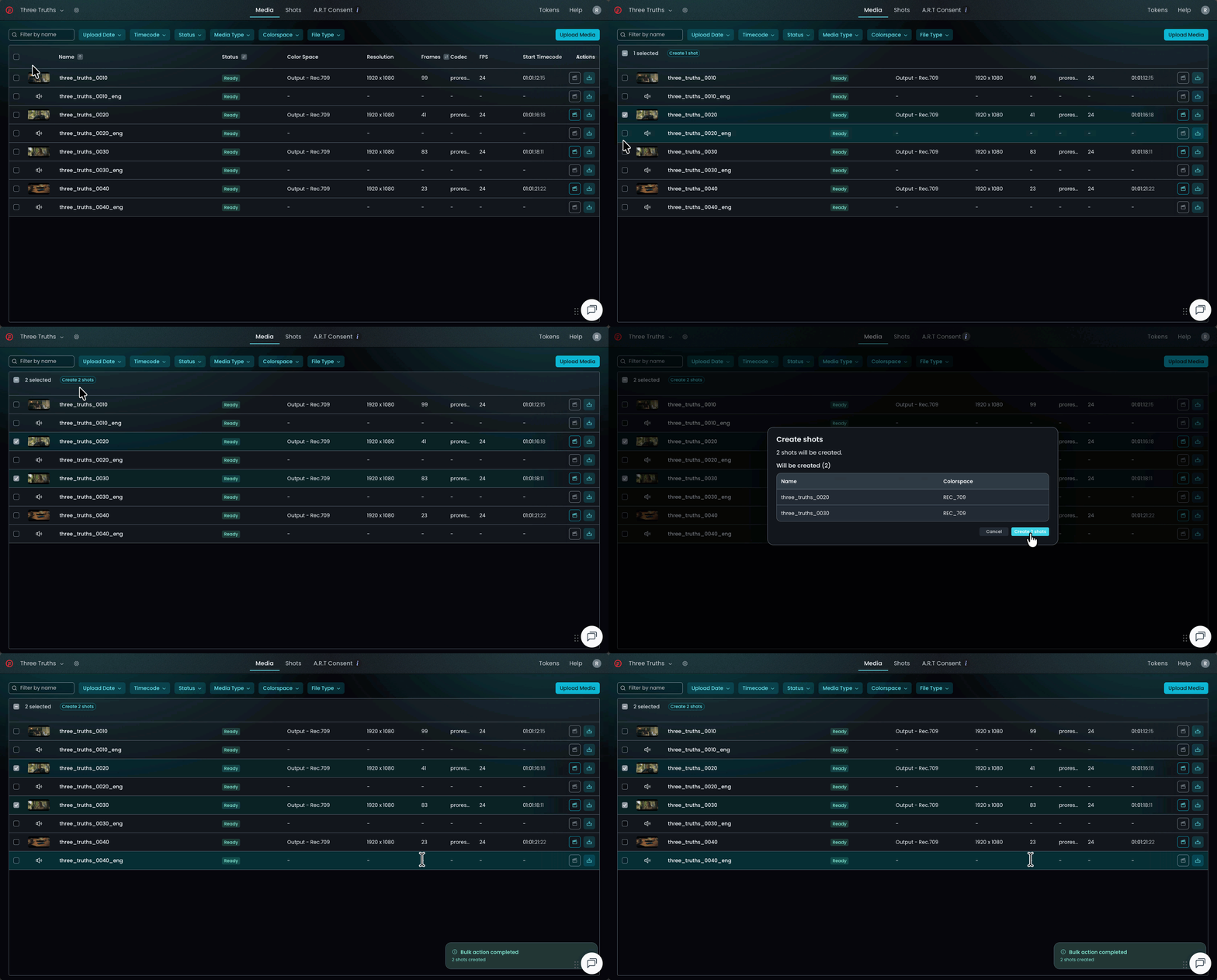
Do not select your Source media, Driving Data and Training Data together when creating shots - doing so will create multiple shots, with your Driving Data / Training Data files used as Source media in separate shots.
Naming a shot
By default, each new shot inherits the name of its Source media. You can rename your shot at any time to match your preferred naming convention by clicking on the pencil icon next to the shot name.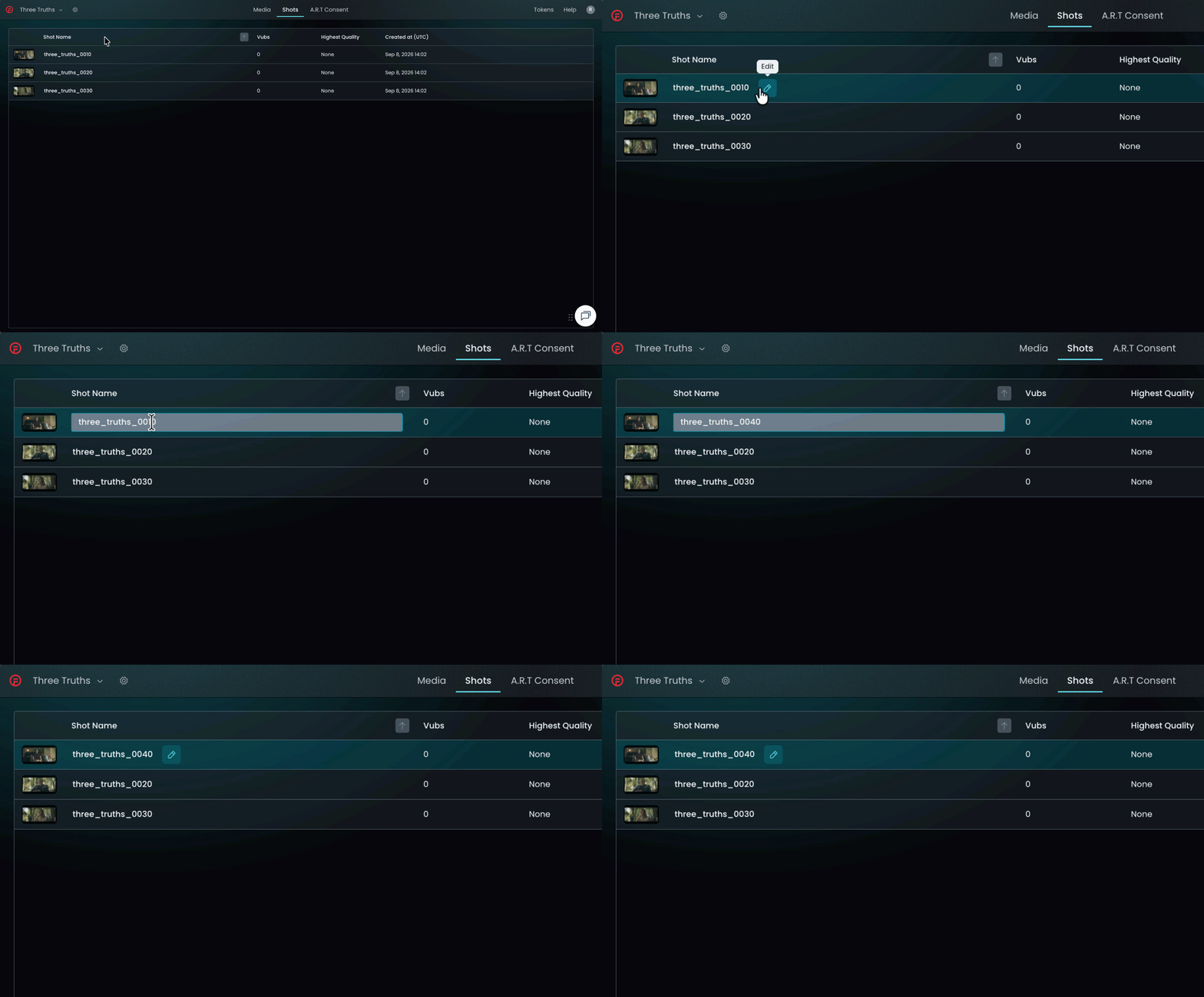
Adding Driving Data / Training Data
Once your shot is created, go the Shots tab. Here you can add Driving Data and Training Data (if needed) to the shot by clicking the relevant Add to button. You can add these:
- From your library - choose this for files already uploaded to the Media Library.
- From your computer - choose this for files stored on a local folder (uploads will be added to the Media Library).
- Via Media Shuttle - choose this for EXR image sequences or larger files (> 1 GB) (uploads will be added to the Media Library).
Note that you can also add a second piece of Source media on the shot page. Do this when you wish to upload your full quality camera original Source media alongside your proxy media.
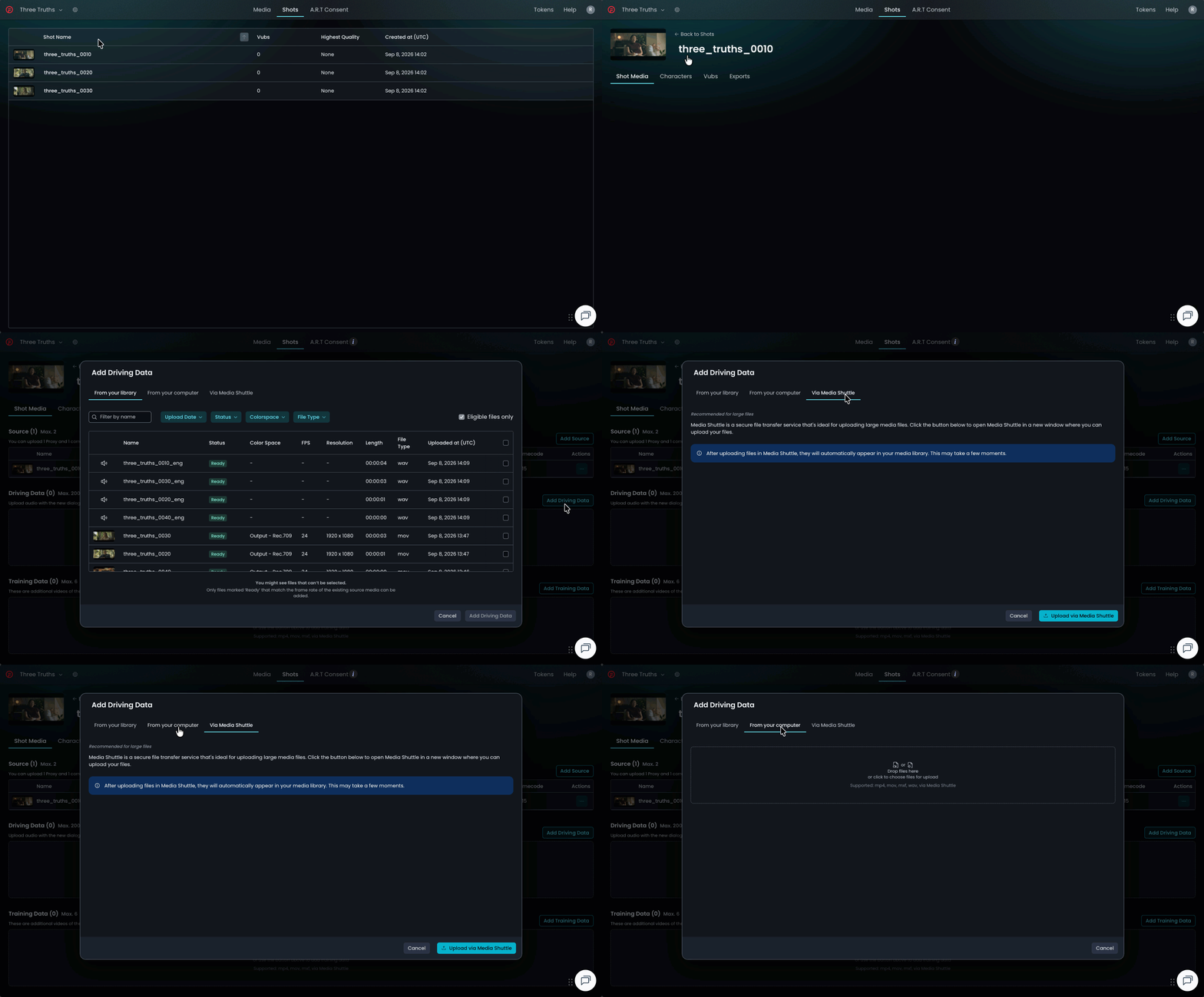
When adding From your library, DeepEditor will automatically filter the list of available media so that only compatible files appear, ensuring you can only add valid media for the shot .
For example:
-
Audio files won’t be listed as available Source media or Training data.
-
Media with mismatched frame rates or unsupported formats will not be listed.
Tip: If you want to try multiple pieces of Driving Data to vub the same Source shot - for instance, you have a joke that you want to try different punchlines for - then you don't need to keep creating new shots in DeepEditor. You can simply add the Driving Data to the existing shot. This will keep things contained in your DeepEditor project and also mean that new vubs for that shot will be created more quickly. Note that each vub will still cost a token.
If you're using the DeepEditor Avid Extension, see here how to do it through the Extension.
Within a Shot you can have:
- Maximum 2 Source media files (this is intended for 1 proxy and 1 original quality media file)
- Maximum 200 Driving Data files
- Maximum 6 Training Data files
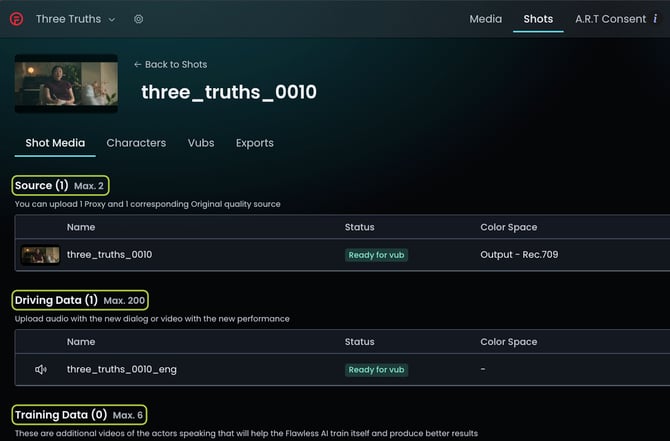
Once your shot has all the required media - Source media, Driving Data and, if desired, Training Data, you can progress on to the Characters tab.
Read next: Managing Characters