
-
Overview
-
Understanding the Characters tab
-
Unassigned Appearances
-
Reviewing shot appearances
-
Renaming a Character
-
Reassigning an Appearance
-
Adding a Character
-
Assigning an Unassigned Appearance
Overview
To be able to vub a character in a shot, their face must first be detected and identified.
Once you have created a shot, DeepEditor will attempt to detect all faces in the Source media and - when added - any other video files in the Driving Data and Training Data.
Once all faces are detected, DeepEditor will also try to identify the faces such that all instances of a character are identified as the same person.
This process may take up to a few minutes, depending on the number of frames and faces in the shot.
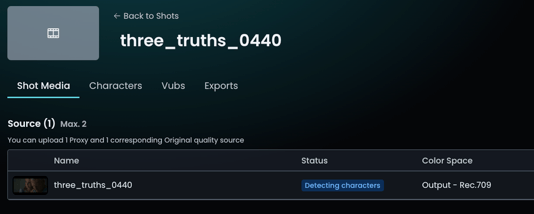
Once DeepEditor has completed the 'Detecting characters' stage, the status of the video file will change to Ready for vub.
Now navigate to the Characters tab where you can see all the detected characters and review, name and organize them.
Understanding the Characters tab
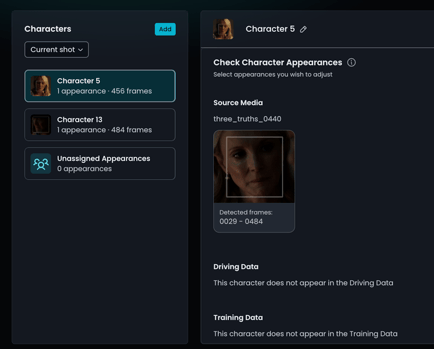
The Characters tab has two panels:
On the left side is the list of Characters. Any character whose identity has been determined in any of the video media in the shot (Source media, Driving Data, Training Data) will be given a character name (e.g. 'Character 1', 'Character 2', etc).
If the identity of a detected face has not been reliably determined, then their appearance will be listed under Unassigned Appearances.
The objective is to go through all Characters and Unassigned Appearances and ensure that all instances of the character you wish to vub have been identified as the same character.
Selecting a Character from the list (or the Unassigned Appearances) will bring up all their appearances in the panel on the right.
If the identity of a detected face has not been reliably determined, then their appearance will be listed under Unassigned Appearances.
Unassigned Appearances
Unassigned Appearances are detected faces whose identity has not been reliably determined across Source media, Driving Data and Training Data, so they are not assigned to a Character. This could be for any of the following reasons:
- If a face is obscured, or is positioned at an extreme head angle, the appearance may not be combined with others of the same Character as the system may not be fully confident that it is definitely the same Character.
- If the face is unclear or blurred - for example due to low resolution, distance, motion blur or the Character being out of focus - the tool might not assign that Appearance to the Character.
- There might also be Unassigned Appearances because a user has manually unassigned appearances, e.g. when the Character appears in the shot twice - as a mirror image or twin character, for example.
It is possible for a character to have multiple appearances in a shot. If only one or none of those appearances are assigned, you must manually assign the others to the same character, as the unassigned appearances will not be vubbed.
Reviewing Shot Appearances
It’s important to review all appearances for all the identified Characters and the Unassigned Appearances.
For each identified character:
- Rename the Character to a meaningful name (optional)
- For any faces that are not that character, Reassign their identity to either the correct character or to the Unassigned Appearances.
For the Unassigned Appearances:
-
If a face is a desired character, reassign them to the correct character.
- If a face is a desired character but is not listed in the character list, add a character then reassign them to that character.
- If a face is undesired (insignificant character or not actually a face at all) then leave in the Unassigned Appearances list.
IMPORTANT
- Having incorrect faces identified as your vub character will result in incorrect or poor results.
- Failure to correctly assign all appearances of your vub character will result in those frames not being vubbed.
- Check that the character you are vubbing has been detected for all frames you wish to vub. Frames where the character has not been detected will not be vubbed.
Reviewing Characters across your whole project
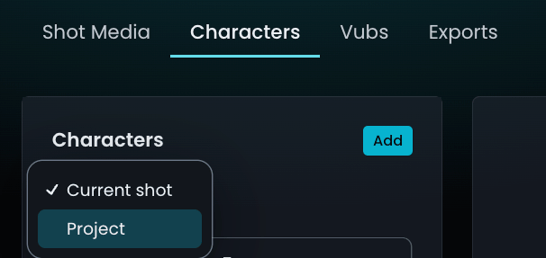
The default view in the Characters list is to show only the characters in your current shot. However, if desired, you can change this view to show all characters across your whole project.
Renaming a Character
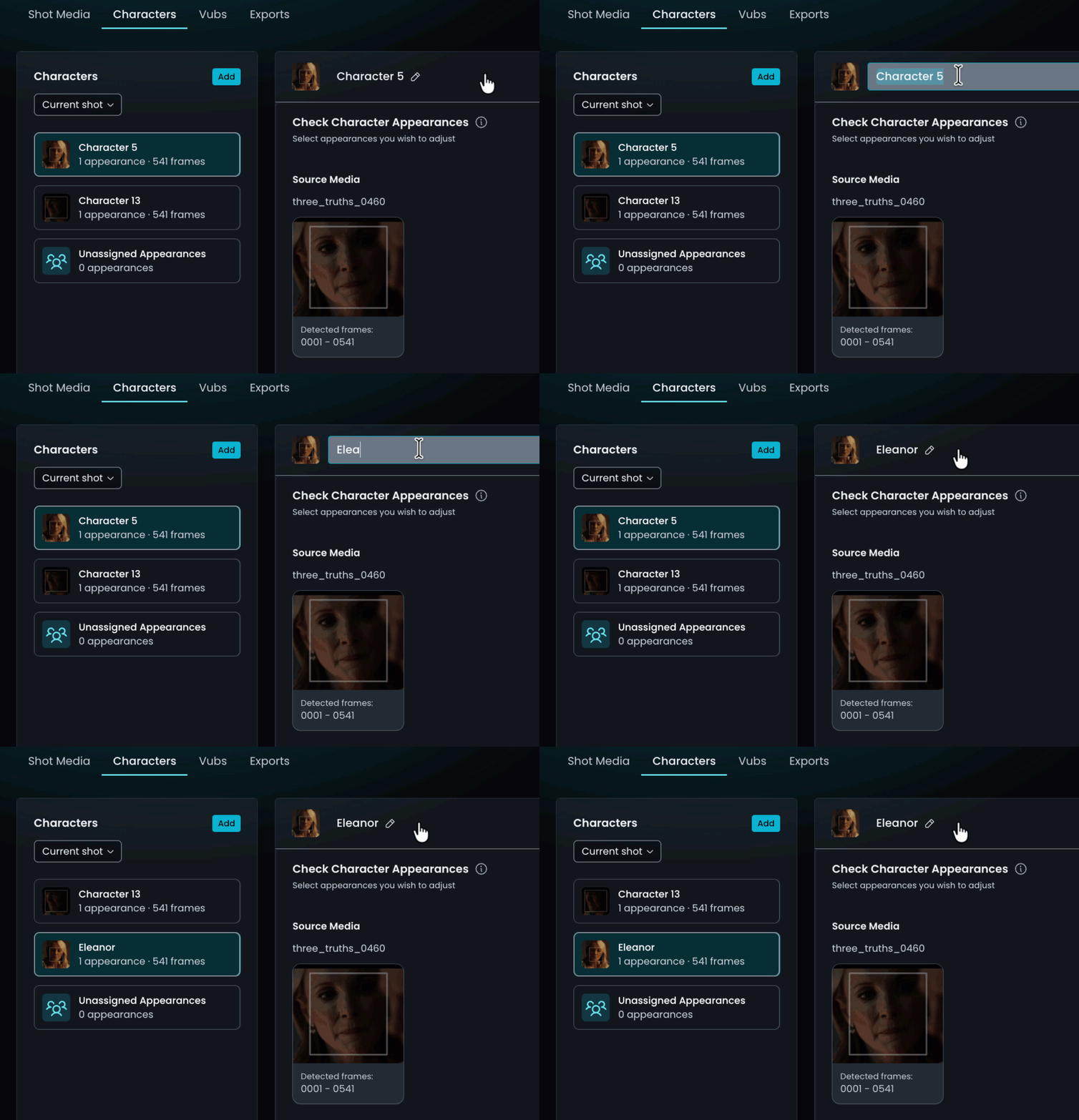
To rename a character, select that character from the list and change the name in the highlighted box.
Reassigning an Appearance
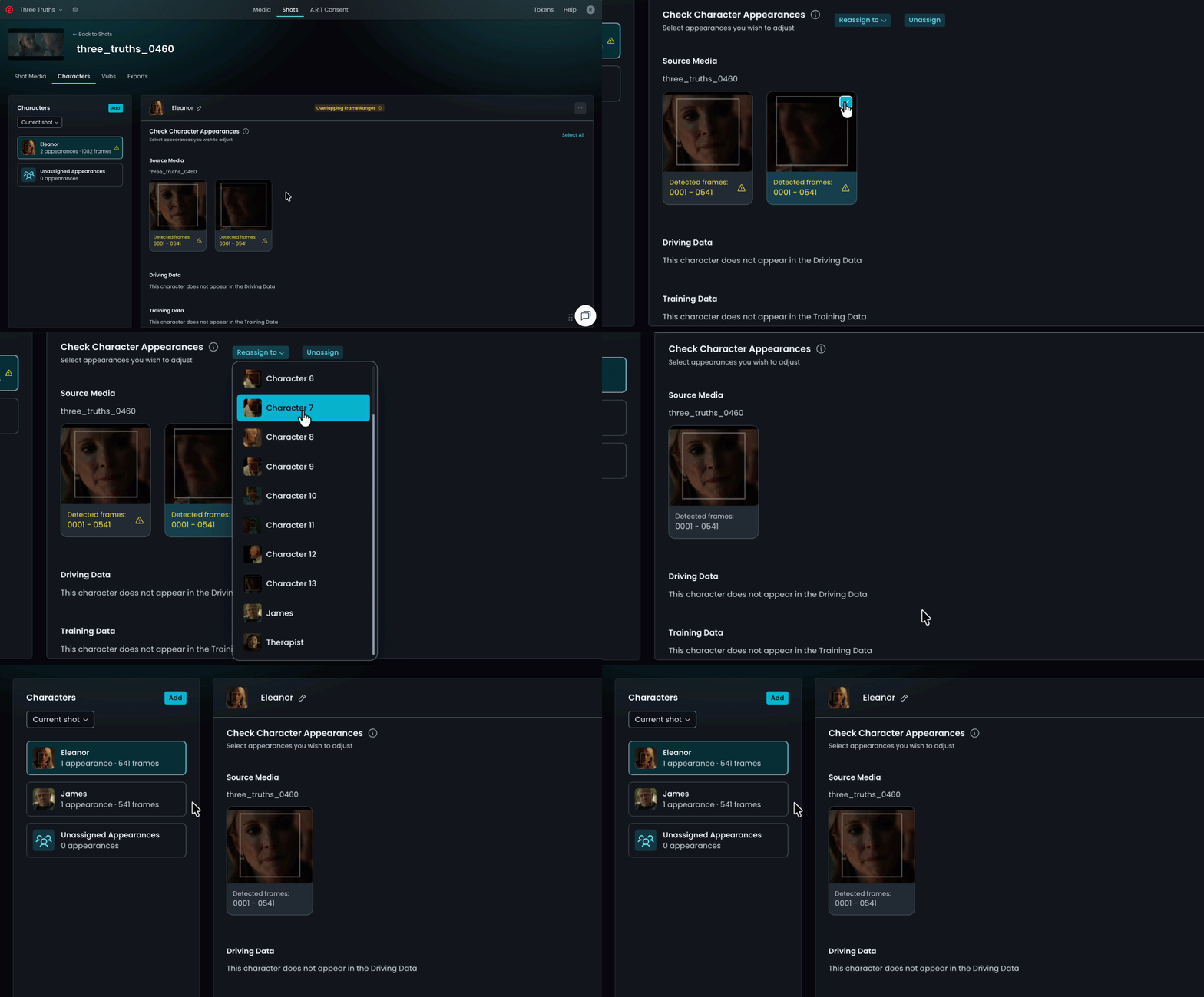
If DeepEditor has misidentified an appearance, you can choose Reassign to and select a different character from the list, or choose Unassign to move it to the Unassigned bin.
Adding a Character
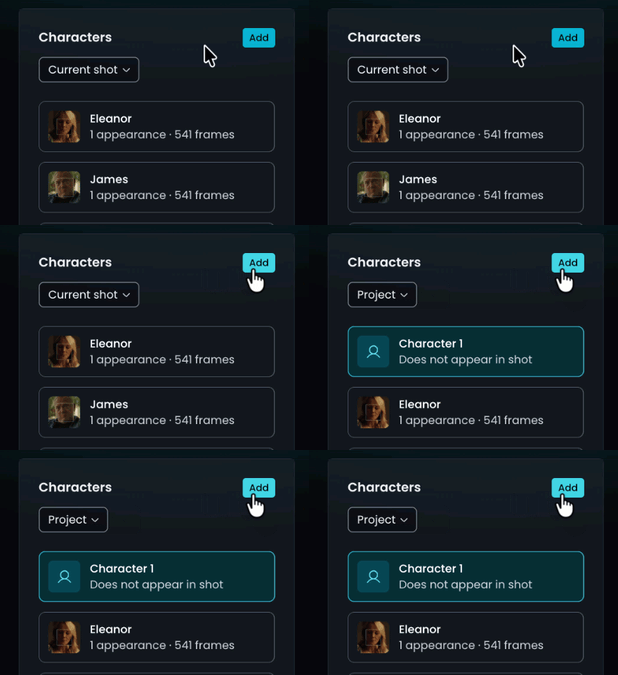
When you need to add a character because it does not appear in the Characters list, simply click on the Add button above the list. Note that when you do this, the displayed characters switch from Current shot to Project.
Assigning an Unassigned Appearance
To assign an Unassigned appearance follow these steps:
1. Go to the Unassigned Appearances bin
2. Select the appearance you need to assign
3. Click Reassign to and select the character to which you want to assign the appearance.
If the unassigned appearance needs to be assigned to a character that has not been created yet, then follow the steps under Adding a Character. Then go to the Unassigned Appearances bin, select the appearance and click on the Reassign to drop-down to select the character you created.
Read next: Creating a Vub