
Remember to try the Flawless Help chatbot when you have any questions!
Refinement Interface
How do I open the Refinement tool?
-
To open the Refinement tool and start editing your vub, follow these steps:
-
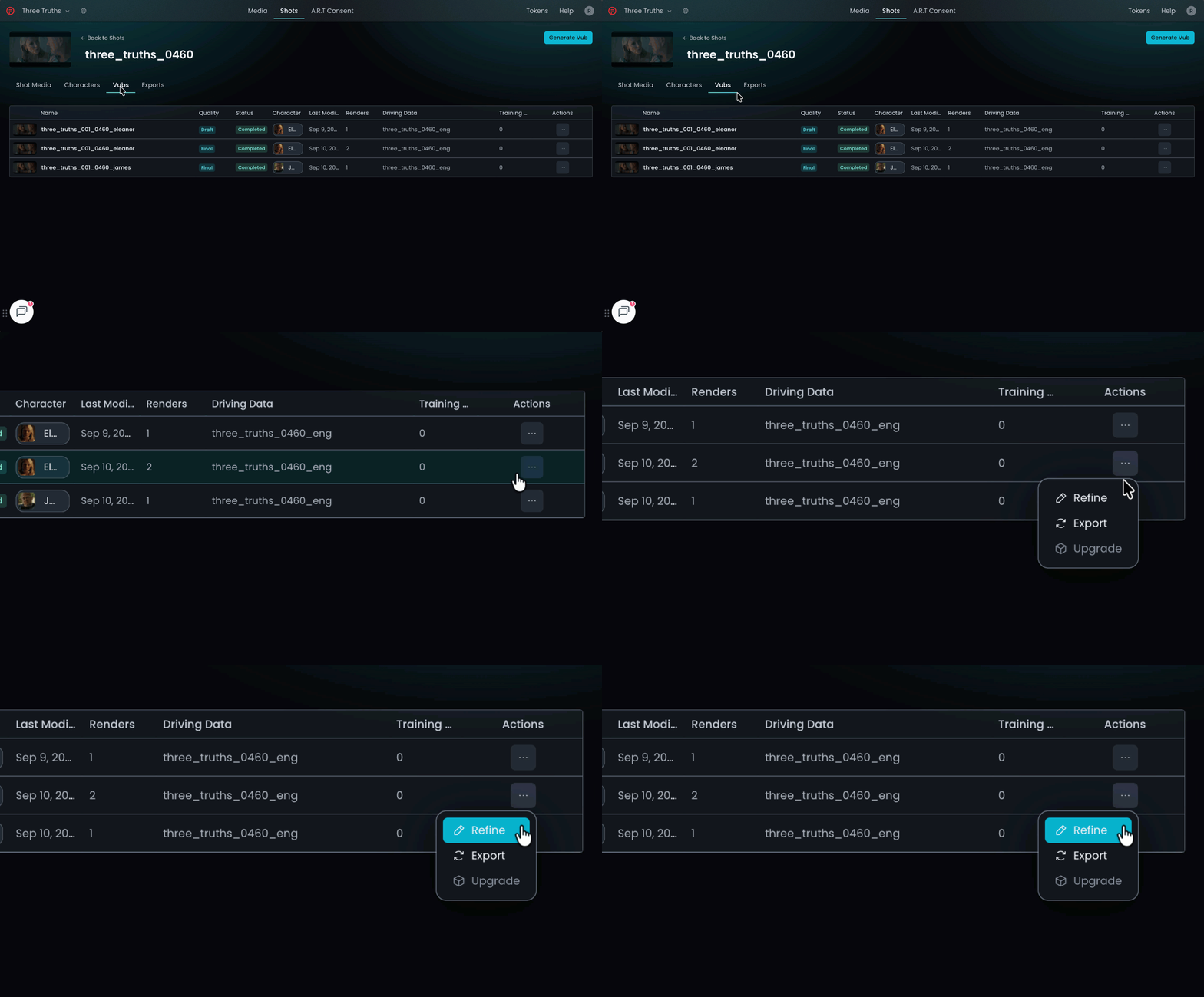
Go to the Vubs tab for your Shot and click on the vub you want to refine.
-
Under the Actions column, click the three dots to open up the menu of options and click Refine.
-
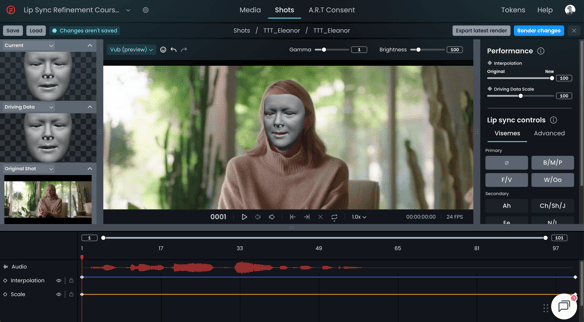
In the Refinement tool you can play through your vub and start making adjustments.
-
If an internet connection failure happens during a render, what happens to my work?
-
If there is an internet connection failure during your render, the render will continue, so you should just log back in when the connection is restored. Note that if you log back in and the render is still running, you should refresh your Refinement tool browser on render completion to ensure that the overrides are saved.
Does DeepEditor autosave? if so, how frequently?
-
No, DeepEditor does not autosave your refinement work. Every time you hit the ‘Render changes' button your work saves and can be accessed through the ‘Load' button. You can save your work between renders using the 'Save' button in the refinement tool and also access the save through the 'Load' button. Using the 'Save'/’Load’ buttons also allows you to name your renders, so they are easier to identify if you want to load them up later.
What time zone are the times shown against my saved renders?
The timestamps displayed next to each saved render in the Refinement tool are UTC (Coordinated Universal Time). Timestamps are not converted to your local time zone, so they are identical for every member of your workspace wherever they are working. This means you and a colleague in another region always see the same time against the same media, vub, refinement render, export or consent action.
Refinement Steps
How do I export an earlier render of my vub?
DeepEditor always exports from the most recent render of your vub - both Export latest render in the Refinement tool and Create Export from the Vubs tab will always export the latest render.
So to export an earlier render, you first need to make that render the latest one:
- Open your vub in the Refinement tool
- Click Load and select the render you want to export (previous renders and the Initial Render are all listed here).
- Make an arbitrary change that will not affect your vub - for example, add a keyframe with a value of 0.
- Click Render changes. Only changed frames are rendered, so this is quick.
- That render is now at the top of the list as your latest render. Click Export latest render and choose your export options.
- Your export will appear in the Exports tab of the shot, ready to download.
Tips
- Rename your renders in the Load dialogue so you can identify the right version later.
- The same technique applies when you want to upgrade a Draft vub from an older render, as an upgrade also always uses the most recent render.
- Exporting does not cost an additional token - you can export and download as many times as you like.
Lip Sync - General
How do I mute a character and stop them from saying a line?
-
Your vub result will directly correspond to the Driving Data you use. To stop a character from saying a line, you can use one of the following methods:
-
Upload Driving Data that is silent during the moments you wish to mute a character. There will be no speech content in the result, but there may be some expression change during these periods based on the perceived emotional expression of the actor during that time.
-
Take the Driving Data Scale down to 0 for the period you wish to mute the character - this will remove the speech movements while retaining the average emotional expression for the shot. Learn more about Driving Data Scale.
-
How do I create a K or G mouth shape?
Summary: Start with the Ah viseme, then use Jaw - Open only for the remaining correction. Remember that Advanced controls are best used as a small corrective layer rather than rebuilding the entire mouth movement.
There is no dedicated K or G viseme because K/G are largely invisible mouth shapes.
Unlike B, M, or P, they do not have a distinctive lip position.The important visual cue is a small to medium jaw opening and avoiding closed lips. The final appearance also depends on the sounds immediately before and after the K or G.
Option 1: Start with the Ah viseme
- Scrub to the frame where the K/G sound occurs.
- Select the Ah viseme. This primarily gives control of the jaw opening.
- Adjust the viseme strength with the Up and Down arrow keys.
- Ensure the surrounding neutral anchors are placed so the shape only affects the K/G sound and transitions smoothly into the correct mouth shapes before and after. If an anchor is missing or sits in the wrong place, add one using the Neutral Viseme button.
Avoid closing the mouth completely. If the lips are already sealed before the K/G, the result may read as B or P instead. The lips and jaw should begin opening at least one frame before the K/G.
Option 2: Use the Advanced controls
If the Ah viseme does not look right:
- Open the Advanced controls.
- Add a Jaw - Open keyframe on the K/G frame, and anchor keyframes around 3 frames before and after it.
- Adjust Jaw – Open to ensure an open mouthed position appropriate for the size of the performance.
- Scrub through the transition and reduce either adjustment if the mouth looks too tight or unnatural.
The goal is a small, controlled jaw movement with unsealed lips, not a strongly defined lip shape. The exact amount depends on the neighboring sounds. For example, a K after an open vowel may need less jaw adjustment than a K following a closed mouth position.
How to check the result
- Turn on the gray face preview to inspect the mouth movement clearly.
- Compare the K frame with the frames immediately before and after it.
- Make sure the jaw is open enough to have sufficiently parted lips
Contacting Support
If you require assistance, the first place to try is the Flawless Help chatbot. It is available 24/7 to help you - you can find it in the bottom right of your screen inside the DeepEditor web app and in our Knowledge Base.
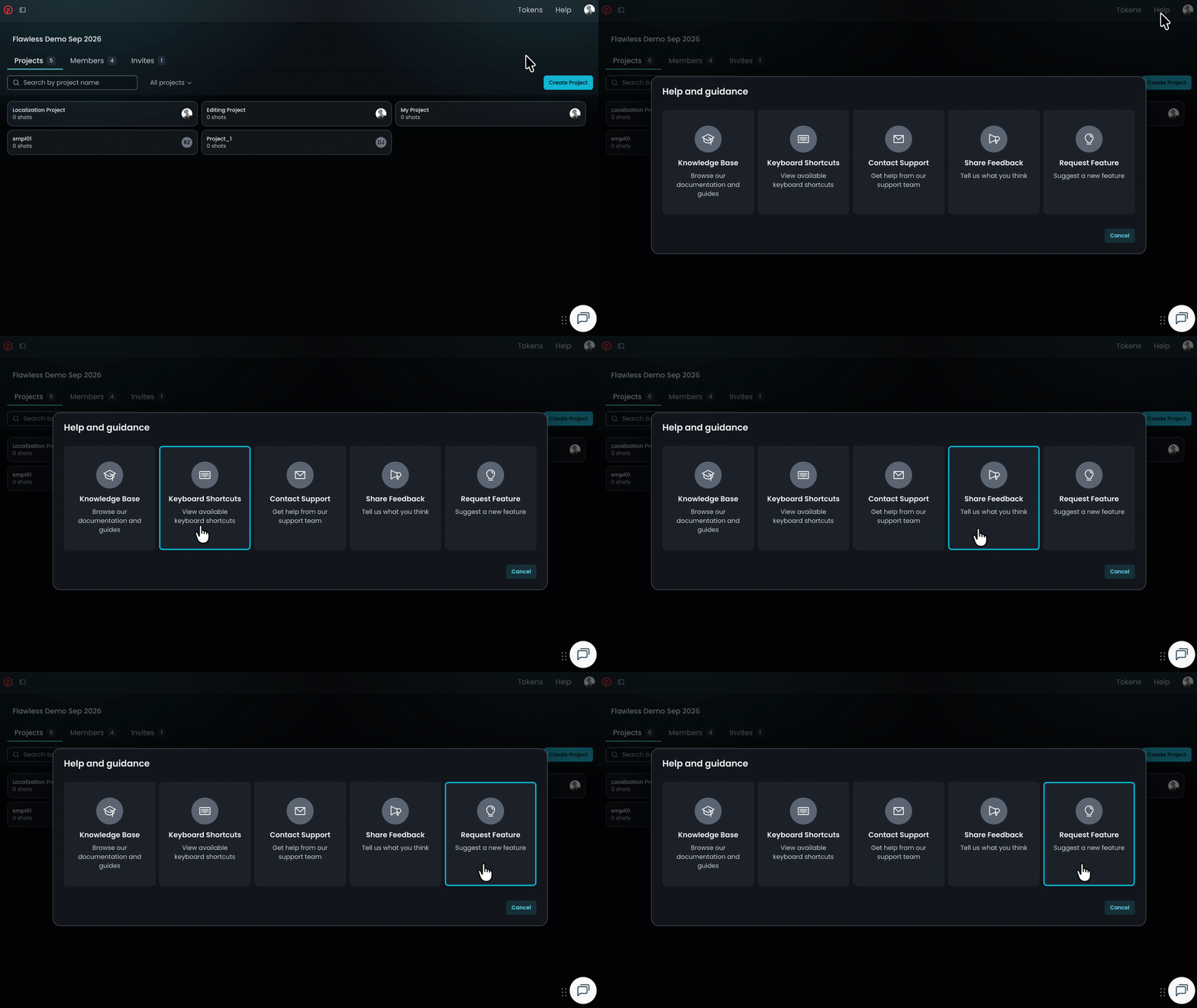
If the chatbot can't resolve your query, click Help in the top-right corner of DeepEditor to access the following options:
- Knowledge Base — search articles and try the Flawless Help chatbot again
- Keyboard Shortcuts - a full list of the keyboard shortcuts for the Refinement tool
- Contact Support — raise a Flawless Support ticket
- Share Feedback — share your experience of the product
- Request Feature — suggest ideas for new features
-
You can also email support@flawless.app directly at any time.
Read Next: Refinement Best Practice