
-
Exporting vs downloading
-
Automatic exports
-
Creating further exports
-
Vub export panel
-
Deleting and renaming exports
Exporting vs downloading
In DeepEditor, exporting refers to the creation of a downloadable output file - a MOV, MXF, MP4 or EXR sequence of your vub, or a VFX Turnover Package.
Downloading in DeepEditor refers simply to the downloading of the output files from the DeepEditor ecosystem to your file system.
Note: You are only charged a token when generating a vub; you can export and download as many times as you like with no additional token cost.
Automatic exports

If you're using the Flawless DeepEditor Avid Extension, see the guidance here for exporting and downloading as well as the information below.
Once your vub has first been created, an export will automatically be created. This can be seen in the Exports tab for your shot. Completed exports may then be downloaded to your file system.
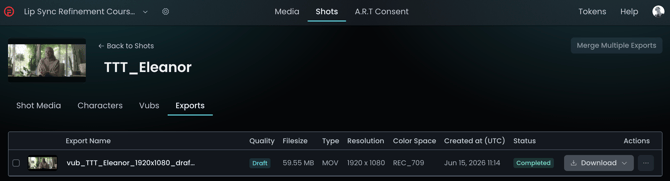
If your Source media was an MOV, MXF or MP4:
- the export generated will be the same file type and color space as the Source media.
If your Source media was an EXR image sequence and your vub is a Draft quality vub:
- the export will be a MOV file. If the color space of the EXRs is incompatible with MOVs, rec709 will be used.
If your Source media was an EXR image sequence and your vub is a Final quality vub:
- there will be two exports generated - an EXR image sequence and a reference MOV (in rec709 color space)
Note: The resolution of your export(s) will be constrained according to the quality level of your vub:
- Draft: up to 1920 x 1920
- Final: up to 8192 x 8192
Further exports can be created from the vub, with a variety of formats available. For Final quality vubs you can also additionally export a VFX turnover package, if desired.
Creating further exports
After the initial automatic exports have been created, you may wish to create further exports. This could be when:
- you have done some lip sync refinement for your vub and wish to export the new render.
- you want to export your vub in a different format or want to export a VFX turnover package.
To create a new export, use one of the following methods:
To create an Export from the Shots page:
-
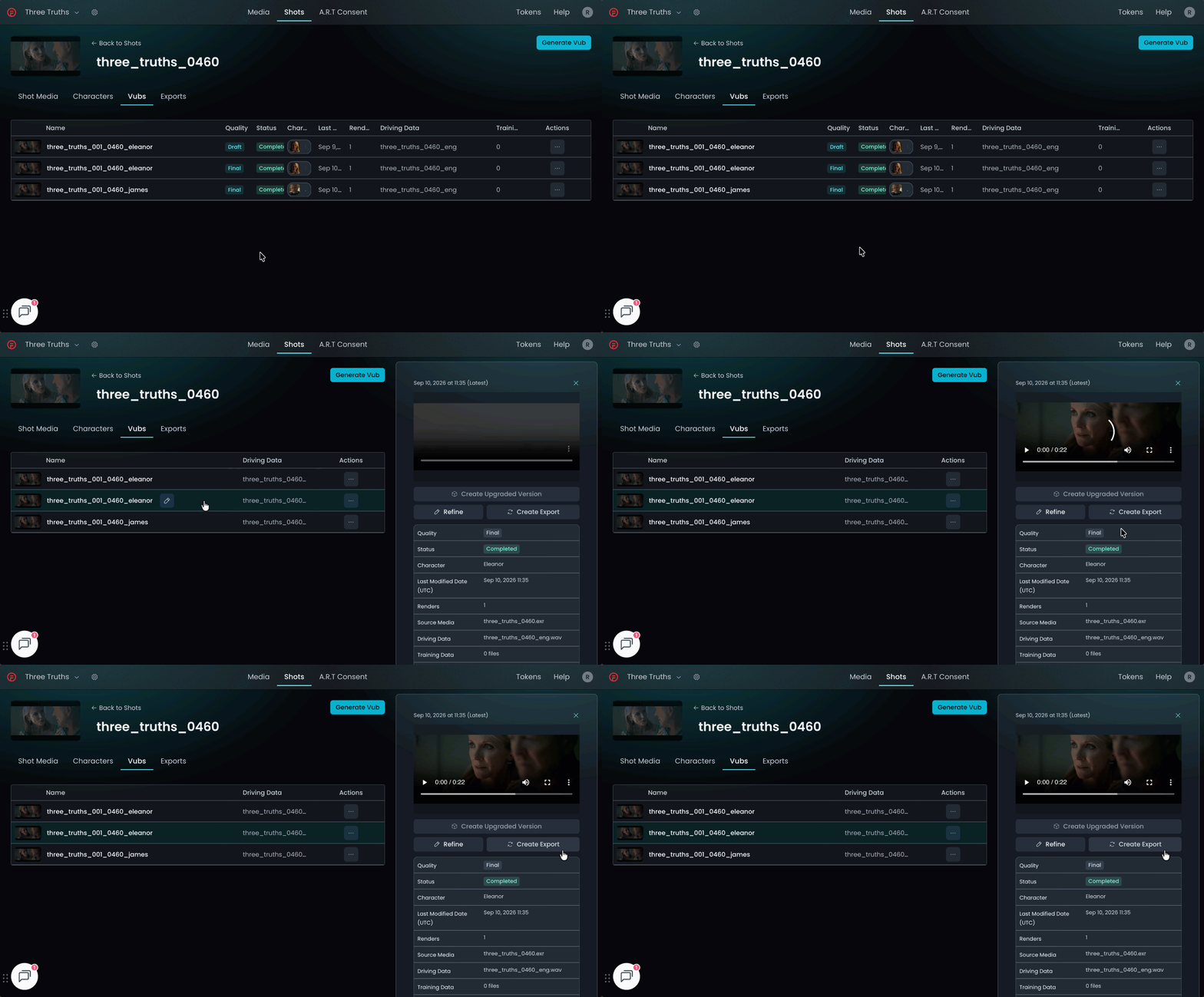
Navigate to your shot.
-
Select the Vubs tab.
-
Either:
-
Select your vub to open the side panel.
-
Select Create Export to open the Vub Export panel.
-
4. Or:
-
-
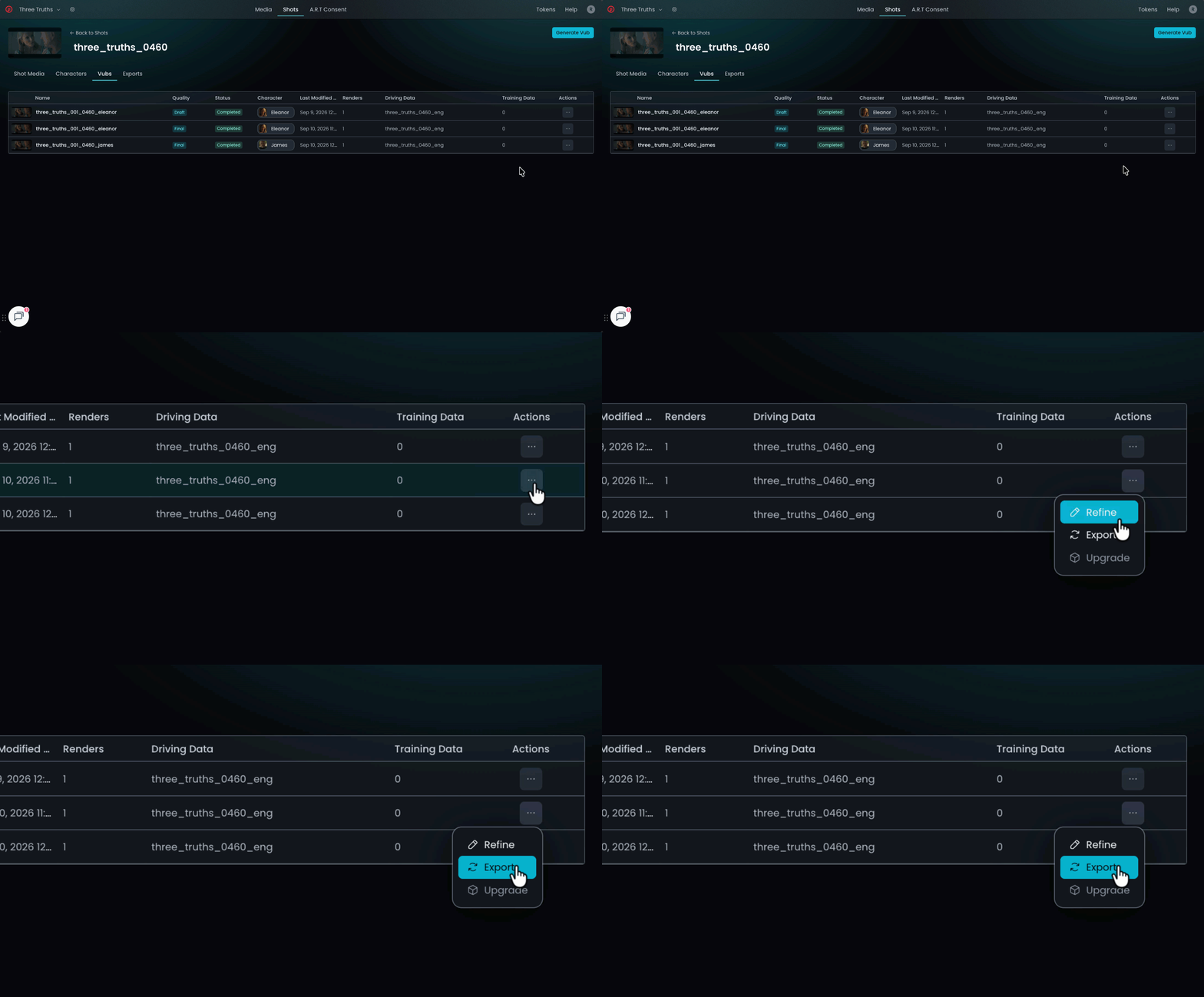
In the Actions column for your vub, select the 'three dots' drop down menu.
-
Select Export to open the Vub Export panel.
-
To create an export from the Refinement tool:
-
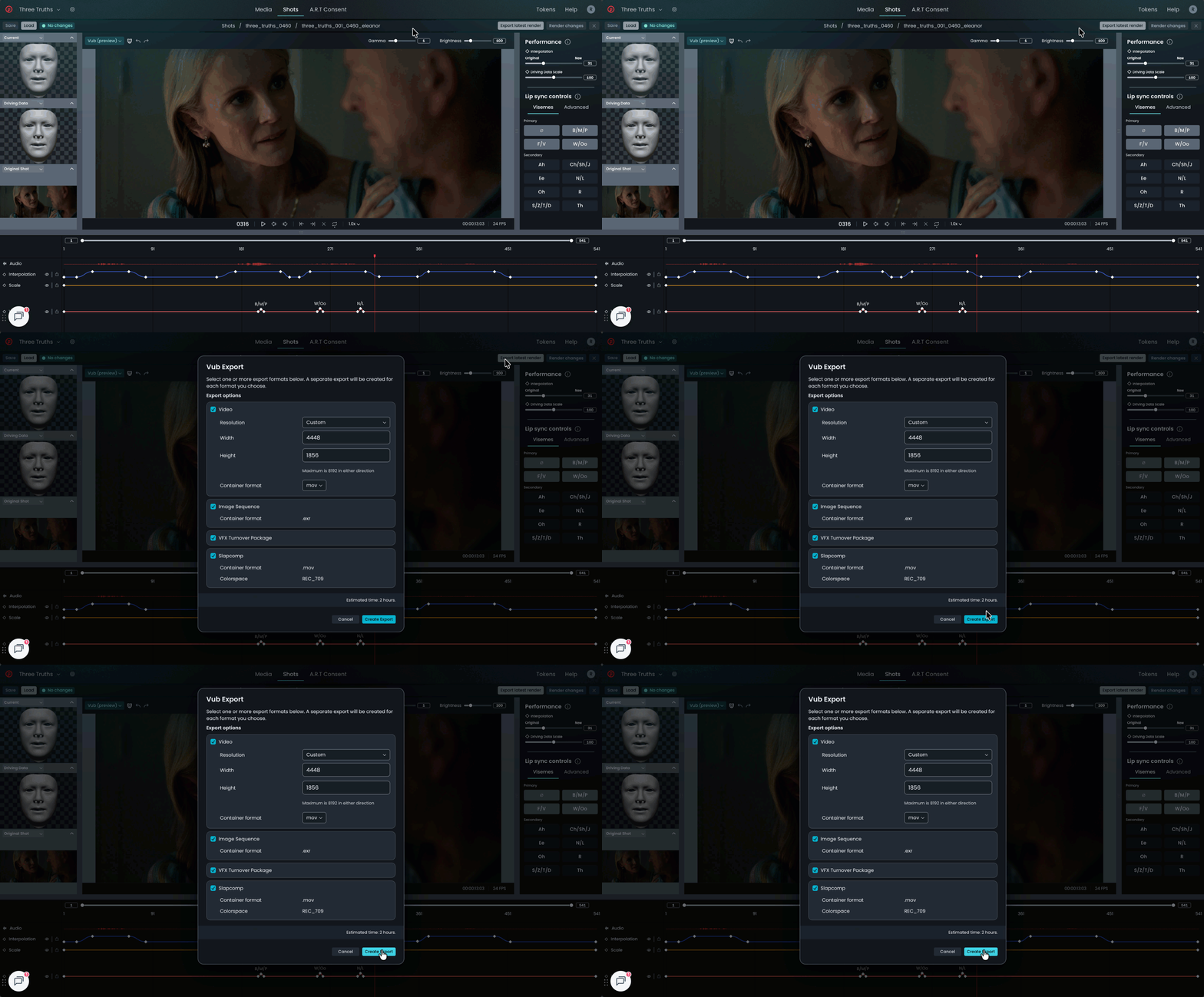
Within the Refinement tool, make sure that your latest vub is rendered.
-
Select Export Latest Render to open the Vub Export panel and enter your desired settings.
- Click Create Export - your exported refined vub will then be available for download from the Exports tab.
Vub export panel
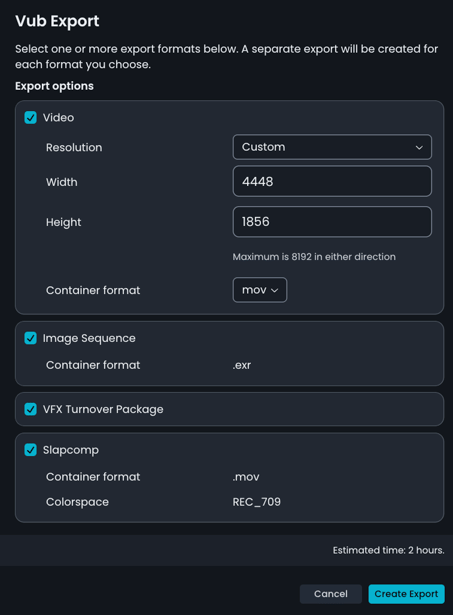
Depending on your vub quality level (Draft or Final), the Vub Export panel will offer various export options.
-
Video
-
Purpose: High-quality videos for use in your edit or delivery.
- Resolution:
- Draft: up to 1920x1920
- Final: up to 8192x8192
-
Codec: Same as Source media; if unsupported, then DNxHR HQ
-
Color space: Same as Source media
- Container format: MOV, MXF, MP4
-
-
Slapcomp
-
Purpose: Fast exports with basic compositing for quick lip sync review.
-
Resolution:
-
Draft: Same as Source media, up to 1920x1920
-
Final: Same as Source media, up to 8192x8192
-
-
Codec: Same as Source media; if unsupported, then DNxHR HQ
-
Color space: rec709
-
-
-
Container format: H264 MOV
-
-
Image Sequence
-
-
Purpose: High quality export for delivery.
-
Resolution:
-
Draft: Not available
-
Final: up to 8192x8192
-
-
Color space: Same as Source media
-
Compression: Same as Source media
-
Timecode metadata will be retained
-
Container format: EXR
-
-
VFX Turnover Package
-
-
Purpose: Provides elements for external VFX cleanup on your vub, if needed.
-
Available for Final quality vubs only.
-
Contains: see details in VFX Turnover Package.
-
Deleting and renaming exports
To delete an export, navigate to the Exports tab and click on the three dots (...) in the Actions column to the right of the Download button. Then click Delete Export.
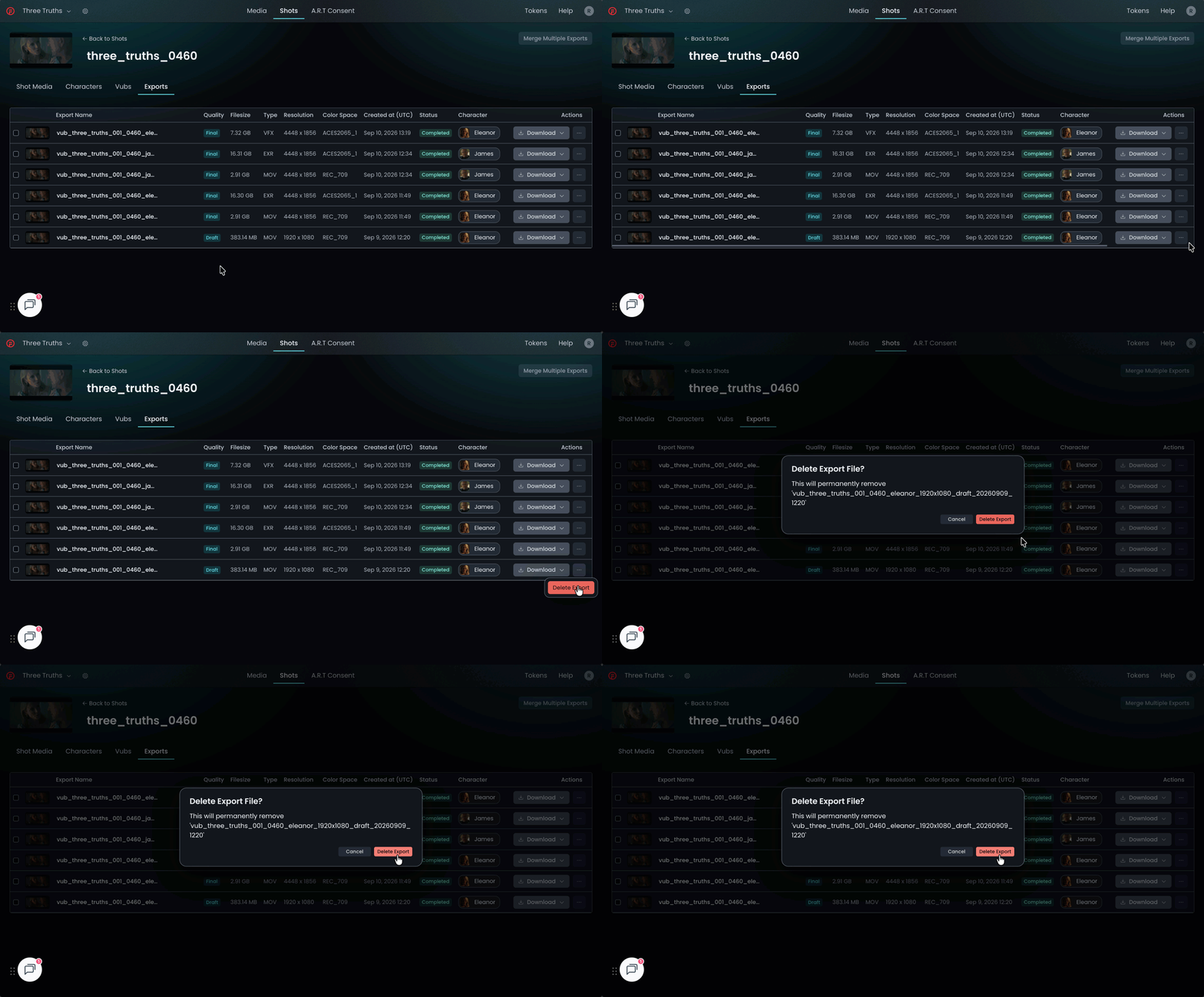
DeepEditor does not allow the creation of duplicate exports, so deleting the previous export will allow you to generate it again.
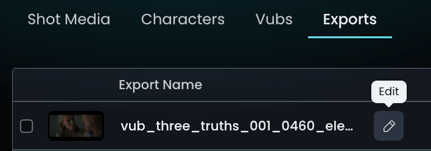
To rename an Export, simply hover over the export name, click on the 'pen' icon and type the new name.
Read next: Downloading your vub