
-
Overview
-
Account Types
-
Roles
-
Working with Workspaces
-
Managing Your Workspace (Owners only)
-
Org Admin Panel (Enterprise only)
-
User Management
-
Quick Reference
Overview
A workspace is one of your working environments in DeepEditor. Each workspace has its own members and projects. You can belong to multiple workspaces and switch between them freely, but you only see the ones you've created or have been invited to. Any user can create a workspace.
An organization is an Enterprise-level layer that sits above workspaces. It's not something every user will have - it's for companies that need to manage multiple workspaces (e.g. they are running multiple productions) and users centrally. An organization has a designated administrator that can oversee all workspaces and members from a single admin panel and control who gets access to what.

Workspaces allow you to divide your work and control access to that work. If you're a larger company managing multiple teams or productions, an organization lets you oversee all of that from one place.
Account Types
Standard Accounts
Standard accounts are individual (personal) accounts without organization-level management. As a standard user, you can create and own workspaces and invite collaborators by email. If someone you invite doesn't have a Flawless account yet, they'll receive an invitation to create one automatically.
Note: You may see an organization name in the workspace switcher - this is expected. Standard accounts sit within the Flawless AI organization by default, but you don't have any organization management capabilities. Everything you need is in your workspaces.
Enterprise Accounts
Enterprise accounts belong to a named organization managed by a designated org admin. On top of standard capabilities, enterprise accounts include:
- An org admin panel where admins can manage all users and workspaces across the organization.
- When adding members to a workspace, owners can select from a list of existing organisation members rather than entering an email address manually.
Important: In an enterprise account, new users must be invited to the organization by an org admin before they can be added to any workspace.
Want to become an Enterprise account holder? Fill out this form.
Roles
There are three roles in DeepEditor. Any user, regardless of role, can create their own workspaces.
Owner
A workspace owner manages their workspace's membership. Every workspace must have at least one owner at all times.
Owners can:
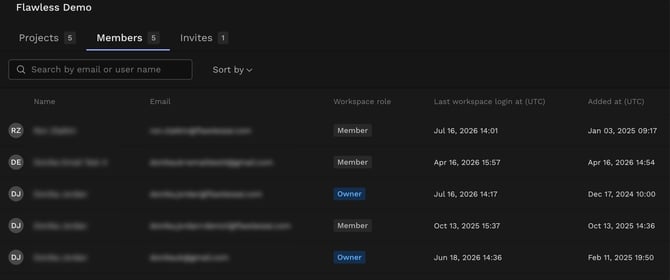
- View the full member list (name, email, role, date added, last login)
- Add members to the workspace
- Remove members from the workspace
- Promote members to owner, or remove the owner role from another owner
- As well as perform all tasks available to workspace members, including creating vubs and exporting results.
Note: The last remaining owner of a workspace cannot be removed or demoted. At least one owner must always exist.
Member
A workspace member can access the workspace and its projects. Members cannot see who else is in the workspace, add or remove users, or change ownership.
Org Admin (Enterprise only)
An org admin has access to the org admin panel and can manage all workspaces and users across the entire organization. The first org admin is assigned by Flawless when the organization is set up. They can then add or remove other org admins.
Working with Workspaces
Create a Workspace
Any user can create a workspace: just open the organization/workspace switcher and select the option to create a new one. A name is required. You're automatically assigned as owner when you create a workspace.
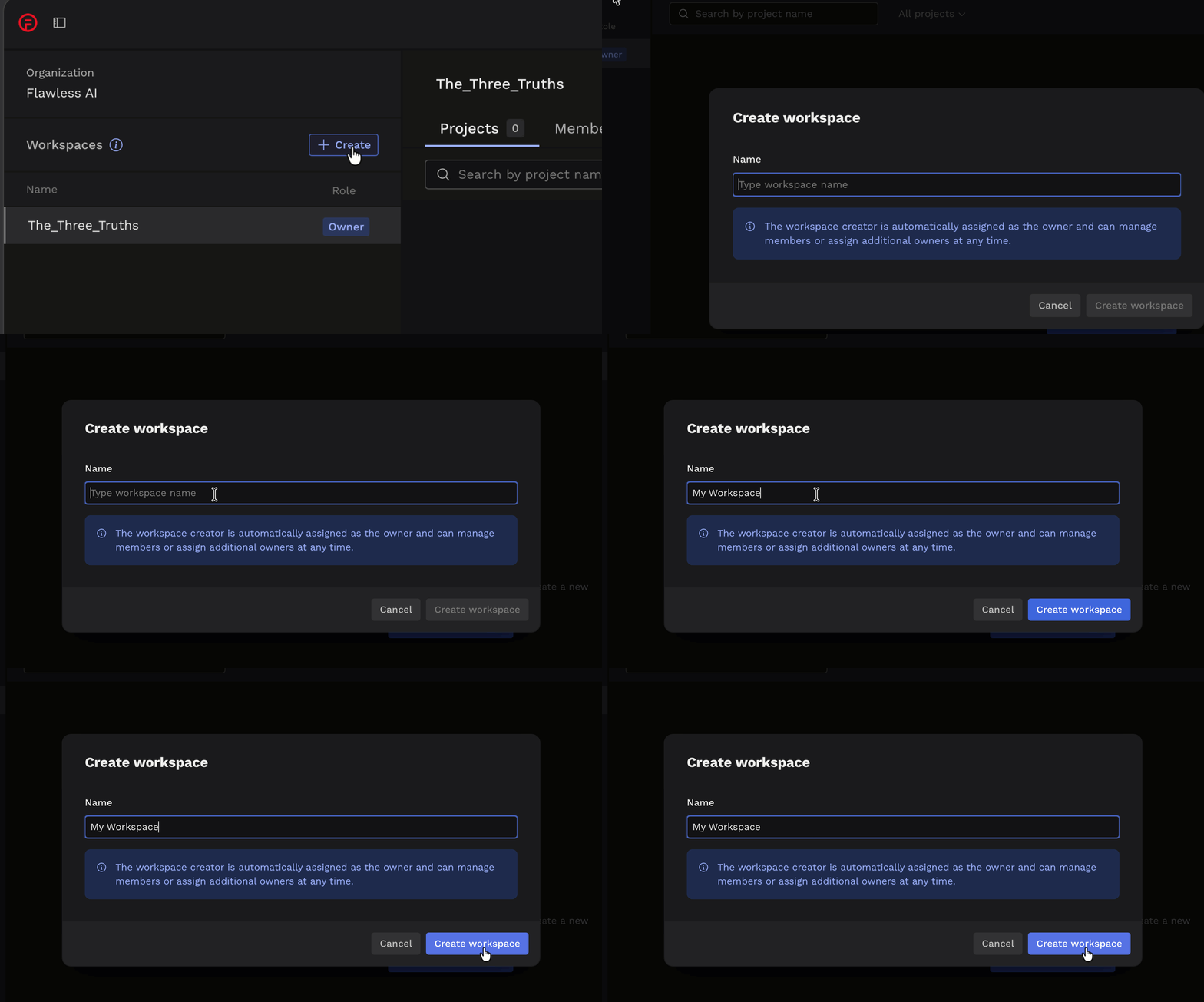
Note: Workspaces cannot be deleted, only renamed.
Switch Between Workspaces
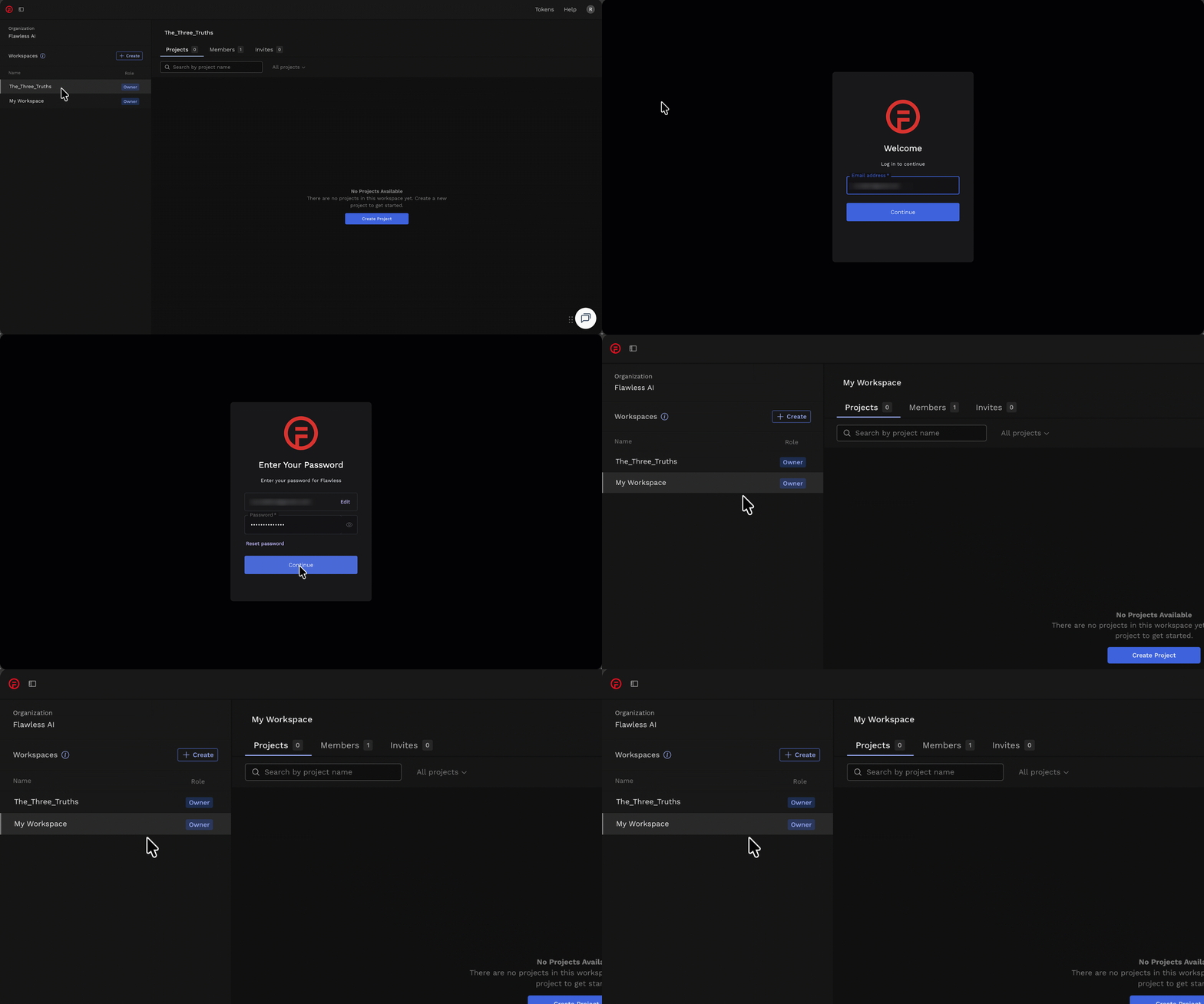
Use the organization/workspace switcher to move between any workspace you belong to. You'll only see workspaces you're a member of. Please note you will need to log back in each time you switch between workspaces.
1. Open the DeepEditor Web App in Google Chrome.
2. A list of all workspaces associated with your account will appear.
3. Select the workspace you wish to access.

Using the Avid Extension?
Workspace switching is supported directly within the Avid Extension and can be accessed from the double-bar menu in the top right of the extension.
Managing Your Workspace (Owners only)
Add Members
- Click ‘Invite User’ and enter the person's email address.
- Choose their workspace role.
If they don't have a Flawless account yet, they'll receive an invitation automatically.
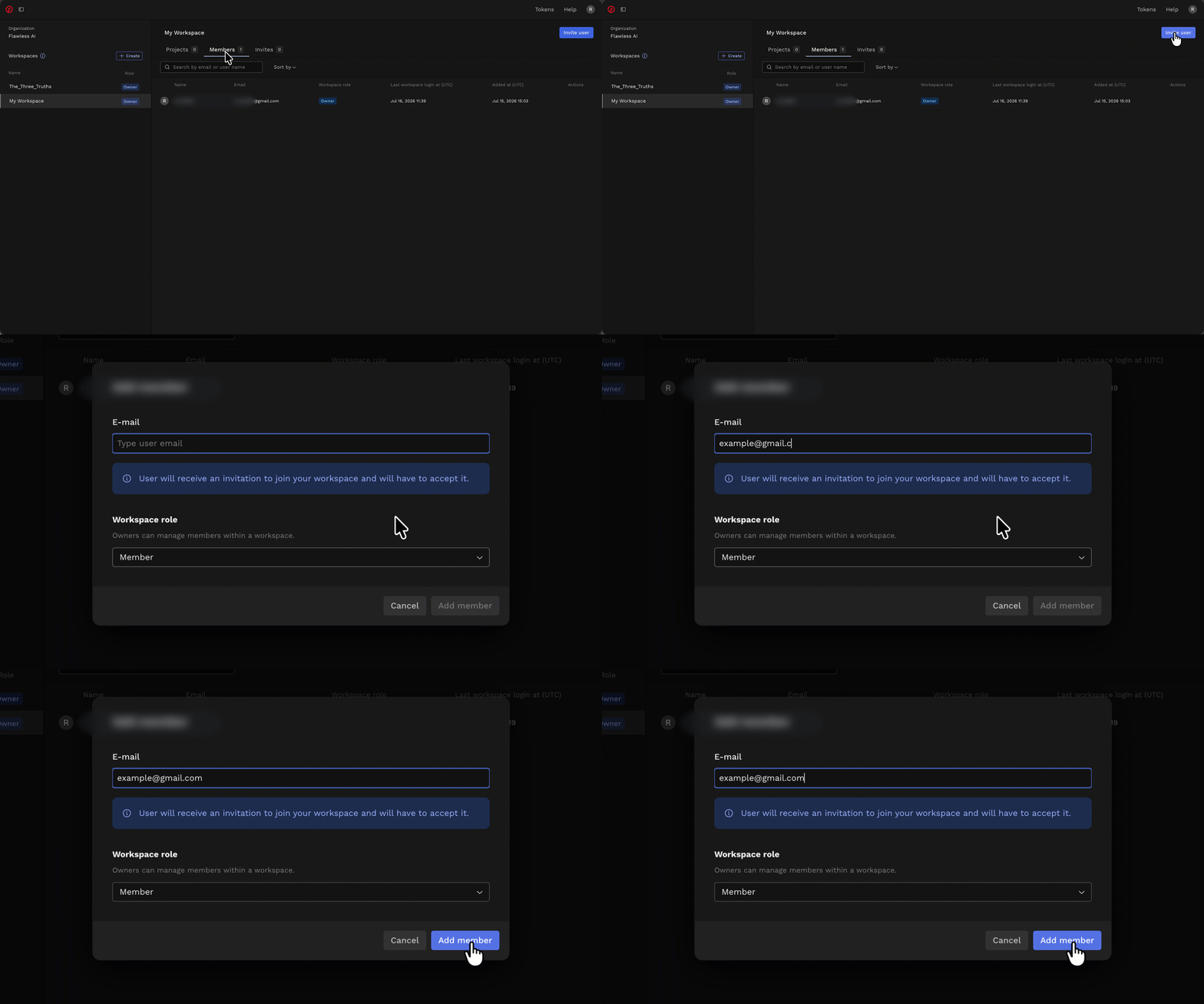
Enterprise accounts: Select the person from the list of existing organization members. If they're not yet in the organization, an org admin must invite them first.
Remove Members
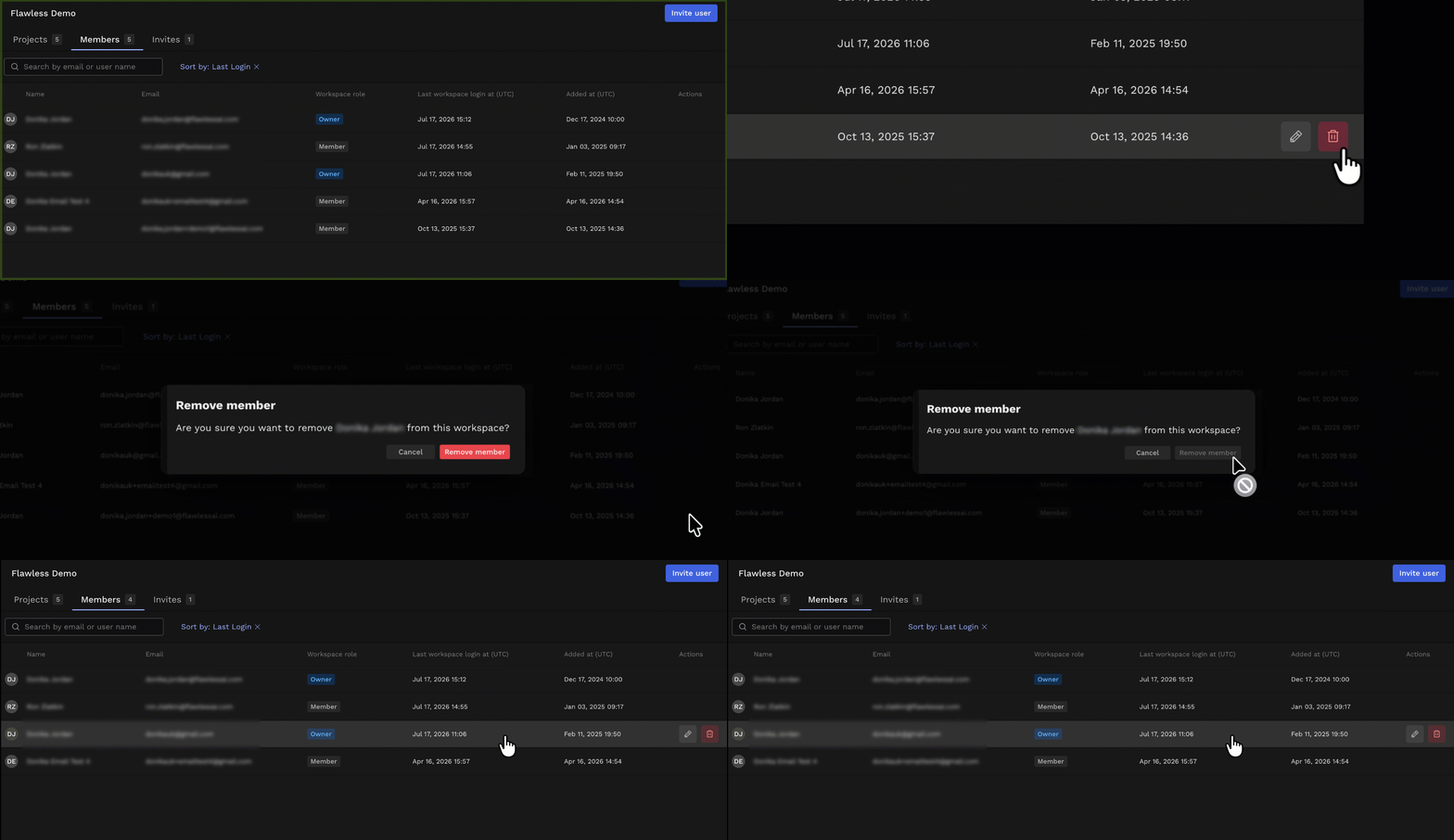
- In the Members tab, navigate and hover over the member you want to remove.
- Click the trash can icon in the Actions column.
- Confirm the removal when prompted. Once confirmed, the member is removed from the workspace.
View Members
From your workspace:
- Navigate to the Members tab.
- See everyone in the workspace.
- View details for each member, including:
- Name and email address
- Workspace role (Owner or Member)
- Date added
- Date and time of last login
Manage Ownership
Owners can promote any member to owner, or remove the owner role from an existing owner as long as at least one owner always remains.
- In the Members tab, navigate and hover over the colleague you wish to change the role.
- Click the pencil icon in the Actions column.
Best Practices - Avoid multiple users refining the same vub
Only one user should access the Refinement Tool for a vub at a time. If multiple users open the same vub simultaneously, only the first user's changes will be saved — all other unsaved changes will be overwritten on closing the tab. Coordinate with your team before editing the same shot to avoid data loss.
Token Management
Tokens purchased within a workspace are allocated to that workspace — not to individual users — and are available to all members and projects within it. Learn more in FAQs.
Renaming a Workspace
Workspace owners are able to rename their workspaces. To do this hover over the workspace name above the projects tab and click to edit.

Org Admin Panel (Enterprise only)
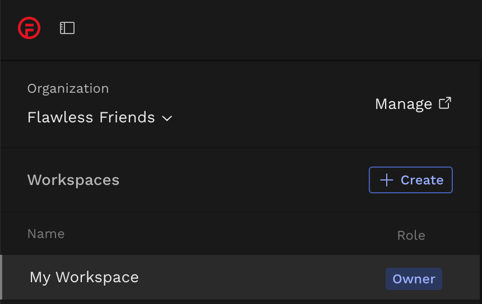
The Org Admin Panel can be access via the Manage link next to the organization name in the sidebar within your DeepEditor account.
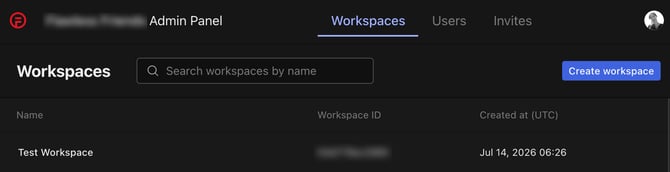
The Org Admin Panel has three sections: Workspaces, Users and Invites.
Workspaces
Workspace List
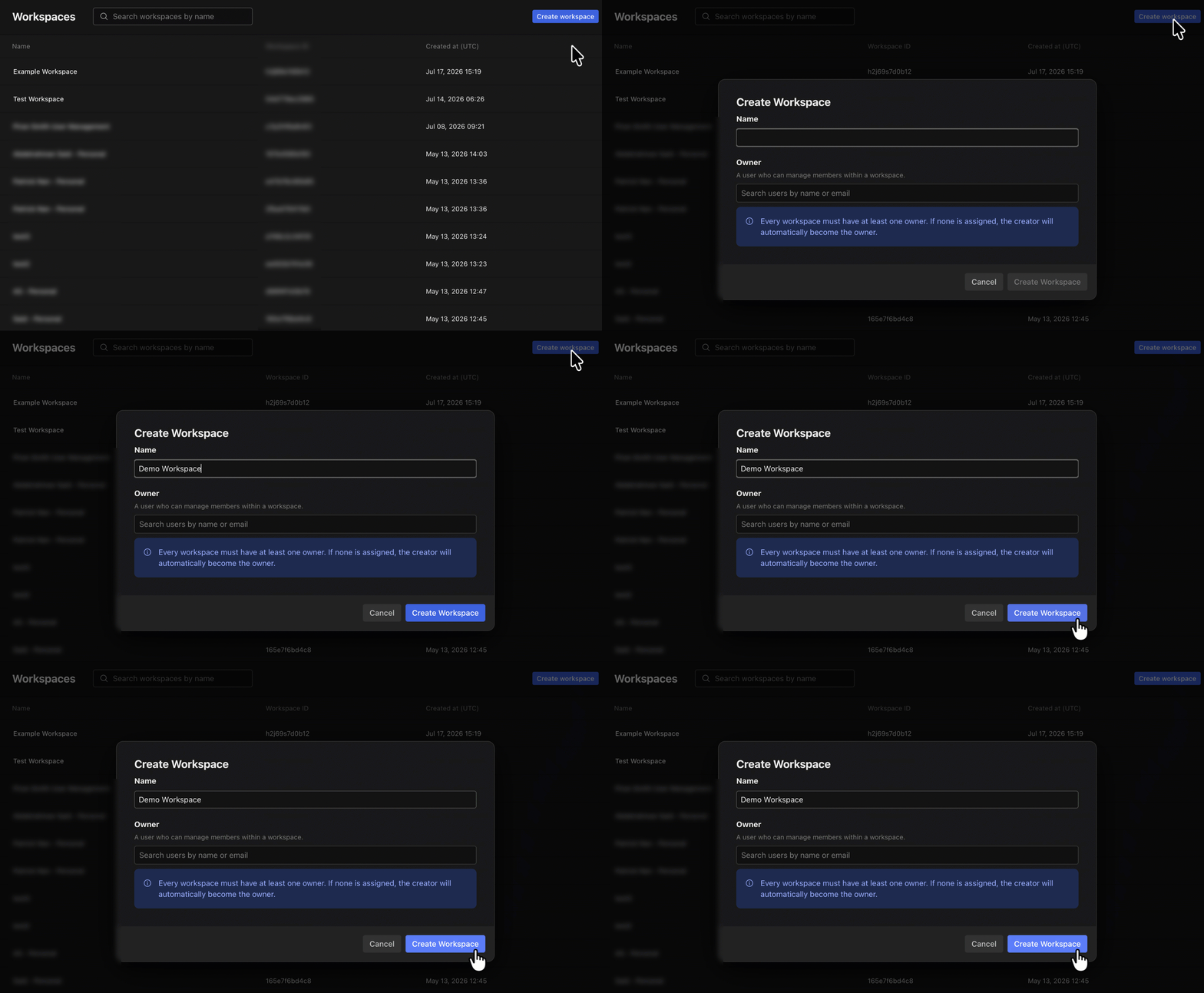
The Workspaces section shows every workspace in the organization. For each workspace you can see:
- Workspace name
- Workspace ID
- Creation date/time (UTC)
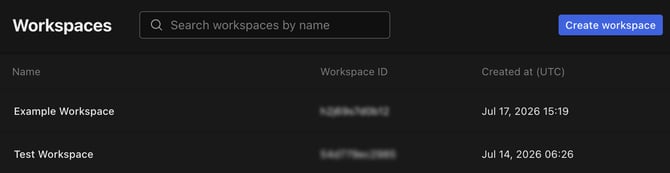
You can search for a workspace by name.
Creating a Workspace
Org admins can create new workspaces from the admin panel. A name is required. You can assign an existing organization member as owner during creation, if you don't, you'll be assigned as owner automatically and can reassign later.
Workspace Details
Clicking a workspace opens a detailed view showing the following information:
- Workspace name
- Workspace ID
- Created by (user email)
- Created at (UTC)
- Updated at (UTC)
- Members (total number)
- Owners (total number)
- Notes
- A full member list with name, email, role, date added, and invitation status (Invited or Registered)
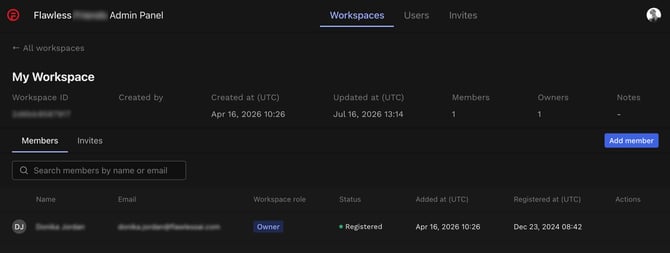
From this view, org admins can:
- Add an existing organization member to the workspace
- Remove a user from the workspace
- Change the user role for the workspace
Renaming a Workspace
Workspaces can be renamed from the workspace list.
Note: Workspaces cannot be deleted, only renamed.
User Management
User List
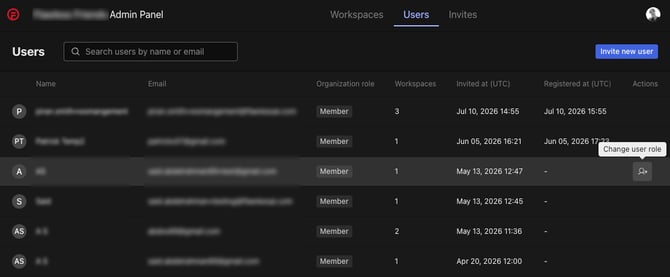
The Users section shows every user in the organization and provides the following details:
- User Name
- User Email
- Organization role (Member or Admin)
- Workspaces (the number of workspaces the user has access to)
- Invited at (UTC)
- Registered at (UTC)
- Actions (this allows Org admins to change the user's organization role from Member to Admin or vice versa)
User Details
Clicking a user in the User List opens their details page. The following user details are displayed:
- User name, ID and email address
- EULA acceptance status
- Organization role
- Invited at (UTC) - when they were invited
- Registered at (UTC) - when they registered
- Last login at (UTC) - when they last logged in
- Workspaces (the number of workspaces the user has access to)
- Notes - any notes on their account
- DeepEditor EULA status - whether they have accepted the End User License Agreement or not
- A list of all workspaces they're a member of, with role, date added, and last login per workspace
From this page, org admins can also:
-
Change the user's role
-
Remove the user from a workspace
-
Add the user to another workspace
- See all the invites
Inviting New Users
Org admins can invite new users to the organization. During the invitation flow, you can optionally assign the new user to an existing workspace.
If no workspace is selected, a workspace named after the user is created automatically in the organization. This workspace appears in the admin panel alongside all other workspaces.
Tip: When adding a user to a workspace from the user detail page, the workspace selector works as a search field - start typing to see matching workspaces.
Quick Reference
|
Action |
Who can do it |
|---|---|
|
Create a workspace |
Any user |
|
Switch between workspaces |
Any member of those workspaces |
|
View workspace member list |
Workspace owners |
|
Add / remove workspace members |
Workspace owners |
|
Promote / demote owners |
Workspace owners |
|
Rename workspace |
Workspace owners |
|
View all workspaces in the org |
Org admins (Enterprise) |
|
Create workspaces for the org |
Org admins (Enterprise) |
|
Invite new users to the organization |
Org admins (Enterprise) |
|
Manage org admin roles |
Org admins (Enterprise) |
|
Delete a workspace |
Not currently supported |
Read Next: Creating a Project