
What is Source media?
Source media is a cut-to-cut shot of an actor’s original performance that you want to modify.
With DeepEditor, you are changing the actor’s original performance and dialogue in the Source media to deliver a new performance and/or dialogue, while keeping the rest of the shot intact.
The Source media should match the frame rate, resolution, color space, and codec of the non-linear editing or conform software being used.
What makes good Source media?
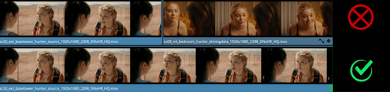
- Keep it to a single, continuous clip. Source media should be a single cut-to-cut shot with no black frames, up to 1440 frames (60 seconds @ 24fps) duration.
- The face being vubbed should be human… or humanoid. DeepEditor is built to vub human faces, so if you would like to vub non-humans, the boundaries of success are dependent on the non-human's appearance: the more humanoid, the greater the chance of success.
- Ensure the actor's face is sufficiently visible in the frames that require vubbing. The face should:
- Be reasonably in view, with the jaw and at least one eye visible
- Be sufficiently lit such that facial features are identifiable
- Not have any obstructions to the face that are completely blocking or distorting key facial features (eyes, nose, mouth)
- Not have a long beard; at the time of writing, please contact support@flawless.app if a character with a long beard requires vubbing as support for this is on our product roadmap.
- Have non-extreme head rotation:
- Looking left-right (Y-axis rotation): no greater than 100 degrees
- Looking up-down (X-axis rotation): maintain visibility of eyes and mouth
- Screen orientation (Z-axis rotation, e.g. lying down or upside down): max rotation of 45 degrees; beyond that, apply rotation to your Source media prior to upload to make the character’s face more vertically oriented.
How do I create Source media?
You would create your Source media typically using one of two methods:
- for Draft quality vubbing
- by exporting clips from your offline editing software e.g. Premiere Pro.
- if using Avid Media Composer, using the DeepEditor Avid Extension - read the guidance here.
- for Final quality vubbing
- by extracting the exact frames you need from your camera original media. This will typically performed by a facility holding the camera original media, or - if you you have access to the camera original media - by using sofware such as DaVinci Resolve.
Before exporting and uploading your Source media, check that your media meets the file format and codec requirements for DeepEditor.
Read next: Driving Data