
Remember to try the Flawless Help chatbot when you have any questions!
-
Refinement Interface
-
Assess the Vub
-
Interpolation & Scale
-
Lip Sync - General
-
Viseme Refinement
-
Advanced Lip Sync Controls
-
Contacting Support
Refinement Interface
The interface is not responding as expected
-
If you are having an issue with the Refinement tool interface response, the first thing you should do is click Save or Render Changes, then refresh your Chrome browser: CMD-SHIFT-R (Mac) or CTRL-SHIFT-R (Windows). As a web-based tool, there’s a small risk of issues based on internet speed/connection, and so refreshing often can clean up a user-interface based issue.
The times against my saved renders don't match the time when I saved them
The timestamps against saved renders is in UTC (Coordinated Universal Time). Timestamps are not converted to your local time zone, so they are identical for every member of your workspace wherever they are working. This means you and a colleague in another region always see the same time against the same media, vub, refinement render, export or consent action.
Assess the Vub
I can’t see the grey face on certain frames in the main window
-
If you have some frames in the vub where the grey face does not appear, the face has not been detected on those frames. There are a few possible causes:
- The face may be too obscured
- The face may be turned too far away from the camera
- The face may be too dark
- To attempt to resolve face detection issues you can:
- crop your Source media around the face (not too tight) to remove parts of the image that could potentially be impacting / distracting the face detection.
- brighten the image (if it is dark) to make the face more visible. Note that you will have to reverse any brightening on the vub result to revert it to normal levels.
The grey face is unstable /moves off the character's face on some frames
-
If the face tracker has had difficulty on some frames, the track may become unstable or move off the face - you will see this by looking at the grey face. You can:
- crop your Source media around the face (not too tight) to remove parts of the image that could potentially be impacting / distracting the face tracking.
- brighten the image (if it is dark) to make the face more visible. Note that you will have to reverse any brightening on the vub result to revert it to normal levels.
- take interpolation down to zero for the affected area (if you don't need to vub those frames). The compositing step will use the plate for zero interpolation frames.
I can’t hear audio when playing back the Original shot
-
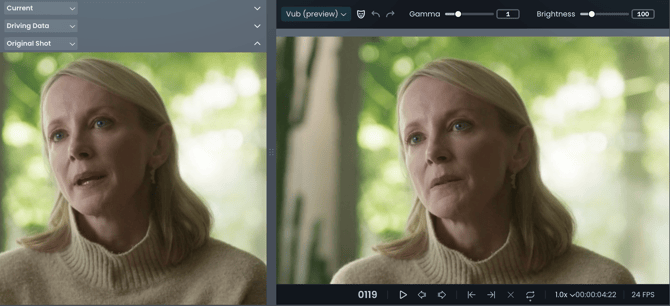
If you can’t hear the audio when playing back the Original shot, it is because the source was uploaded without audio.
-
If you would like to hear the new audio against the Original shot, it is recommended to watch it via the Original Shot window on the left hand side:
Viseme Refinement
What do I do if the sound / mouth shape I want to address is not on one of the buttons?
- The viseme buttons cover all the key mouth shapes, but if you want to adjust for a different mouth shape, you can either pick the closest shape or use the Advanced blendshape controls.
Advanced Lip Sync Controls
How do I know what each of the blendshape sliders does?
-
The names of each blendshape slider are mostly self-explanatory, but to get a real picture of the effect of adjusting each of them, we fully recommend sliding them back and forth to properly understand their effect. Any keyframes you create through doing this can then be deleted of course.
Contacting Support
If you require assistance, the first place to try is the Flawless Help chatbot. It is available 24/7 to help you - you can find it in the bottom right of your screen inside the DeepEditor web app and in our Knowledge Base.
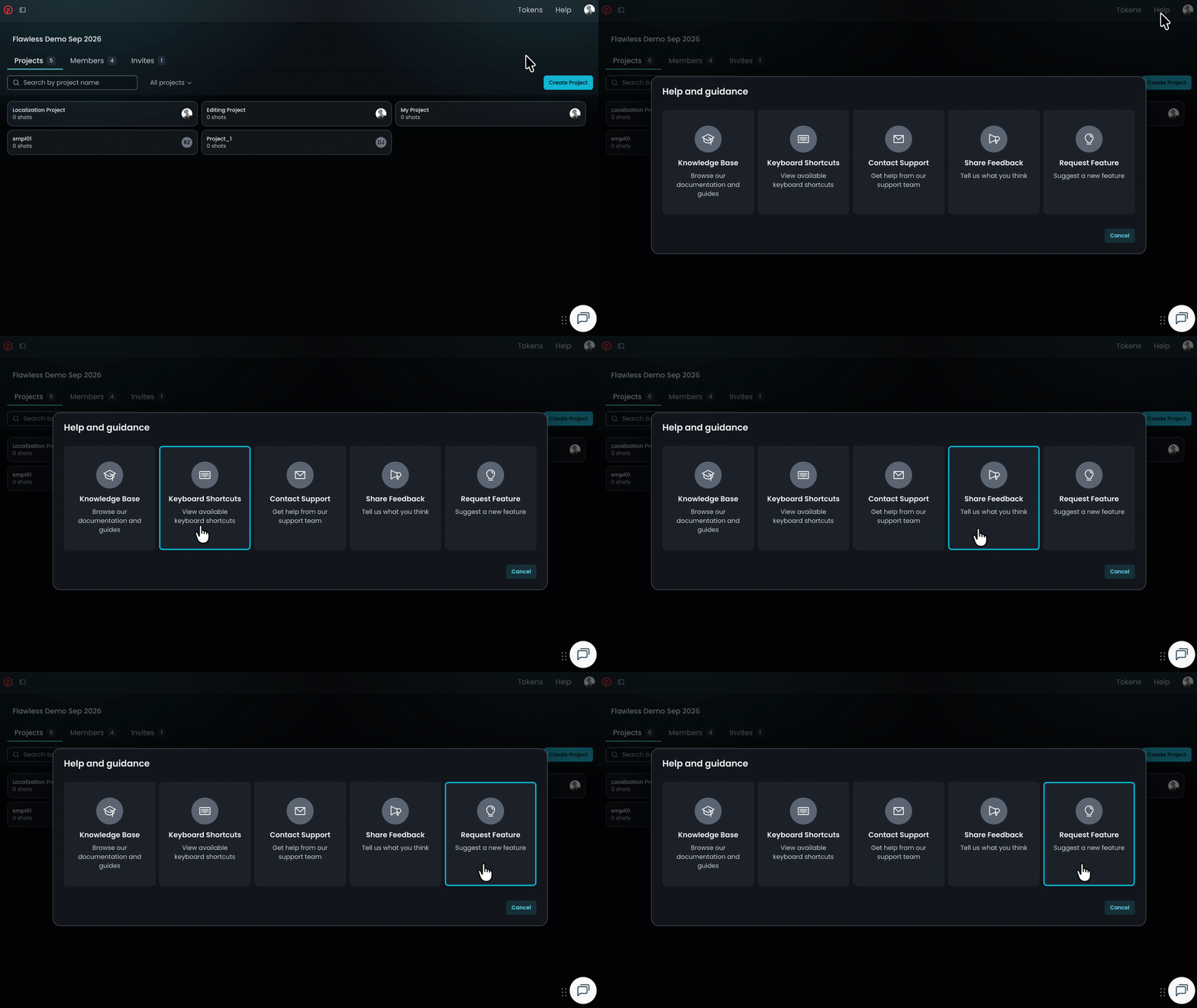
If the chatbot can't resolve your query, click Help in the top-right corner of DeepEditor to access the following options:
- Knowledge Base — search articles and try the Flawless Help chatbot again
- Keyboard Shortcuts - a full list of the keyboard shortcuts for the Refinement tool
- Contact Support — raise a Flawless Support ticket
- Share Feedback — share your experience of the product
- Request Feature — suggest ideas for new features
-
You can also email support@flawless.app directly at any time.
Read Next: Refinement Best Practice