
Navigation Bar
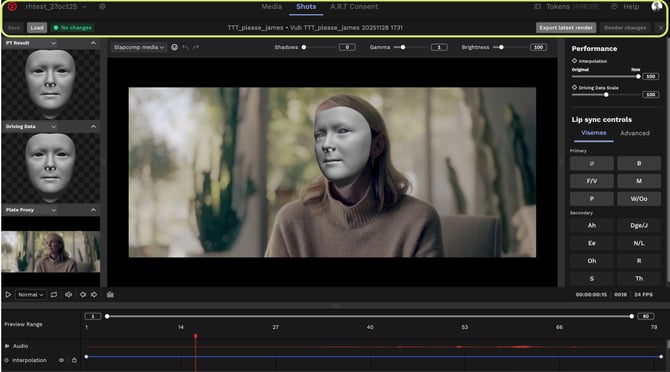
The navigation bar runs across the top of the refinement tool page and allows you to navigate to different areas of the DeepEditor interface.

Using the navigation bar you can go to any of the following parts of the DeepEditor interface (from left to right):
- Projects - the current project name is displayed, but you can use the drop down to navigate to other projects.
- Project Settings - click on the cog to access your project settings.
- Project Tabs Navigation - from here you can access the Media tab, Shots tab and A.R.T. Consent tab (for editing projects only).
- Tokens Page - click to manage your token balance and purchase additional tokens.
- Help - click to create a support ticket, access the knowledge base, provide feedback or submit feature requests.
- User Icon - click here to navigate to other tenants/workspaces you might be part of.
Underneath the Media / Shots / A.R.T. Consent tab you will also see the name of the Shot followed by the name of the Vub you're working on. Click on the Shot name to navigate to the Shot page for this specific shot.
Save/Load

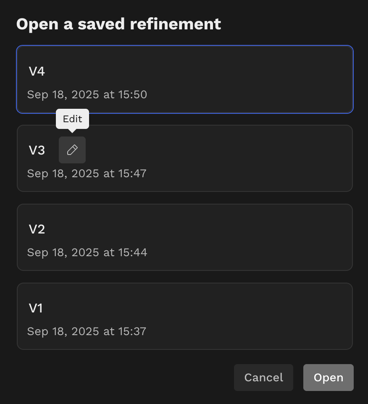
The Load button allows you to reload a saved refinement session – your session is saved either:
- When a render is completed, or-
- When you have manually saved using the Save button.
The Save button allows you to save and name your refinement session after making a keyframe change, but before a render.
Rename your renders in the 'Load' dialogue box to keep track of your refinement work.
Export latest render / Render changes

The Render changes button allows you to render any new lip sync refinements you have made, so that you can view the results in the Main Window.
The render button will only be active when refinement changes have been made.- When a render completes, you will see your Google Chrome tab refresh and update with the new render.
- When you start a render, you can continue making refinement changes, but these changes will require a further render when the current one completes.
- The X button allows you to cancel an active render.
- Tip: only changed frames are rendered, so the fewer the changes, the faster the render.
The Export latest render button should be used when you are satisfied with your lip sync results in the Refinement tool and want to generate an output file(s). You can download an export either to your file system or back into your Avid timeline via the plugin.
When you hit Export latest render, you will see several export options. The options you see will depend on the vub quality you're working with.
If you are exporting a Draft vub, you will have the Video and Slapcomp options available to you.
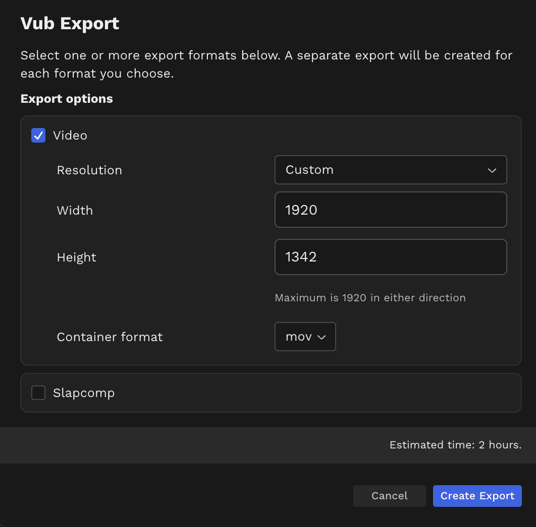
If you are exporting a Final vub, you will have the Video, Image Sequence, VFX Turnover Package and Slapcomp options available to you.
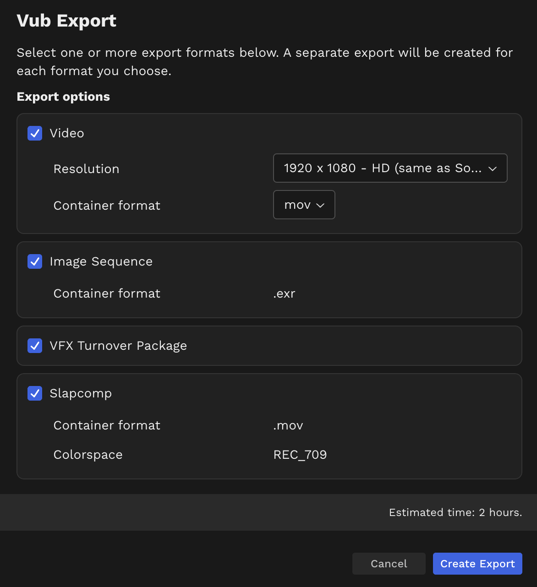
Here is a breakdown of each export option:
- Video: Exports a QuickTime of your vub. Choose your resolution and format (mov/mxf/mp4).
- Image Sequence: Exports an EXR image sequence of your vub.
- VFX Turnover Package: Exports a package for VFX image touch-ups if desired.
- Slapcomp: Exports your vub as an mp4 and bypasses most of the compositing steps – this is to allow you to get a faster export if, for example, you just want to send an export to someone for lip sync review.
When you trigger an Export, you will see your selected export(s) in the Exports tab of your shot in DeepEditor.
Read next: Refinement Interface - Main Viewer