
Explainer Video
Importing Your Vub
When your vub is ready, you'll receive an email notification and see it's status in the DeepEditor extension Shots & Vubs list as Completed.
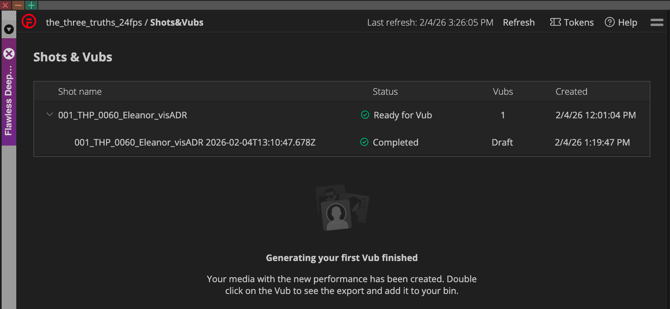
- In the extension Shots & Vubs list, double-click your vub to open the Exports panel.
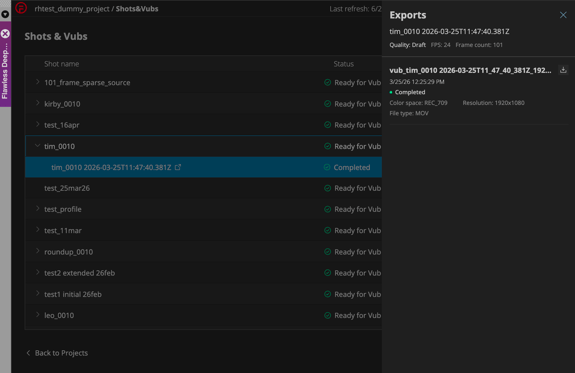
-
Select the download icon next to your vub Export and select a bin to import it into:

-
Alternatively you can click and drag the vub Export directly into a bin.
Note: The DeepEditor Extension must first download the vub media file before importing it. Currently, the downloaded files will be stored in a folder called Flawless Vubs, created inside your Avid Project folder. At the time of writing, this is due to be amended.
The vub will be imported into Avid using your Avid Import settings. You can now cut the vub into your timeline and review in-context.
If you want to refine the lip sync of your vub, you can access the Refinement tool by clicking the icon to the right of each vub name:

The Knowledge Base provides guidance on lip sync refinement as well as taking your vub through to Final quality delivery.
Requesting Consent via the Artistic Rights Treasury (A.R.T.)
The DeepEditor Avid extension includes built-in consent management powered by the Artistic Rights Treasury (A.R.T.). This allows the user to ensure that any vub exports requiring performer consent can be properly reviewed and approved.
If consent is required for a vub, the export(s) for that vub will be labelled with Request consent and cannot be downloaded without a watermark.
To request consent, select the Request consent link.
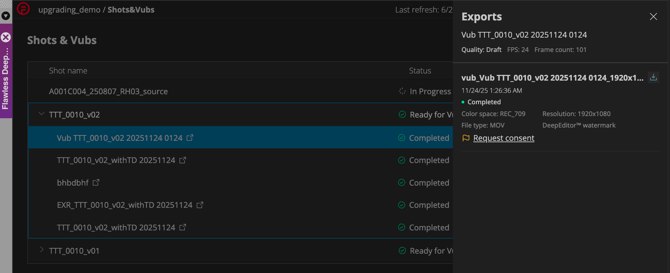
If your vub quality (Draft/Final) requires consent management via A.R.T. (as defined in your Project's preferences) and you want to access a non-watermarked version of the export, click Request Consent.
This will open a Request consent page:
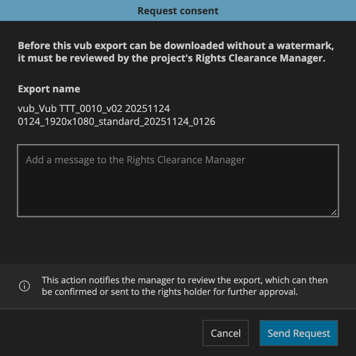
On this page, you can optionally include a message to the Rights Clearance Manager (RCM). While not required, adding a short note can provide useful context about your vub for the reviewer.
Once you click Send Request, your vub export (along with your message, if added) will be submitted to the RCM via the A.R.T. platform.
You’ll receive an email notification once the consent request has been approved or denied:
-
Approved: You can import the non-watermarked vub export into your Avid bin.
-
Pending or Denied: You can still only add a watermarked version of the vub export to your bin.