
Applying for a DeepEditor Account
To get access to DeepEditor, apply for an account here. Complete the application form and submit it for review.
Want to use DeepEditor through the Flawless DeepEditor Avid Extension? Download, install and sign up yourself using the guide here.
Once you submit the form, you will receive an email with the subject ‘Your DeepEditor Account is Being Reviewed’:
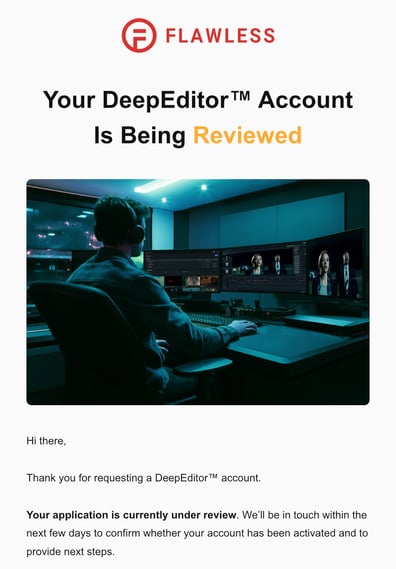
Your application will go through a vetting process.
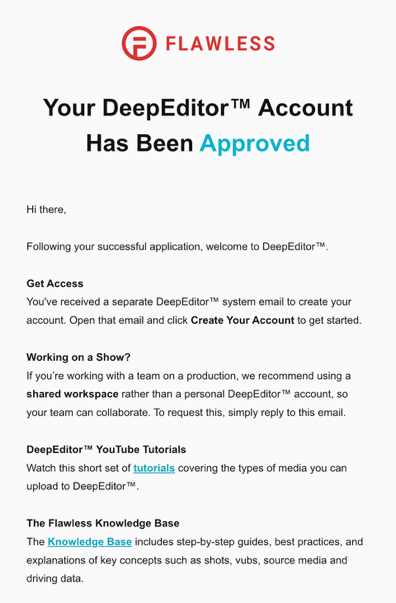
If approved, you will then receive two emails: firstly, a notification of approval plus some key information & resources:
Activation Process
You will receive an email with the subject ‘Activate Your DeepEditor Account’:
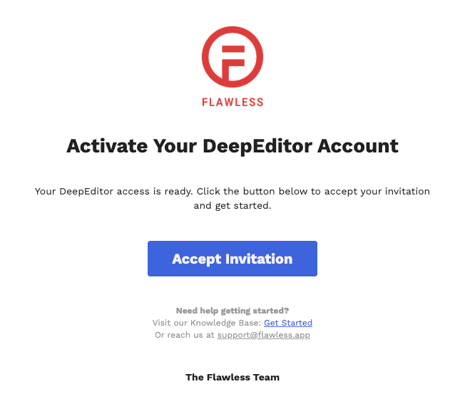
Click Create Your Account to begin the activation process. You will be taken to the following screen:
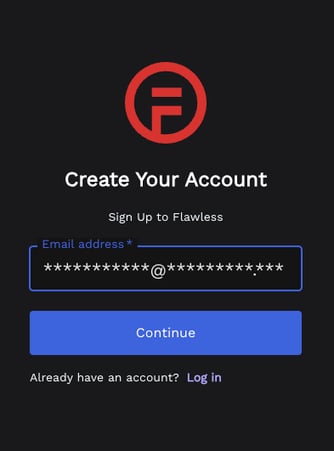
When you click Continue, you will be prompted to verify your identity using a code that has been emailed to you.
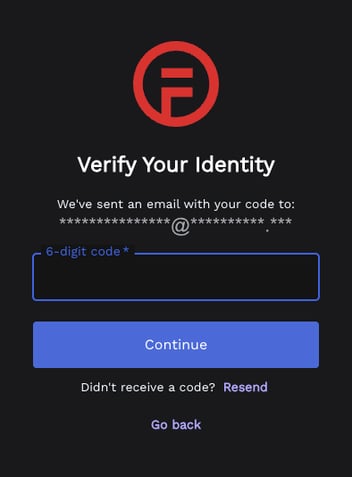
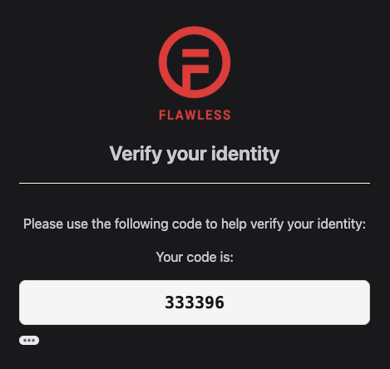
In your mailbox, you will find an email with the subject line 'Verify your email'. Open it and copy the code you see inside:
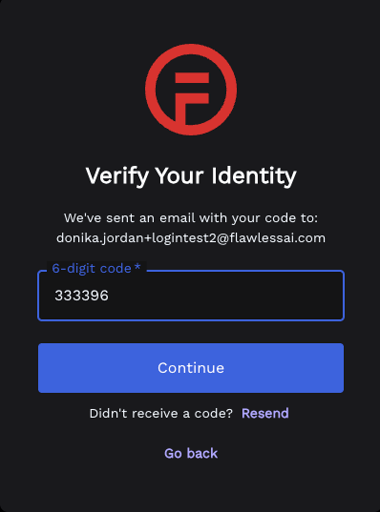
Go back to the DeepEditor screen and paste the code from the email in the 6-digit code box, then click Continue.
Setting Your Password & Two-factor authentication (2FA)
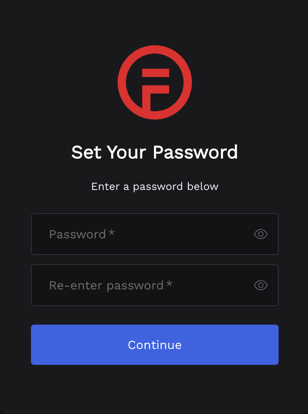
You will be taken to a screen where you can set your password:
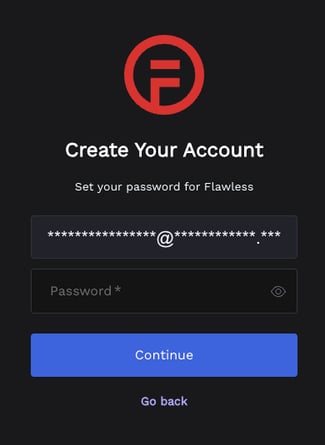
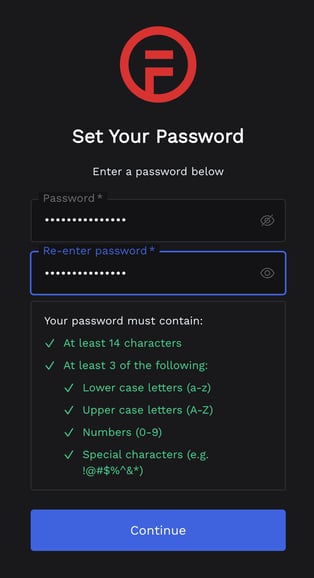
Enter your preferred password, making sure it meets all the requirements listed.
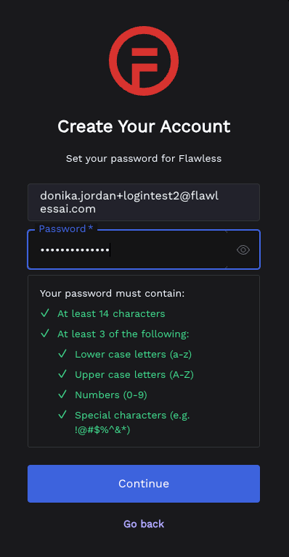
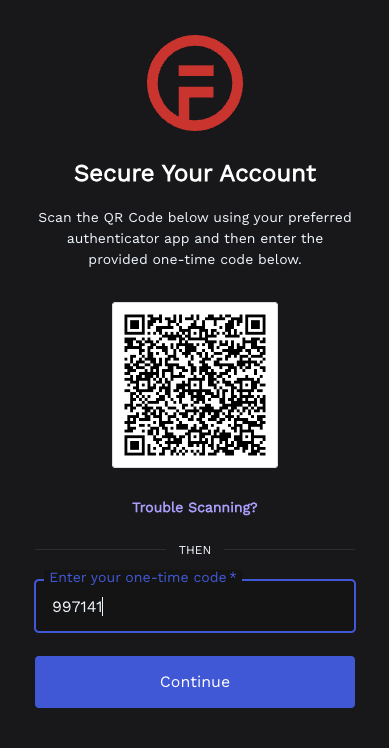
Click continue to secure your account using an Authenticator app.
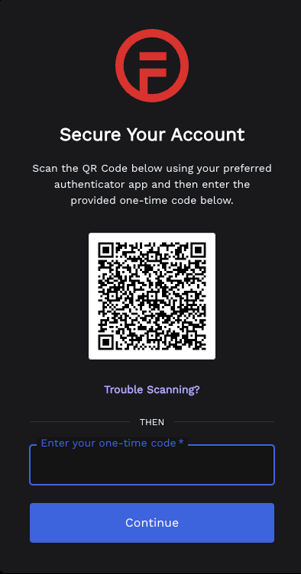
Scan the QR code with your preferred app to generate a one-time code. Flawless recommends:
 Duo Mobile (Android / iOS)
 Google Authenticator (Android / iOS)
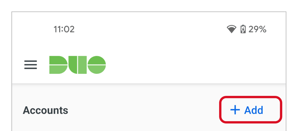
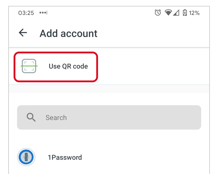
To scan the QR code with Duo Mobile, tap on ‘+Add’ at the top right of the Duo Mobile screen and select ‘Use QR code’:
To scan the QR code with Google Authenticator, tap on the ‘+’ icon at the bottom right of the Google Authenticator screen:
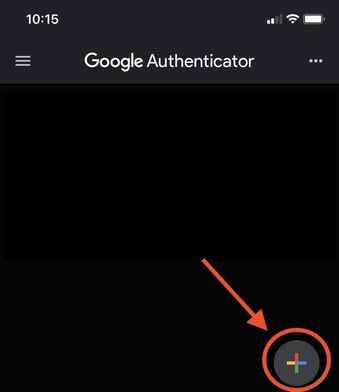
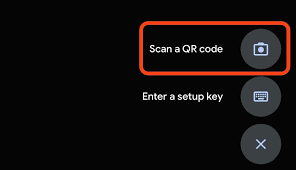
Once you've scanned the code, you will see a 6-digit code generated in the Authenticator app against your Flawless AI account.
Enter this code in the one-time code box and click Continue.
You will then be asked to accept the Flawless terms.
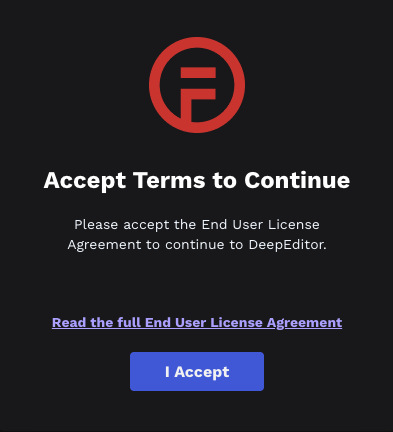
After you click I Accept you will be logged into DeepEditor.
Bookmark https://deepeditor.flawless.app/projects to log in quickly in future.
Logging In After Setup
Go to https://deepeditor.flawless.app/projects. Enter your email address and password. If prompted, enter a one-time code from the Authenticator app you used during setup.
DeepEditor is currently a web-based app, compatible only with Google Chrome.
Resetting Your Password
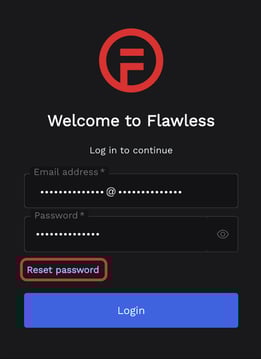
On the DeepEditor login page, select Reset Password.
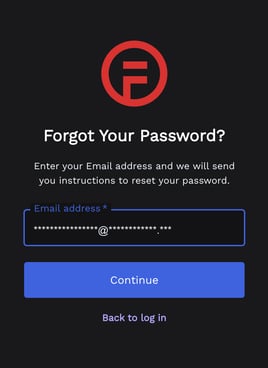
On the Forgot Your Password? screen, enter the email address you used to sign up for DeepEditor, then click Continue.
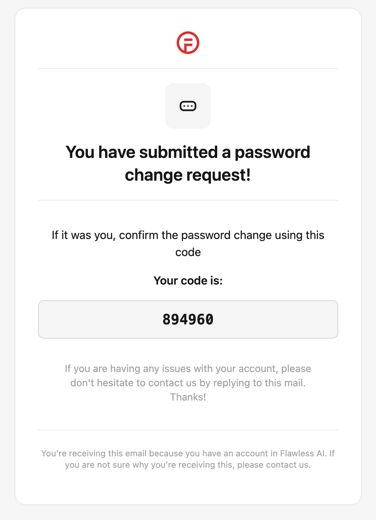
You will then receive an email with a code, which you can use to verify your identity in DeepEditor.
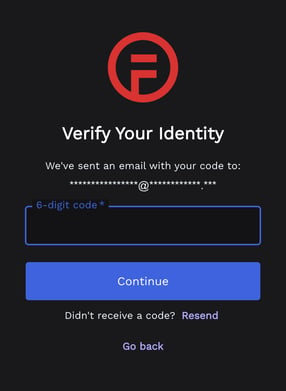
Enter the code on the Verify Your Identity screen in DeepEditor.
When you click Continue, you will see the Set Your Password screen. Enter your new password here.
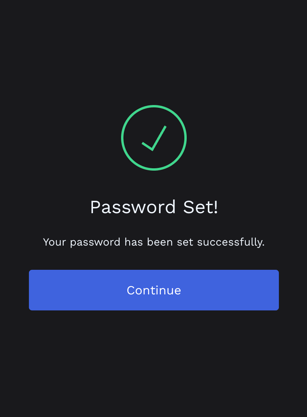
Click Continue and your new password will be set.
If you run into any issues, ask our chatbot (in the bottom right of your screen) or get in touch at support@flawless.app.
Read Next: Workspace Creation