
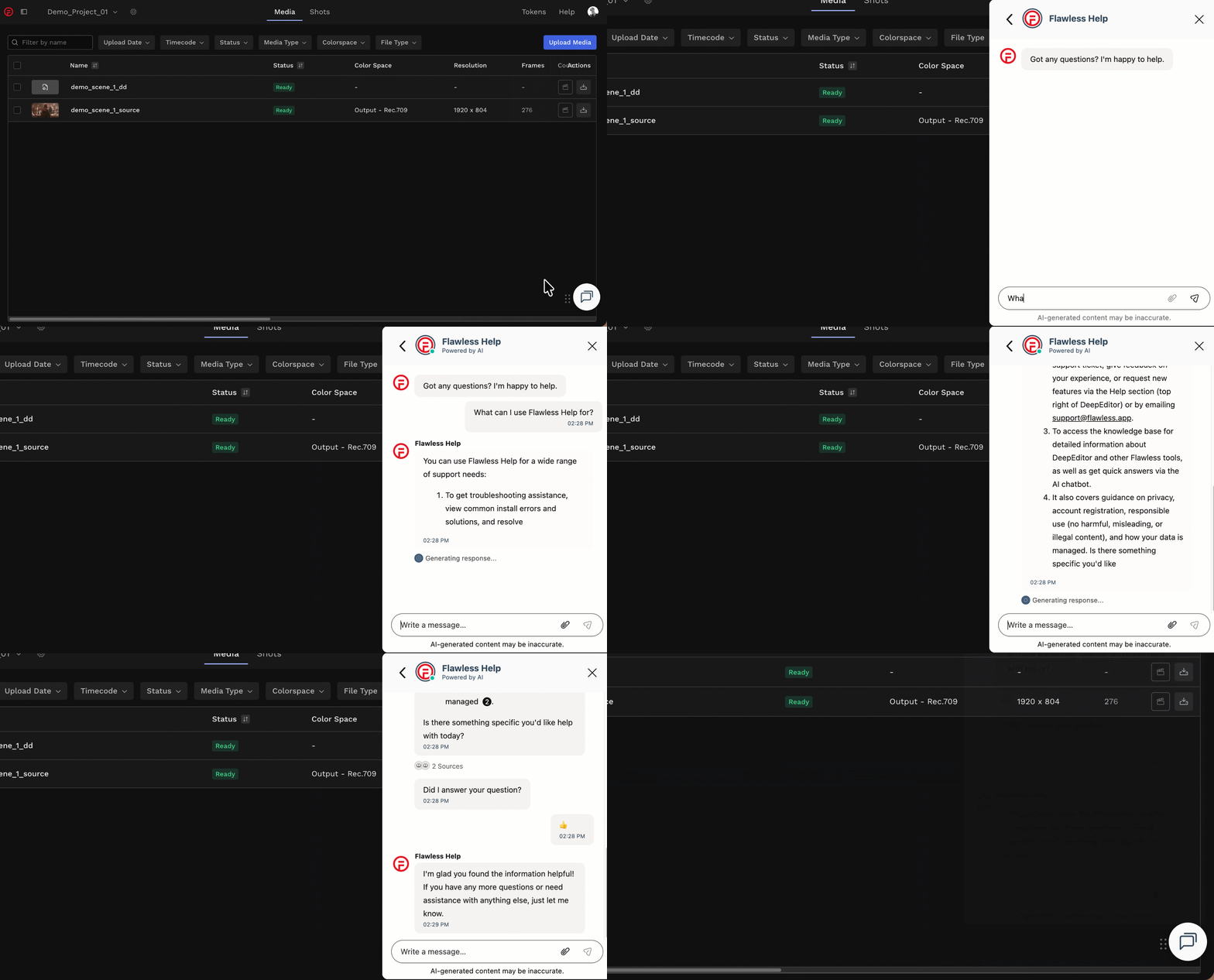
Remember to try the Flawless Help chatbot when you have any questions!
Creating your Vub
The mouth movements in my vub don't match the audio
- If the dialogue in the Driving Data audio does not correlate to the mouth movements in the vub, check your Driving Data temp media in your temp media bin in Avid. It is possible that you uploaded a video Driving Data file and did not indicate correctly whether you wanted to use the audio or video to drive the performance in the new vub.
If your Driving Data file contains both audio and video, the New Vub screen in the Avid Extension will ask you to choose one of these two options:- New dialogue - DeepEditor syncs the actor's facial performance in your Source media to the dialogue in the audio track of your Driving Data. The video is ignored. Use this when you want the new dialogue but want to retain the original emotional performance of the Source media, or when the actor's face in the Driving Data video isn't usable - for example if it is obscured, breaking frame or poorly lit.
- New performance - DeepEditor transfers the facial performance from the Driving Data video onto the actor in your Source media. The audio is ignored. Use this when you want the performance as well as the dialogue to come from the Driving Data - for example when working from an alternate take.
The New dialogue option is selected by default. If you want to use the video track to drive the performance in the new vub, you must actively select New performance.
How can I add Training Data to my vub in the Avid Extension?
- Training Data cannot be added via the Avid Extension and must be added via the web app. See Shot Creation for guidance.
Downloading your Vub
I'm unable to download my vubs back into Avid
- There are several reasons why you may not be able to download your vub back into Avid, so try the following:
- Check your internet connection
- Check that the bin you selected to download to is still open and has not been moved or renamed. If it has, hit the Refresh button in the DeepEditor Extension to refresh the available bins to download to.
- If your vub was created using certain older Avid codecs (e.g. DNxHD36) then DeepEditor will be unable to regenerate this codec and will default to DNxHR HQ. If this codec is unsupported on your machine, you may need to download it via the web app and transcode using software like DaVinci Resolve.
My MXF exports look washed out when importing into Avid
-
For an explanation of why this can happen and how to resolve it, see the article Avid Extension: Color Levels When Importing Vubs Into Avid.
Contacting Support
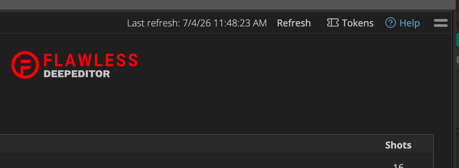
If you require assistance, the first place to try is the Flawless Help chatbot. It is available 24/7 to help you and can be found in the DeepEditor web app and our Knowledge Base. To go directly to the Knowledge Base from the DeepEditor Extension, select the Help button on the top right [the chatbot is not currently available directly in the DeepEditor Avid Extension]:
When in the Knowledge Base or the DeepEditor web app, you can find the chatbot on the bottom right of your screen:
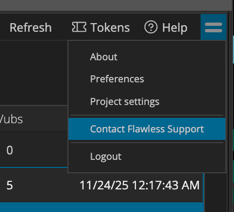
If the chatbot can't resolve your issue, you can request support via the 'sandwich' menu in the DeepEditor Extension:
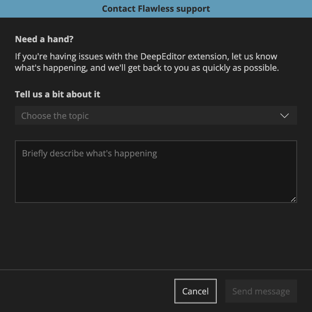
This will take you to a form that, once completed and submitted, will be sent to the Flawless support team:
Alternatively, please contact us at support@flawless.app.