
-
Overview
-
Playback Controls
-
Used Viseme and Advanced Controls
-
Timeline Zoom
-
Go to Frame
-
Keyboard Shortcuts
Overview
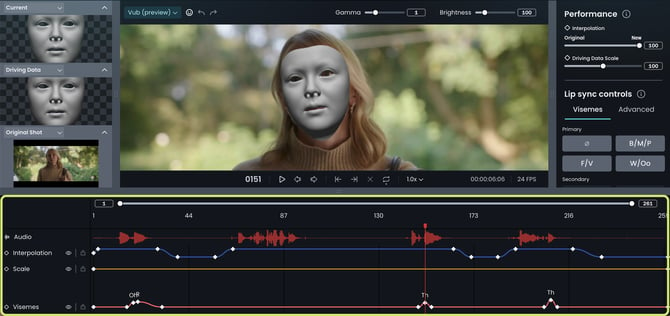
The timeline shows all keyframe adjustments as they are created and modified. You can see:
- Audio waveform
- Viseme keyframes
- Advanced (blendshape) keyframes
Playback Controls
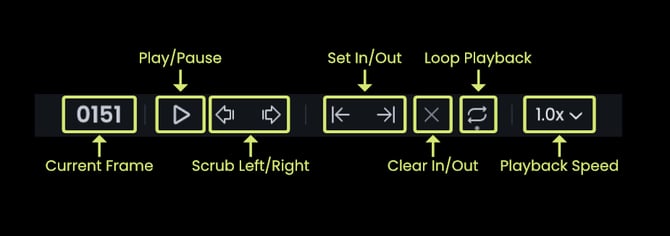
The following playback controls are available above the timeline:
- Frame number at the playhead position
- Play/Pause
- Scrub Left/Right by one frame
- Set In/Out point
- Clear In/Out point
- Loop Playback
- Playback speed
Used Viseme and Advanced Controls
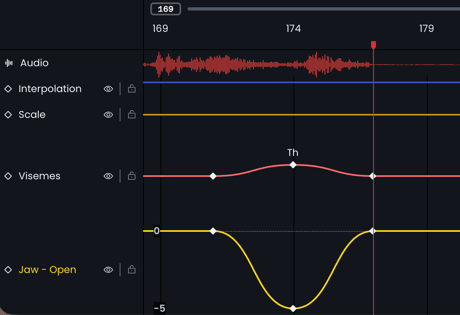
As you add viseme and advanced controls overrides, they will appear to the left of the timeline, each with an individual color for easy identification. The viseme and advanced controls keyframes will appear on the timeline itself.
-
Click the eye icon to hide/view a blendshape.
-
Command + click the eye icon to solo a blendshape.
-
Click the lock icon to lock a blendshape.
Timeline Zoom
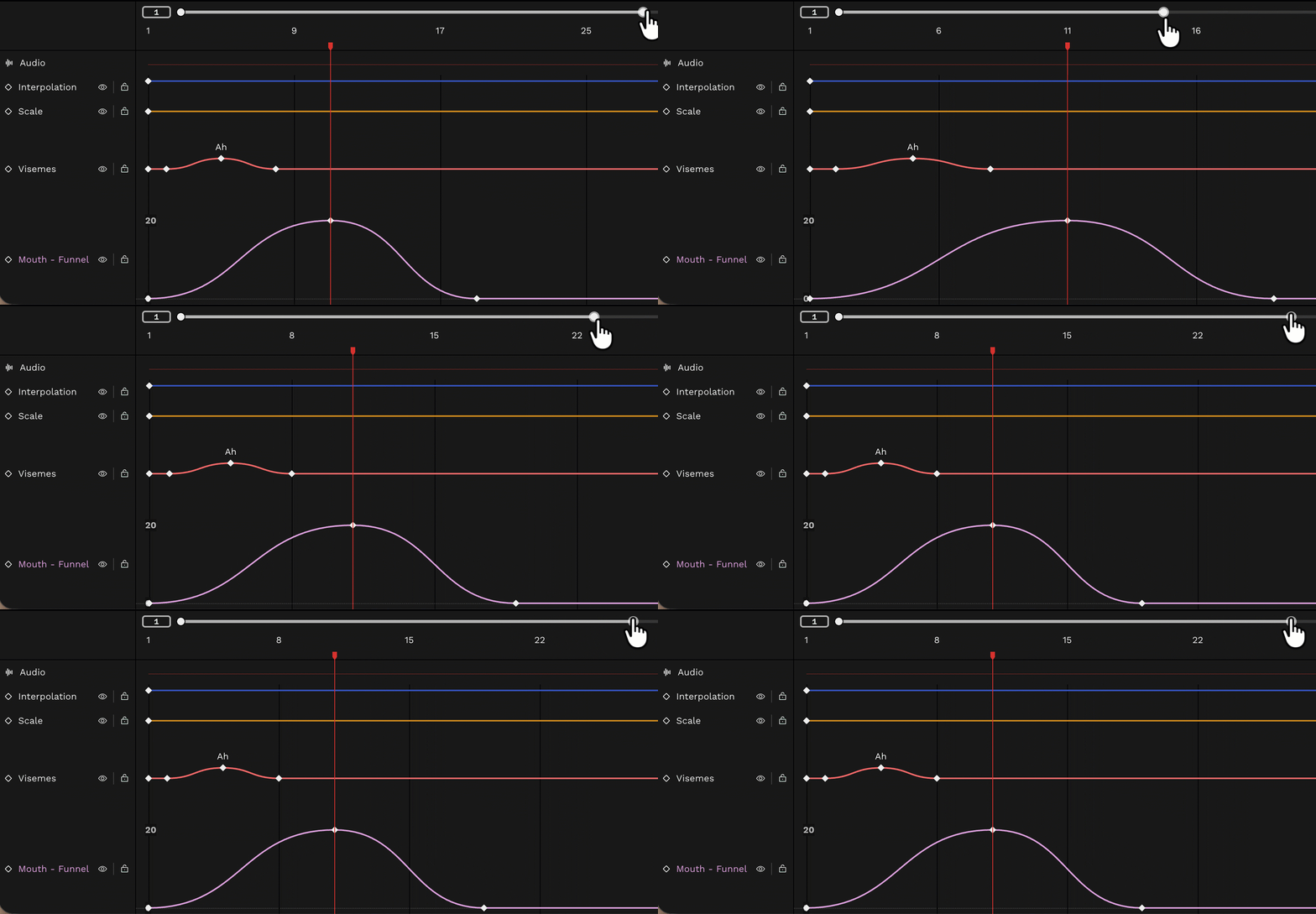
You can zoom in on a specific frame range on the timeline using two methods:
- Click and drag either end of the zoom bar.
- Type the desired frame numbers in the boxes at the ends.
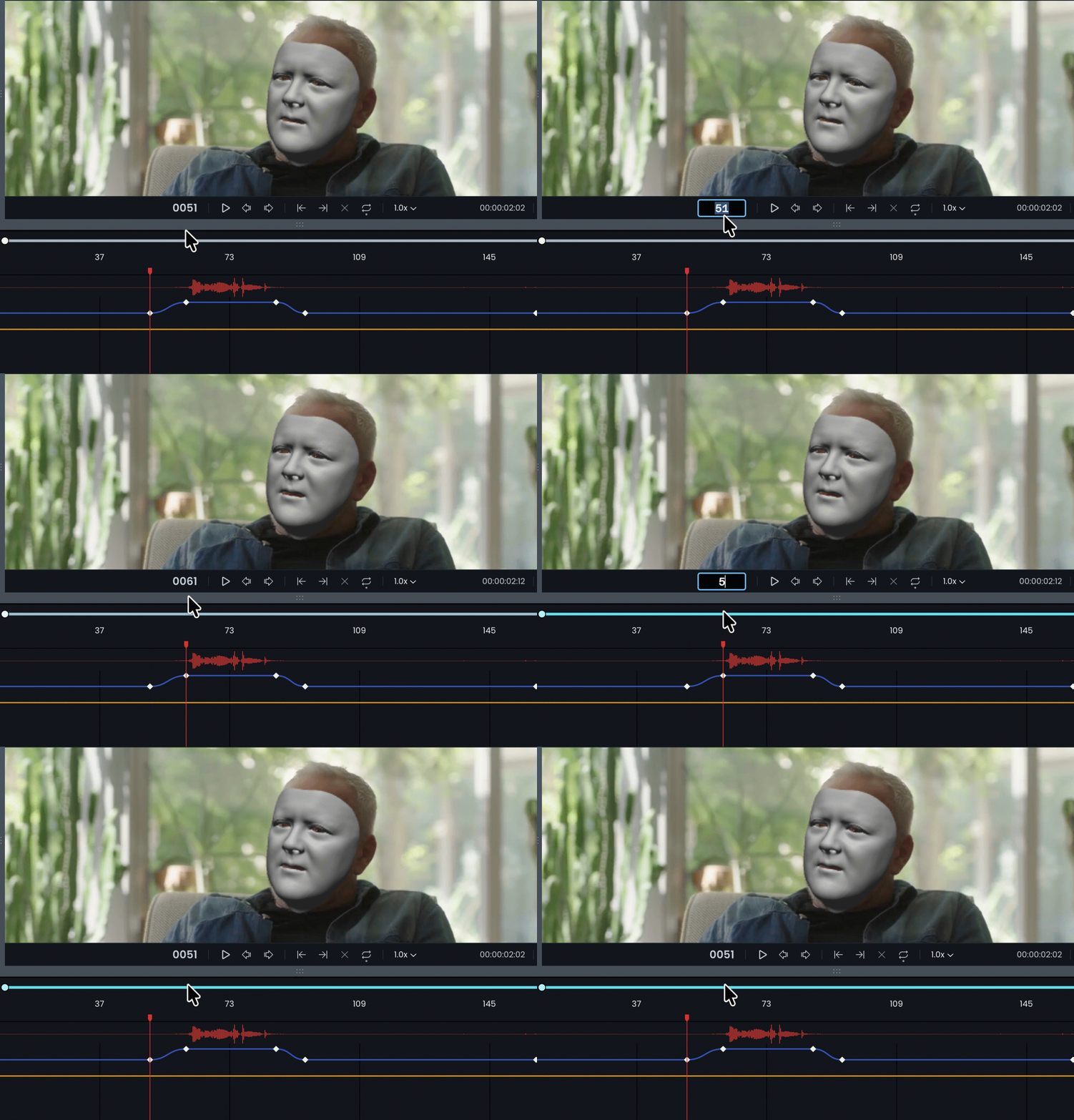
Go to Frame
Click on the frame count display and type the specific frame number you'd like to jump to. The playhead will move to that frame when you press Enter.
Keyboard Shortcuts
- Spacebar = Play/Pause
- K = Pause
- L = Play
- Right/Left Arrows = Move playhead right/left one frame with audio scrubbing (i.e. you hear the audio of each frame that you land on).
- Drag the playhead to audio scrub through the shot.
- Option/Alt + Right/Left Arrow = Move the playhead right/left 10 frames
- Up/Down Arrow = Jump to the first/last frame
- Cmd+C - copy selected keyframes
- Cmd+V - paste copied keyframes at the playhead position
It is currently not possible to copy keyframes from one shot and paste them onto another.