
Accessing the Keyboard Shortcuts
The list of keyboard shortcuts can be viewed by clicking on Help > Keyboard Shortcuts.
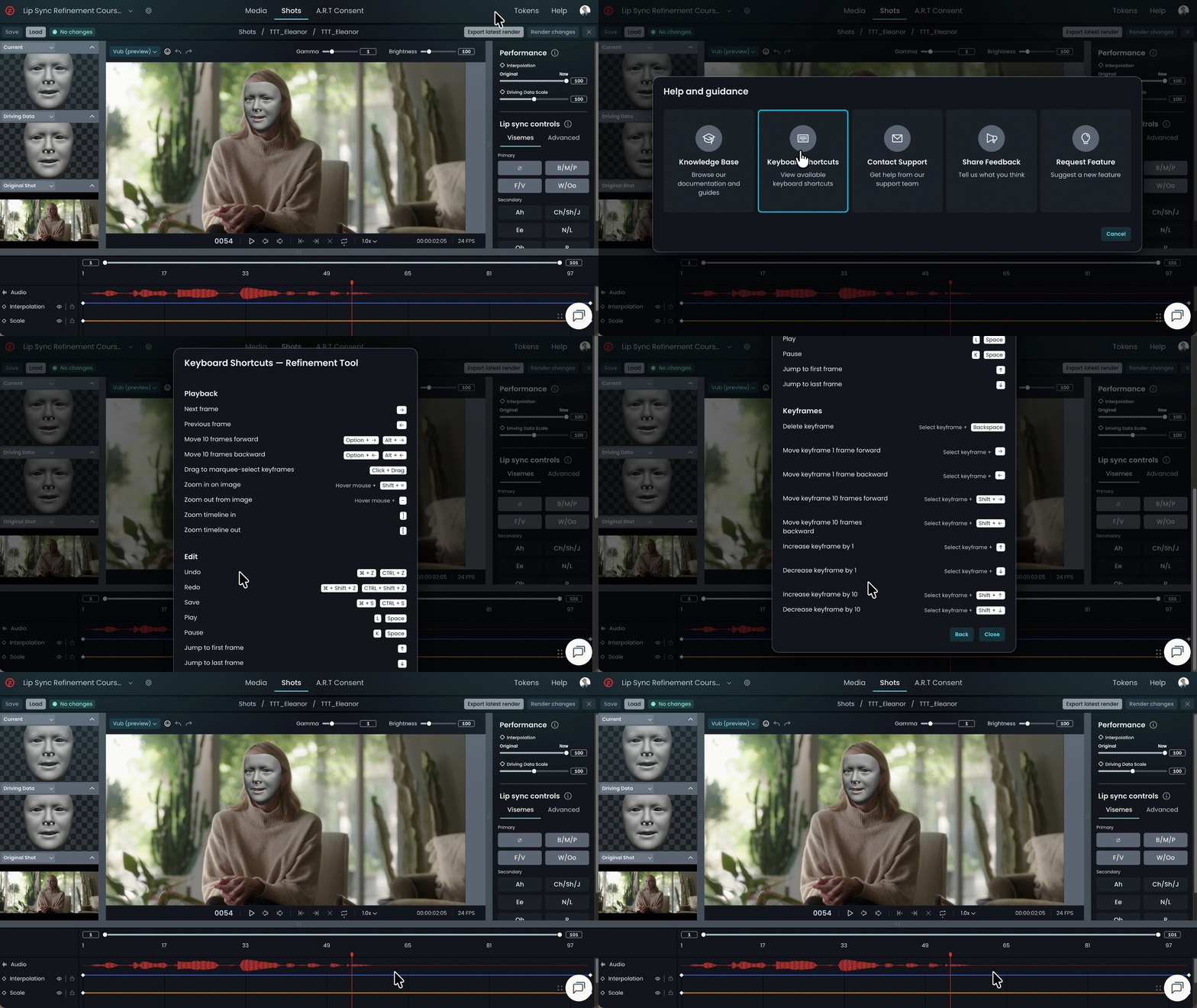
Keyboard Shortcuts in the Refinement Tool
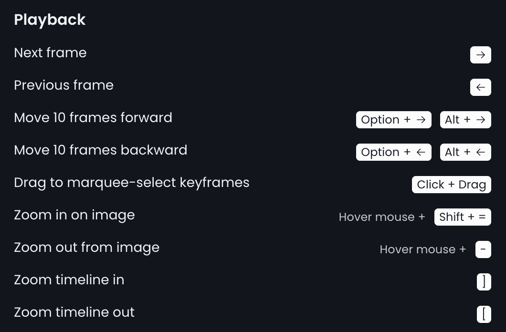
Next frame = Right Arrow Key
Previous frame = Left Arrow Key
Move 10 frames forward = Option + Right Arrow Key [Mac] or Alt + Right Arrow Key [Windows]
Move 10 frames backward = Option + Left Arrow Key for Mac users or Alt + Left Arrow Key for Windows users
Drag to marquee-select keyframes = Click + Drag
Zoom in in image = Hover mouse + Shift + =
Zoom out from image = Hover mouse + -
Zoom timeline in = ]
Zoom timeline out = [
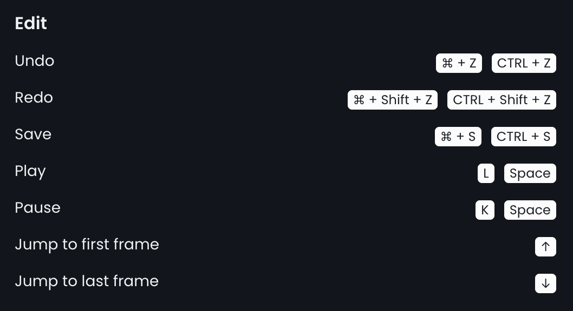
Undo = Cmd + Z for Mac users
Undo = Ctrl + Z for Windows users
Redo = Cmd + Shift + Z for Mac users
Redo = Ctrl + Shift + Z for Windows users
Save = Cmd + S for Mac users
Save = Ctrl + S for windows users
Play = L or Space bar
Pause = Space or K
Jump to first frame = Up arrow key
Jump to last frame = Down arrow key
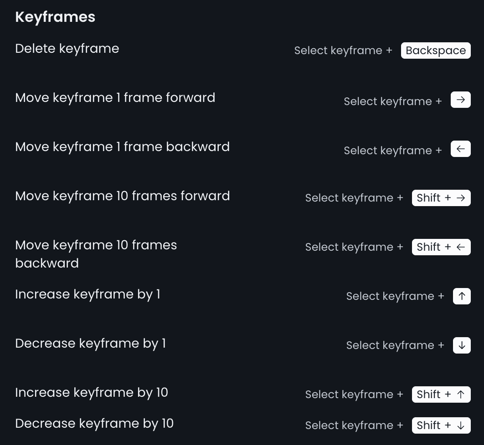
Delete keyframe = Select keyframe + Delete or Backspace
Move keyframe 1 frame forward = Select keyframe + Right Arrow
Move keyframe 1 frame backward = Select keyframe + Left Arrow
Move keyframe 10 frames forward = Select keyframe + Shift + Right Arrow
Move keyframe 10 frames backward = Select keyframe + Shift + Left Arrow
Increase keyframe by 1 value = Select keyframe + Up Arrow
Decrease keyframe by 1 value = Select keyframe + Down Arrow
Increase keyframe by 10 values = Select keyframe + Shift + Up Arrow
Decrease keyframe by 10 values = Select keyframe + Shift + Down Arrow
Note that viseme keyframe values always change by increments of 10.
Advanced keyframe values change by increments of 1 when you use the Up/Down arrow keys and in increments of 10 when you use Shift + Up/Down arrow.
Copy selected keyframes = Cmd+C
Paste copied keyframes at the playhead position = Cmd+V
Note that it is currently not possible to copy and paste keyframes across different vubs. You can only copy and paste keyframes on the timeline within the same vub.