Skip to content
  • There are no suggestions because the search field is empty.

How to Work with Multiple Faces in One Shot

DeepEditor can create one output that has multiple visually dubbed faces. Learn the specific steps in a multi-face workflow below. 

Table of contents 

Step 1 - Create Source and Driving Data
Step 2 - Upload Media
Step 3 - Create One Shot
Step 4 - Add All Driving Data in the Shot Media Tab
Step 5 - Review and Organize Characters
Step 6 - Generate a Separate Vub for Each Speaking Character
Step 7 - Refine Each Face Separately 
Step 8 - Merge Exports
When Using the Avid Extension

DeepEditor changes the mouth movements of one character per vub. If you want to vub multiple people in the same shot, you need to first create separate vubs for each character, then use the face merge button in the Exports tab to auto-composite the vubs together in the DeepEditor app. 

Step 1 - Create Source and Driving Data

Source Media

Prepare the source media just as you would for a vub with only one face. 

Driving Data

There are two ways to create driving data for a vub containing multiple characters.

  1. When using the web app, the characters are speaking one at a time:

    1. Create separate .wav files for each speaking face. Each audio file should only contain the dialogue for one character at a time.

      1. If I had 3 characters in a shot and I wanted to change the mouth movements of all 3 faces, I would create a set of files like so:

        1. DrivingData_Sc2Tk05_Jack

        2. DrivingData_Sc2Tk05_Jill

        3. DrivingData_Sc2Tk05_Harry

  2. When using the Avid Media Composer Extension, or the characters are speaking over each other:
    1. Create one .wav driving data file containing the dialogue for each character in the shot

Step 2 - Upload Media 

Upload any of the following media for your vub:

  • Source Media – the original performances you want to visually dub.
  • Driving Data – the new performances you want to apply to the source (this can be video or audio).
  • Training Data (optional) – additional footage of the same character to help improve image fidelity (lighting and makeup must be consistent). 

Upload Media

After uploading a video file, you will be prompted to select the color space.

Step 3 - Create One Shot

This step is no different than creating any other vub. Using the single source media file, create one shot.

create shots

Step 4 - Add All Driving Data in the Shot Media Tab

Once your shot is created, navigate to the Shots tab.

select shot

Add Driving Data for all faces within the Media interface. You can add these:

  • From your library - files already uploaded to the media library
  • From your computer - files stored on a local folder

Step 5 - Review and Organize Characters

Navigate to the Characters tab, where you can see the characters that have been detected and can review, name, and organize them.

Shot Appearances

When you select a character, you will see the character’s “Shot Appearances” across all video files you uploaded (source media, driving data, training data).

It’s important to review all appearances within each character grouping, as on rare occasions a character may be misidentified or will need to be managed separately. 

Read more about How to Manage Characters in DeepEditor.

characters tab

Step 6 - Generate a Separate Vub for Each Speaking Character

1. Now that you have completed steps 1 - 5, you can create your vubs. Decide what character you are starting with and click on the Generate Vub button.

generate vub button

2. Enter Vub Name. It is best practice to add the character name in the vub name to delineate between each face. 

name vub 2

3. Choose the Quality Level based on project stage and distribution. 

Read more about DeepEditor Token Types & Distribution-Based Pricing

4. Select the character you want to vub first.

character select

6. Select the source media, driving data, and (optional) training data for the character you chose on the previous step.

choose data files

7. Click Next to check all details, then click Create to start the vub generation process.

Repeat this step for each character. 

Step 7 - Refine Each Face Separately 

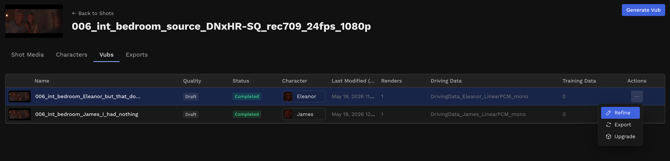
The vubs produced will have the mouth movements changed on only one character each. Refine each face separately.

If you are new to refinement, read: Introduction to Refinement

Screenshot 2026-02-13 at 11.15.04 AM

Utilize Scale and Interpolation to smoothly transition between characters' speaking lines. 

Screenshot 2026-02-13 at 11.15.33 AM

Step 8 - Merge Exports

The Face Merge feature allows you to merge the vubs for multiple characters within a shot into one combined output.

Once the exports for each vub have been generated, you can combine them into one export using the ‘Merge multiple exports’ option.

How to Use the Face Merge Feature

On the Exports page, select the exports you’d like to merge with the checkboxes on the left and hit the ‘Merge multiple exports’ button in the top right. 

You will then see a confirmation dialogue with a summary of the exports to be merged, listing the color space and quality level, and providing you with export options.

FaceMergeDemo

Your merged export will appear alongside your other exports.

Screenshot 2025-08-18 at 09.57.20

Note that you will get an error if you try to merge:

  • Vubs of the same character
  • Vubs of different quality levels
  • Vubs from different source media
  • An already merged export with any other export

Face merge is currently not fully compatible with the VFX package or EXR sequences.

When Using the Avid Extension

Create a shot and vub using the Avid Media Composer Extension. Follow steps 1-4 from Flawless DeepEditor Avid Extension: Step-by-Step: Generating Your First Vub 

Select this first character to vub:

Screenshot 2026-03-10 at 1.00.35 PM

Be sure to upload one driving data file with all vubbed character lines included.

Screenshot 2026-03-10 at 1.00.48 PM

After the vub has started processing, click the shot name and then click Generate Vub.

Screenshot 2026-03-10 at 1.01.19 PM

Generate a second vub. Your media and driving data will remain the same, but this time select a different character to vub. 

Repeat this process for every character you wish to vub in a single shot. 

Screenshot 2026-03-10 at 1.02.19 PM

After you have started generating vubs for each character in Avid Media Composer, you must log in to the DeepEditor web app to refine each face separately and merge vubs

Once the multiple vubs created for multiple characters have been merged in the web app, you can use the Avid Media Composer Extension to Import Your Vub Export via 'Add to bin'.