
On rare occasion, some users may notice that DeepEditor vub exports appear 'washed out'. This article explains why this can happen and provides a repeatable workflow for addressing the issue.
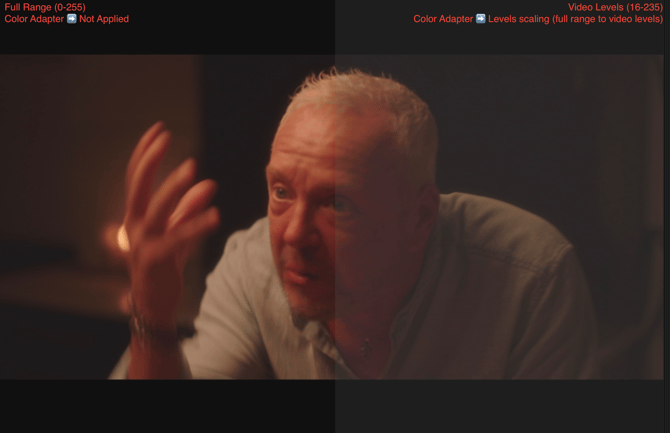
Why Avid Adds a Color Adapter
Most Avid projects are set to:
Color Space: YCbCr 709
When you link/import media, Avid checks the file’s metadata: if a file is flagged as Full Range (0-255), Avid automatically applies:
Color Adapter ➡️ Levels scaling (full range to video levels)
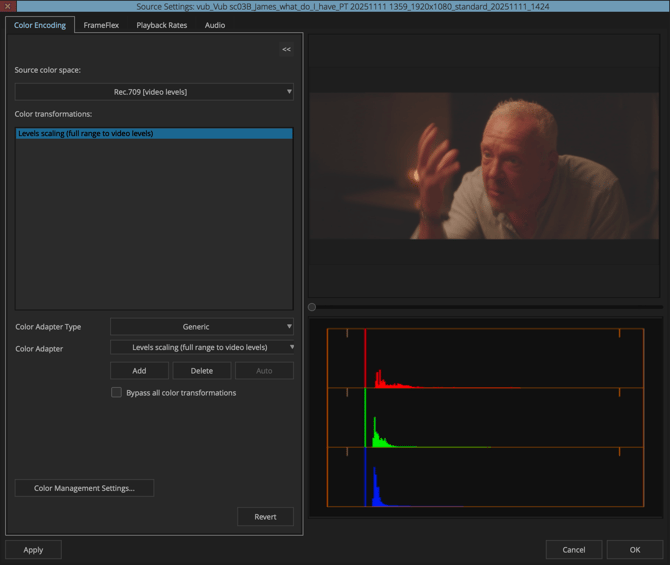
This will take the levels to Video Levels (16-235)
This is an attempt to ensure that the clip looks correct in Avid, but it’s also why editors may see unexpected contrast differences if the adapter is left in place
Recommended Workflow
Import the vub into Avid via the Extension
-
Bring your vub MXF or MOV into a bin using the DeepEditor Extension.
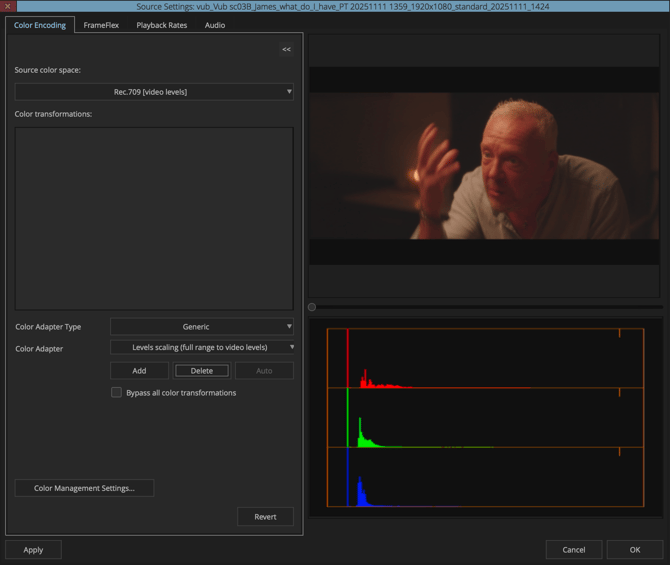
Remove the Automatic Color Adapter
-
Right-click the clip → Source Settings
-
Go to the Color Encoding tab
-
Avid will show:
Levels scaling (full range to video levels) -
Delete that transformation
-
Click Apply → OK
If the clip is already in the timeline
-
Right-click the segment → Refresh Color Adapters
(This re-applies the clip’s corrected color metadata to the clips in the timeline)
...OR cut it into the sequence
-
This avoids mass-refreshing the entire timeline.
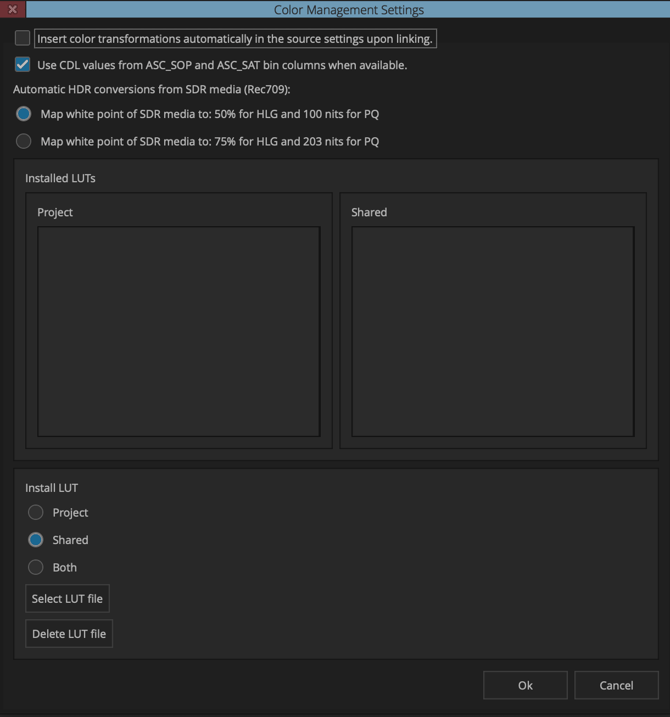
Optional alternative method: Disable Automatic Color Adapters
- Not required, but available if preferred:
-
Navigate to:
Settings → User Settings → Color Management
-
Untick Insert color transformations automatically in the Source Settings upon linking.
-
This prevents Avid from auto-applying level scaling in the future.
(We don’t recommend changing workflow-wide settings unless the editorial team is comfortable doing so.)