
-
Explainer Video [5 mins]
-
Step 1: Creating a Project
-
Step 2: Creating a Shot
-
Step 3A: Source and Driving Data Creation - Load from the timeline
-
Step 3B: Source and Driving Data Creation - Drag In From Bin
-
Step 4: Choose Character and Create Vub
-
Step 5: Importing Your Vub Export via 'Add to bin'
-
Requesting Consent via the Artistic Rights Treasury (A.R.T.)
-
Configuring Default Preferences
-
Support
Explainer Video [5 mins]
Step 1: Creating a Project
If you are logging into DeepEditor for the first time you will need to create a project. Feel free to name it whatever you want, but we recommend giving your DeepEditor project the same name as your Avid project.
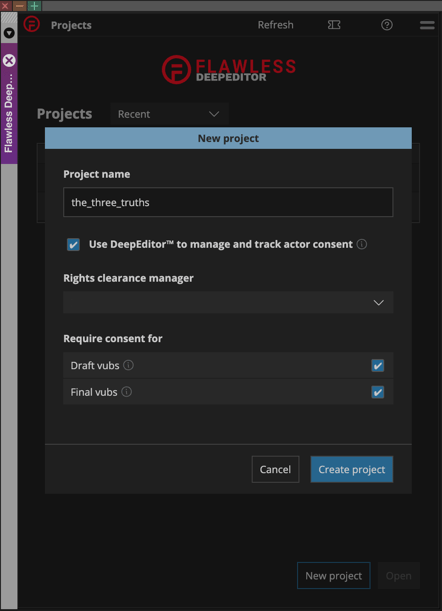
'Use DeepEditor™️ to manage and track actor consent' checkbox
DeepEditor includes built-in consent management powered by our Artistic Rights Treasury (A.R.T.) platform. A.R.T. is designed for the film and TV industry to ensure that any substantial changes made to a performer’s image are properly tracked, authorized, and compliant with union rules and contractual obligations.
By keeping the box checked, DeepEditor will handle the process of securing and recording performer consents directly within the tool, providing assurance to producers, provenance of data, and enabling safe commercial usage as well as related compensation and accreditation flows.
If your production already manages performer consent through existing contracts or external systems, you can uncheck this box and continue to handle consent outside of DeepEditor.
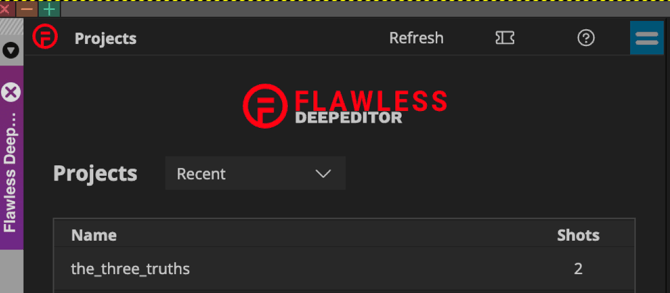
If you’ve already created a project via the DeepEditor web app, you’ll see your existing projects listed, from there select the one you want to work with.
Source and Driving Data
Before creating your first vub, it’s important to understand the two assets used in DeepEditor’s visual dubbing workflow (see the How To Prepare Your Media for a Vub article for full details).
DeepEditor is designed to work shot-by-shot, i.e., a single, continuous cut-to-cut section of an actor’s performance on the timeline, two assets are required to create a vub.
-
Source Media - your original single shot containing the actor’s performance, with the face clearly in frame.
-
Driving Data - the new performance you want to apply to that source.
The timing of the driving data relative to the source is chosen by the editor. Consider the actor’s physicality in the source and how it aligns with the new speech in the driving data.
Once your project is created and you’re comfortable with source and driving data, follow the step-by-step guide below to generate your first vub.
Step 2: Creating a Shot
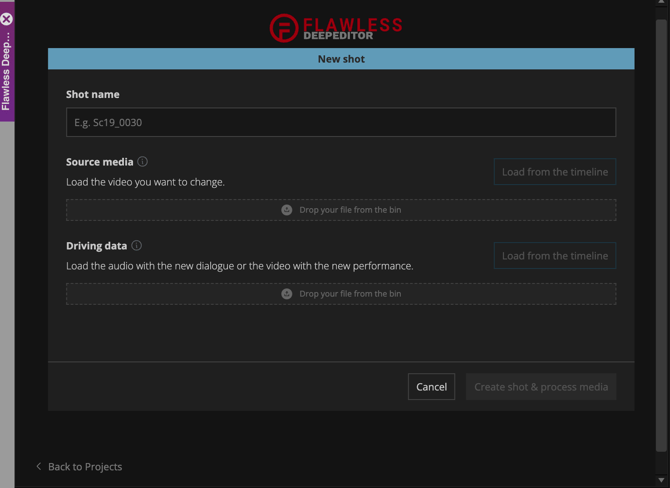
Open your project, and you will prompted to create a new shot.
What’s the Difference Between a Shot and a Vub?
A Shot is the foundation for a vub. It contains:
- Source Media – the original performance (your existing shot)
- Driving Data – a new performance that you want to apply to the source
Think of a shot like a container - you're essentially pairing the old performance with the new one, getting them ready for vubbing with DeepEditor.
You’re saying:
“Here’s the original performance, and here’s what I want to change it to.”
A vub (visual dub) is the file created at the end of this process, the actor's mouth movements will be adjusted to be in sync and match the performance of the new dialogue.
Step 3A: Source and Driving Data Creation - Load from the timeline
The quickest way to get started is to pull media straight from your Avid timeline with the Load from the timeline button.
In this version of the workflow you can utilize in/out points and track selection to create your assets.
- In your timeline set In/Out points to determine the duration of the media you want to export, use track selection to isolate the media you want for your source or driving data.
- On your timeline select the relevant track(s) that contain the video/audio for either source or driving data.
- Please note for driving data it is possible to only have an audio track selected.
- Click 'Load from the timeline' at which point the extension will:
- Export the marked in/out as a .mov file that follows your project's resolution and frame rate
- The default codec used in the current version of the extension is DNx SQ
- Link the .mov into your bin.
- Auto-populate the correct drag/drop section (source or driving data) in the extension UI.
- Export the marked in/out as a .mov file that follows your project's resolution and frame rate
Note: DeepEditor uses two default settings when creating media from your timeline, a Temp Media Bin (where temporary files are linked in Avid) and a Temp Media Destination (where those files are stored on your system).
These defaults are preconfigured in the extension. To learn how to view or change them, see Configuring Default Settings
Step 3B: Source and Driving Data Creation - Drag In From Bin
The Drag In From Bin method of the workflow is designed for when your source and driving data assets are already exported to a directory and linked into a bin.
You can review the linked files in Avid and then Drag/Drop them into the relevant box, at which point they will automatically upload.
For either the Import From Timeline or Drag In From bin method, once the shot is fully set up (both source and driving data uploaded), you can Create shot & process media
You’re telling DeepEditor:
“Now that I’ve lined up both source and driving data and created the files, go ahead and upload them so I can start generating the vub.”
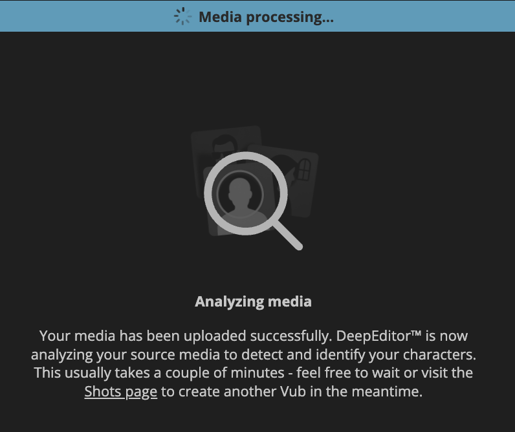
At which point the assets will upload to DeepEditor. When the upload is complete the video files will be processed to detect all the characters.
Step 4: Choose Character and Create Vub
Once your source and driving data are uploaded, you’ll be prompted to select two options before creating your vub:
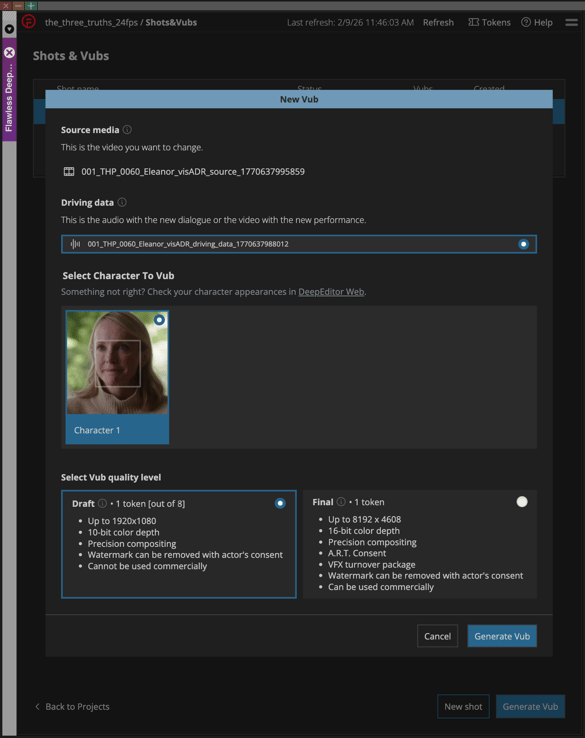
Select Character to Vub
DeepEditor automatically detects all characters present in your uploaded shot.
At this step, you must select a single character you want to vub.
- You’ll see all detected faces labeled (e.g. Character 1, Character 2).
- Only one character can be selected per vub.
Want to vub multiple characters in the same scene?
Create a separate vub for each character using the same shot setup.
Character Selection is still evolving, currently all characters detected in the shot will be displayed as 'Character 1', 'Character 2', 'Character 3' etc... updates to this workflow will be released soon.
Select Vub Quality Level
This determines the resolution, bit-depth, processing time, and overall fidelity of the vub you generate.
- Draft (Recommended for first-pass testing)
Draft vubs are designed for fast iteration and internal review. They support up to 1920×1920 resolution at up to 10-bit color depth and are ideal for early creative testing, offline editorial cuts, and sharing concepts within the production team. They are not intended for distribution. Draft vubs generate quickly, helping editors validate timing, dialogue, and creative intent before committing to higher-fidelity outputs. - Final (Mastering workflows)
Final vubs are built for mastering and distribution workflows. They support resolutions up to 8192×8192, up to 16-bit color depth, and full compatibility with ACES and .exr pipelines. Final vubs can be delivered under a range of distribution scopes and include the Flawless VFX Turnover Package, providing 2D compositing teams (Nuke, Flame) with the controls they need for high-end finishing. Final vubs are the version suitable for broadcast, streaming, theatrical, and delivery-ready use.
Note: DeepEditor cannot upscale resolution or bit-depth. Your vub’s maximum quality will match the source media you provide, it will never exceed it.
Suggested Workflow: Start with a Draft vub to validate the idea, then render without a watermark and at higher quality if needed.
With the two selections made you can then click 'Create Vub'
You will be returned to the vub list page where you can monitor progress
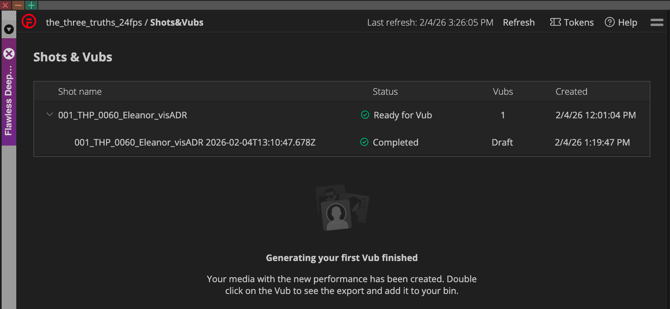
Step 5: Importing Your Vub Export via 'Add to bin'
When your vub is ready, you'll receive an email notification.
- In the extension, double-click your vub to open the Exports page.
- Right-click on the export and choose a bin to import it into.
Alternatively:
- Click, hold, and drag the vub export directly into an open bin.
The imported file will follow your Avid Import Settings:
Preferences > User > Import
You can now add the vub to your timeline and view the vub in the wider context of your narrative.
If you want to refine it further, use training data, or export at a higher quality, head over to the DeepEditor web app.
Requesting Consent via the Artistic Rights Treasury (A.R.T.)
The Flawless DeepEditor Avid extension now includes built-in consent management powered by the Artistic Rights Treasury (A.R.T.). This ensures that any vub exports requiring performer consent are properly reviewed and approved before release.
When you highlight a vub export in the extension, you’ll see two options:
Add to Bin and Request Consent.
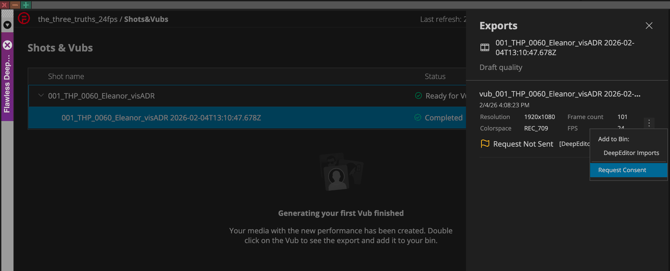
If your selected vub’s quality tier requires consent management via A.R.T. and you want to access a non-watermarked version of the export, click Request Consent.
This will open a consent request page: Clearance Review Required
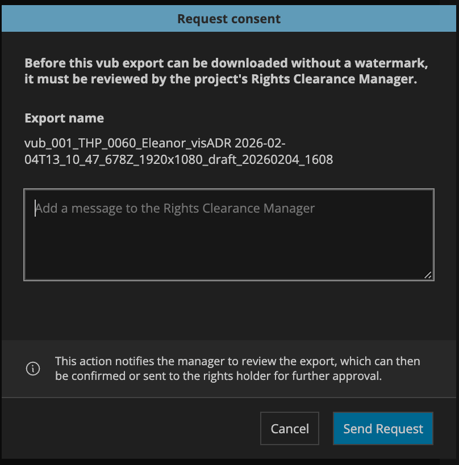
On this page, you can optionally include a message to the Rights Clearance Manager. While not required, adding a short note can help provide useful context about your vub for example, what changes were made or which scene it applies to so reviewers have the full picture when assessing the request.
Once you click Send Request, your vub export (along with your message, if added) will be submitted to the A.R.T. platform for review.
You’ll receive an email notification once the consent request has been approved or denied:
-
Approved: You can import the non-watermarked vub into your Avid bin.
-
Pending or Denied: You can still add a watermarked version of the vub to your bin while waiting for or resolving consent approval.
A.R.T. handles the clearance workflow, ensuring that all performer image rights are properly reviewed and recorded before commercial use.
Configuring Default Preferences
At any point while using the Flawless DeepEditor extension, you can access the Preferences menu by selecting the icon in the top right-hand corner of the extension.
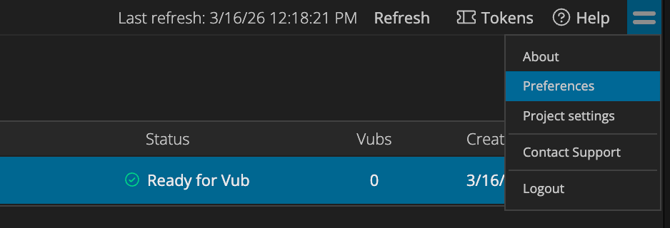
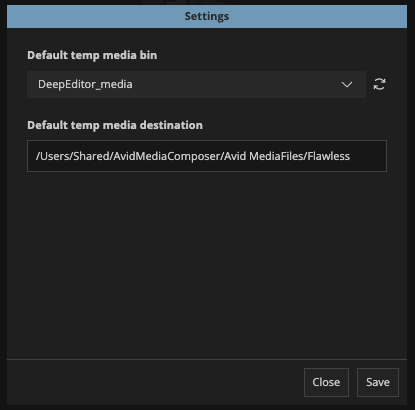
Within the Preferences page, there are two options you can configure:
-
Default Temp Media Bin
-
From the dropdown menu, select the Avid bin you’d like DeepEditor to use when linking temporary media created during the “Load from the timeline” process.
-
This allows you to review source and driving data files inside Avid before uploading them to DeepEditor.
-
Important requirements:
-
The bin must remain open while using the DeepEditor
-
If the bin is renamed, open the Preferences tab in the extension and refresh the plugin to ensure the updated bin name is recognized.
-
Default Temp Media Destination
-
This is the file directory where DeepEditor will store temporary media files generated during the “Load from the timeline” workflow.
-
To customize this location, type your preferred directory path directly into the field.
-
Note: A file browser is not currently available for this setting. Make sure the directory you enter already exists and that you have write access to it.
- On macOS the default file path for the Tmp Media Destination is:
/Users/Shared/AvidMediaComposer/Avid MediaFiles/Flawless
-
These settings help streamline your workflow by pre-defining where temporary files are saved and how they’re linked back into your Avid project.
Support
If you experience any issues, please contact us at support@flawless.app