
Some users may notice that DeepEditor vub exports appear "washed out" in video players, or that Avid is automatically applying a Levels scaling (full range to video levels) color adapter. This article explains why this happens and provides a correct, repeatable workflow for round-tripping between DeepEditor and Avid.
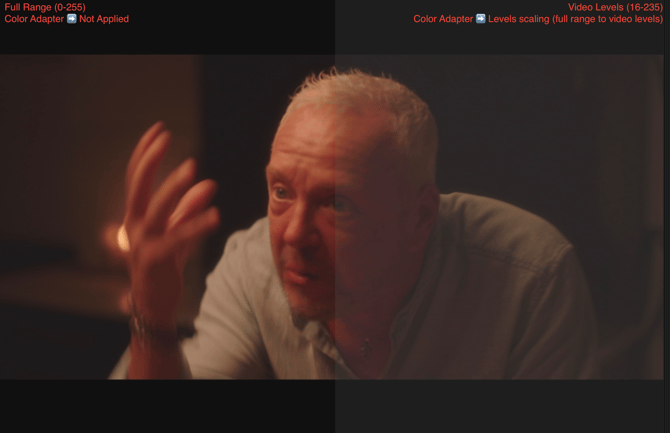
1. Why This Happens
DeepEditor Draft Exports Use DNx HQX
DeepEditor aims to match the input codec from the source media file for vub exports whenever possible. If the input codec isn’t supported or cannot be replicated, the export will default to DNx HQX. DNx HQX has:
-
Higher bit depth
-
A different color-range flag
-
A tendency to be interpreted as Full Range (0-255)
The automatic use of DNx HQX draft-quality vub exports is temporary and already tracked in our development queue.
2. Why Avid Adds a Color Adapter
Most Avid projects are set to:
Color Space: YCbCr 709
When you link/import media, Avid checks the file’s metadata. If a file is flagged Full Range (0-255), Avid automatically applies:
Color Adapter ➡️ Levels scaling (full range to video levels)
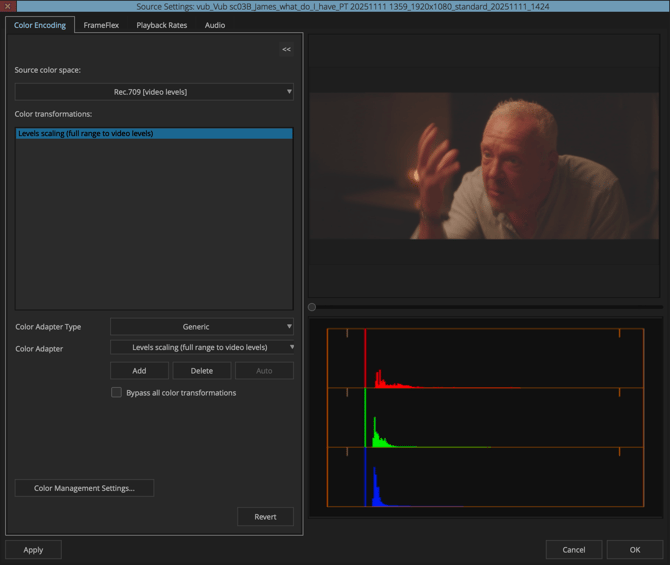
This will take the levels to Video Levels (16-235)
This ensures the clip looks correct in Avid’s YCbCr 709 color protocols, but it’s also why editors may see unexpected contrast differences if the adapter is left in place
3. Recommended Workflow
Step 1: Link/Import the vub export into Avid
Link the exported MXF or MOV into a bin using source browser or option + drag.
Import the file following your Avid media management workflow.
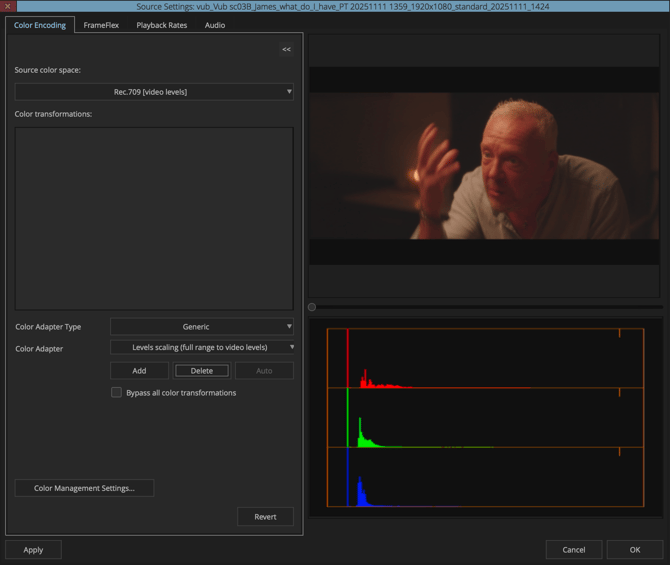
Step 2: Remove the Automatic Color Adapter
-
Right-click the clip → Source Settings
-
Go to the Color Encoding tab
-
Avid will show:
Levels scaling (full range to video levels) -
Delete that transformation
-
Click Apply → OK
Step 3: If the clip is already in the timeline
Right-click the segment → Refresh Color Adapters
(This re-applies the clip’s corrected color metadata.)
Step 4: OR cut it into the sequence
This avoids mass-refreshing the entire timeline.
4. Optional: Disable Automatic Color Adapters
Not required, but available if preferred.
Navigate to:
Settings → User Settings → Color Management
Untick:
“Insert color transformations automatically in the Source Settings upon linking.”
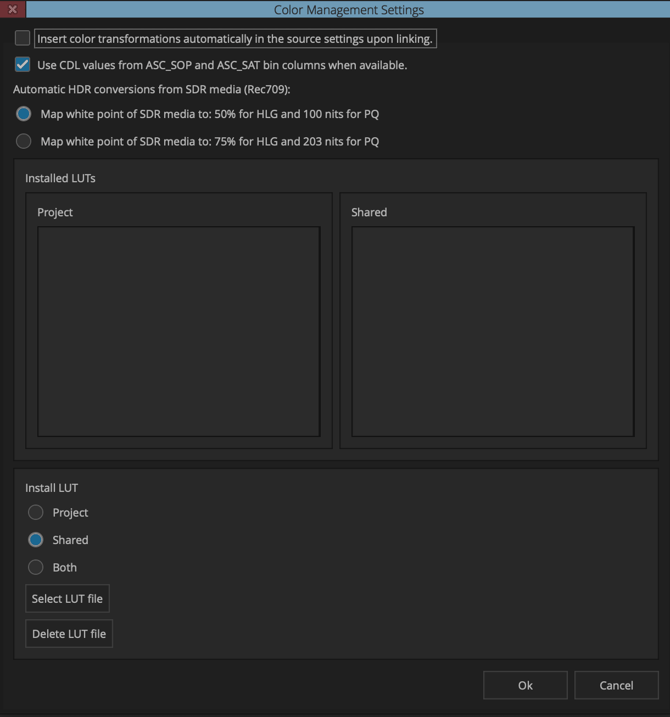
This prevents Avid from auto-applying level scaling in the future.
(We don’t recommend changing workflow-wide settings unless the editorial team is comfortable doing so.)
5. Upcoming Fix
DeepEditor will soon maintain the same DNx flavor as the original source clip (e.g. DNxHD 115 → DNxHD 115). This will prevent:
-
Full-range flag mismatches
-
Unwanted Avid color adapters
-
(occasional) Washed-out video previews
-
Confusion during QC
This change is already logged internally, and your reports help prioritize it.